

Log new Gravity Forms entries to Zoho Sheet
Every new Gravity Forms submission on your WordPress site is appended as a row in a Zoho Sheet worksheet, so the entries sit in a spreadsheet your team can open, sort and share inside Zoho.
 Gravity Forms
 Zoho Sheet
2 steps Setup ~5 min Used on 1.6k sites Free to import
What this workflow does
Gravity Forms stores entries in the WordPress admin, which works for the site owner but not for a colleague who lives in Zoho. Exporting entries by hand gives them a copy that is out of date by the next day. This workflow adds each entry to Zoho Sheet when the form is submitted.
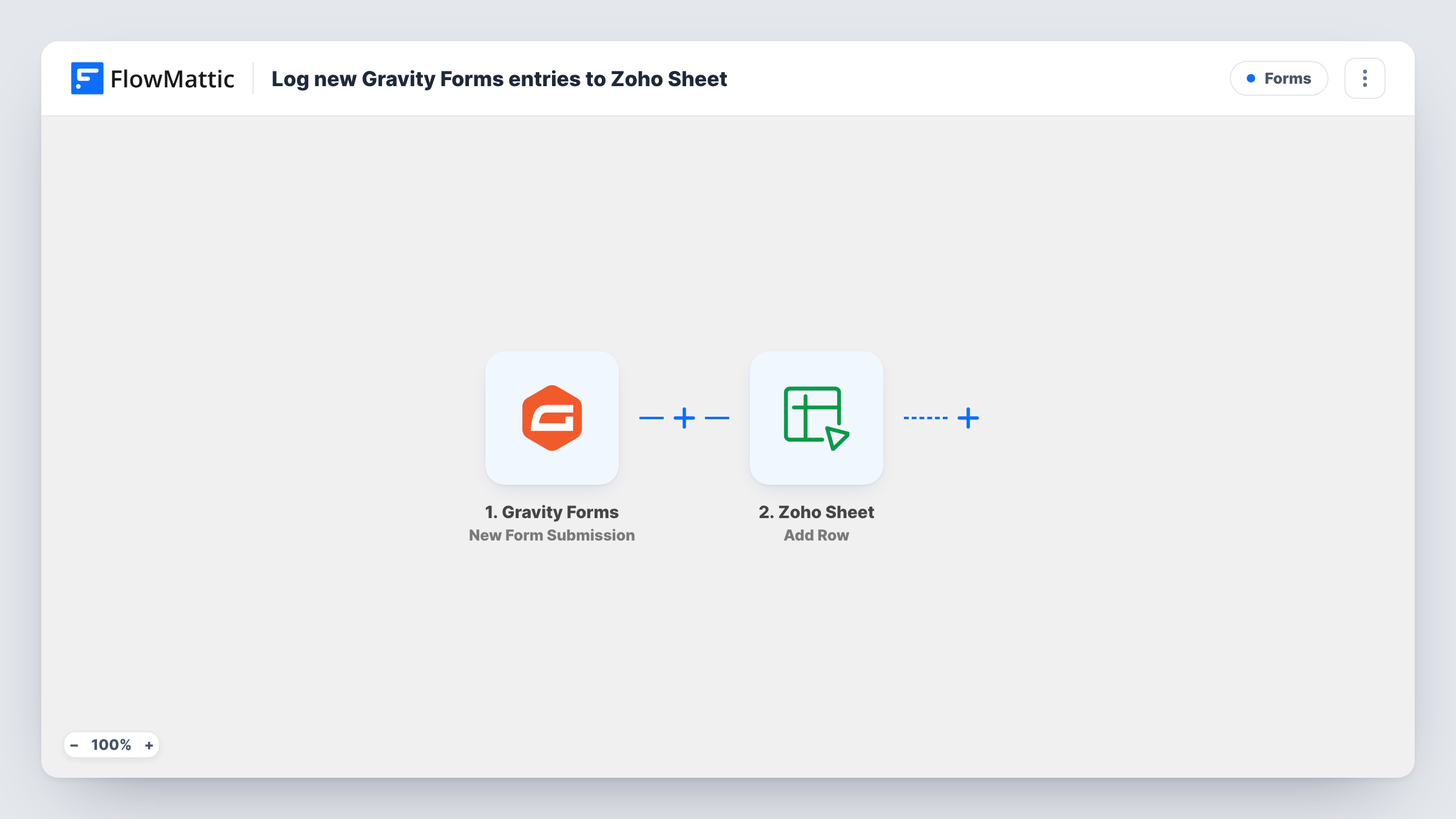
The Gravity Forms trigger fires on a new submission to a form on the site where FlowMattic runs. The submitted fields are passed on as data you can map. The Zoho Sheet step then appends a row to the worksheet you choose, with each column filled from the form field you match to it.
Gravity Forms keeps its own copy of every entry, so the sheet is an extra record rather than a replacement. Each submission adds one row and the step does not look for an existing one, so a person who submits twice appears twice. Entries made before the workflow was switched on stay only in Gravity Forms. Task History records each run, which helps when a row looks wrong.
Event sign-ups for a Zoho-based team
Your events team plans in Zoho. Registrations from a Gravity Forms sign-up page fill a worksheet they use for name badges and catering numbers.
Service enquiries for a small firm
A law or accounting practice takes enquiries through Gravity Forms. The office manager reviews each new row in Zoho Sheet and assigns it to a partner.
Volunteer applications
A charity collects volunteer forms on its WordPress site. Coordinators without a WordPress login read and sort the applications in a shared Zoho Sheet.
How this workflow runs
What happens at each step once the workflow is on, and what you need before you import it.
 Gravity Forms New Form Submission
Runs when someone submits a Gravity Forms form on your site. The answers from that entry are passed on so you can map them into the sheet.
- Zoho Sheet Add Row
Appends a row to the Zoho Sheet worksheet you select. Create column headers first, then match each column to a Gravity Forms field and connect your Zoho account.
What you need
- FlowMatticCore
- Gravity Forms PluginPlugin
- Zoho Sheet AccountAccount
After importing, map your own data. To keep the template universal, not every step is pre-filled. Open each step in the builder and connect your accounts and fields (channels, lists, sheets, recipients) before you switch the workflow on.
Make it yours
Changes worth making after you import it.
- Add a Filter after the Gravity Forms trigger that continues only when a consent field is checked, so the sheet holds entries from people who agreed to be contacted.
- Use a Router with routes for distinct values of a dropdown field, each with its own Zoho Sheet step, to send different enquiry types to different worksheets.
- Submit a test entry after import so FlowMattic captures the form's fields, then map them to the worksheet columns before you turn the workflow on.
Questions about this workflow
Does Gravity Forms still save the entry when it goes to Zoho Sheet?
Yes. The workflow starts after the form is submitted, and Gravity Forms stores the entry as usual. The Zoho Sheet row is an additional copy.
Can I log several Gravity Forms forms to one Zoho Sheet?
Duplicate the workflow for each form and point every copy at the same worksheet. Add a column for the form name so you can tell the rows apart.
What if I add a field to my Gravity Form later?
The new field is not mapped automatically. Add a column in the worksheet, submit a test entry, and map the new field in the Zoho Sheet step.
Are file uploads from Gravity Forms copied into Zoho Sheet?
The sheet receives whatever value you map. For an upload field that is usually the file's link, not the file itself. A test entry shows what Gravity Forms sends.
More Forms workflows
Other ready-to-import templates from the same category.







Import this workflow into your WordPress site
Download the JSON, import it from the Workflows screen and connect your accounts. Every run stays on your server, with no per-task fees.
30-day money-back guarantee Unlimited workflows and runs Self-hosted