

Log new Mixmax email activities in a Google Sheets spreadsheet
Every email activity Mixmax reports, such as a message being sent, opened or received, is added as a new row in Google Sheets, giving you a running log you can sort, filter and chart.
 Mixmax
 Google Sheets
2 steps Setup ~5 min Used on 2.9k sites Free to import
What this workflow does
Mixmax tracks what happens to your emails, but looking at that history across many messages or many reps is easier in a spreadsheet. A sheet lets you count opens per campaign, share numbers with a manager or keep your own record. This workflow writes each Mixmax email activity to Google Sheets as it happens.
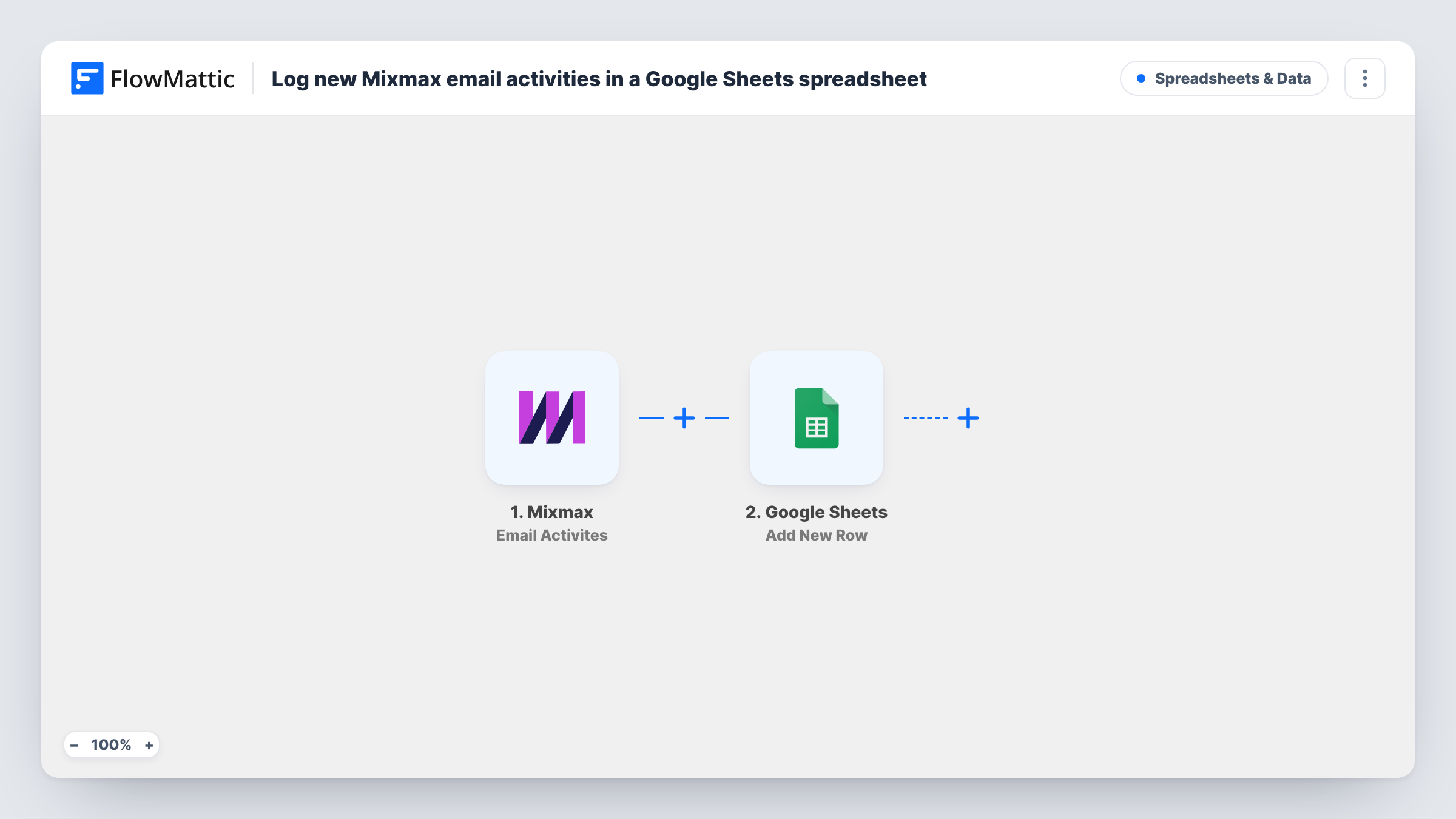
The Mixmax trigger fires for email activities such as an email being opened, sent or received. Each activity is its own run, and its details become values to map. The Google Sheets step runs Add New Row and writes one row per activity to the spreadsheet you pick.
Because the trigger covers several kinds of activity, one email can produce several rows: one when it is sent and more each time it is opened. Map the activity type into its own column so you can sort them apart. Task History records each run with what Mixmax sent.
Sales manager reviewing outreach
Rows for sends and opens across the team land in one sheet, and a pivot table shows which reps' emails are being opened.
Recruiter tracking candidate emails
A recruiter logs every Mixmax activity to see when a candidate opened an offer email and when they replied.
Personal follow-up list
A founder sorts the sheet by recipient to see who opened a pitch more than once and might be worth a call.
How this workflow runs
What happens at each step once the workflow is on, and what you need before you import it.
 Mixmax Email Activites
Fires for Mixmax email activities, such as an email being sent, opened or received. Connect Mixmax; each activity's details are passed to the sheet.
- Google Sheets Add New Row
Adds one row per Mixmax activity to your chosen spreadsheet. Connect Google, pick the sheet and map the activity type, recipient, subject and time to columns, as far as Mixmax sends them.
What you need
- FlowMatticCore
- Mixmax AccountAccount
- Google Sheets AccountAccount
After importing, map your own data. To keep the template universal, not every step is pre-filled. Open each step in the builder and connect your accounts and fields (channels, lists, sheets, recipients) before you switch the workflow on.
Make it yours
Changes worth making after you import it.
- Only care about opens? Add a Filter after the trigger that continues only when the activity type matches the value Mixmax sends for an open.
- Add a column for the activity type even if you log everything, so a filter view in Google Sheets can show sends, opens and received emails separately.
- If the sheet grows quickly, start a fresh tab each month and point the Add New Row step at it, so the log stays fast to open.
Questions about this workflow
Which Mixmax activities create a row?
Every email activity the trigger receives, such as sends, opens and received emails. There is no Filter in the template, so add one to log only certain types.
Will one Mixmax email show up more than once?
Yes, if it has more than one activity. A send and each later open are separate events, and each one adds its own row.
Are earlier Mixmax activities added to Google Sheets?
No. Only activities that happen after you turn the workflow on start a run.
More Spreadsheets & Data workflows
Other ready-to-import templates from the same category.



Import this workflow into your WordPress site
Download the JSON, import it from the Workflows screen and connect your accounts. Every run stays on your server, with no per-task fees.
30-day money-back guarantee Unlimited workflows and runs Self-hosted