

Log new Netcore Cloud campaign events in a Google Sheets spreadsheet
Netcore Cloud campaign events sent to FlowMattic’s webhook are written to Google Sheets one row at a time, giving you a running log of activity you can sort, filter and share.
 Netcore Cloud
 Google Sheets
2 steps Setup ~5 min Used on 1.2k sites Free to import
What this workflow does
Netcore Cloud reports campaign activity inside its own dashboard. When you want that activity next to other data, in a sheet a colleague can open, or kept for longer than you'd like to scroll back through, you need a copy somewhere else. This workflow keeps that copy in Google Sheets.
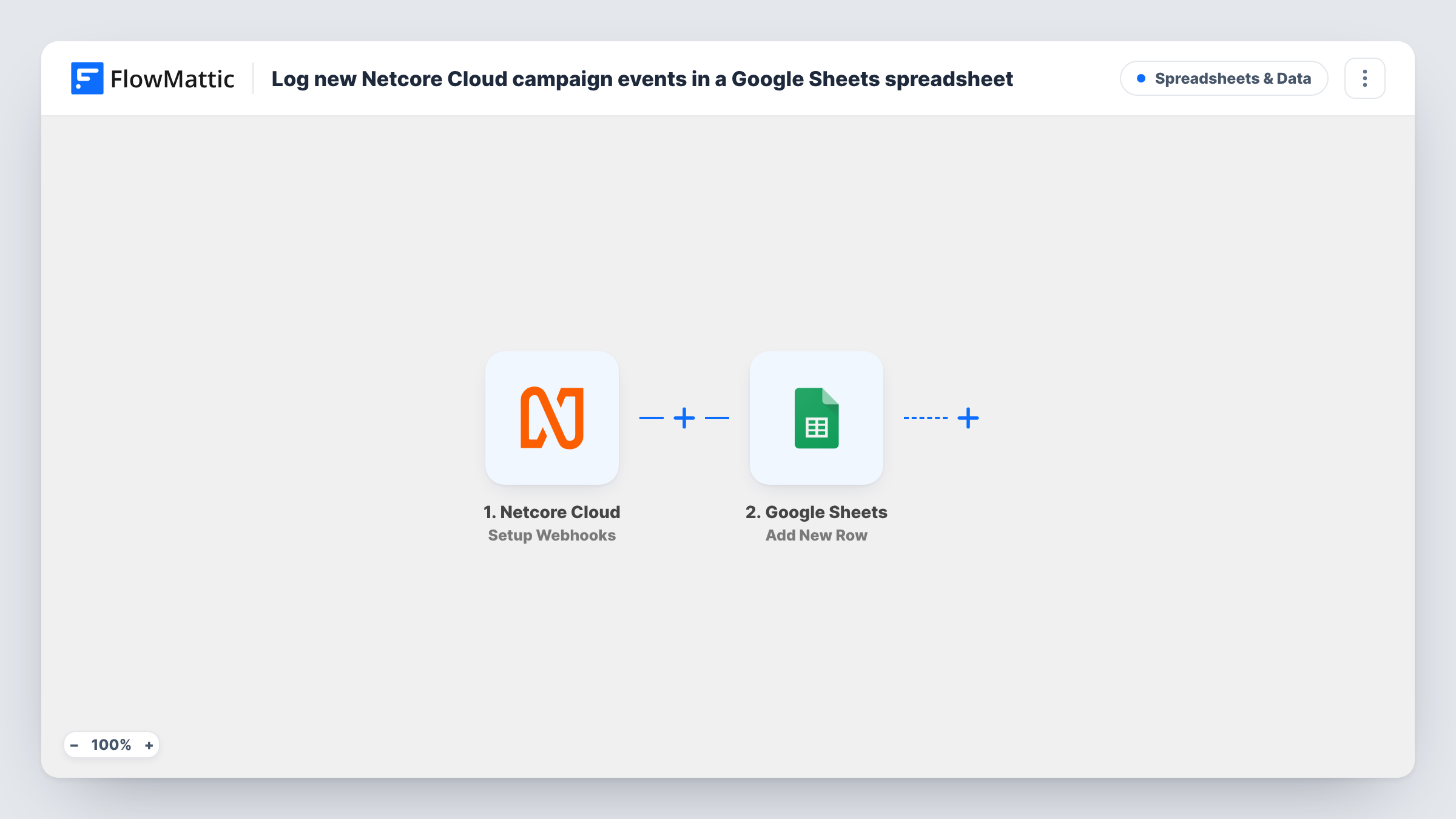
The Netcore Cloud trigger, Setup Webhooks, fires when a response arrives for an event you have specified on the Netcore side. FlowMattic then sends the event data to Google Sheets, and the Add New Row action writes it below the existing rows. You decide which event values go into which column.
Each event Netcore sends becomes its own row, so the sheet grows with your campaigns. Which events reach the sheet depends on what you set Netcore to send. Task History records each run, which helps you check that events are arriving before you build reports on the sheet.
Weekly campaign review in a shared sheet
A marketing manager opens the Google Sheet each Monday to read last week's Netcore events, without needing a Netcore login.
Joining campaign data with sales figures
An analyst keeps Netcore events in one tab and sales in another, then builds lookups that compare campaign activity with orders.
Keeping an export for your own records
A team that wants its own copy of campaign activity keeps a sheet that grows with every event Netcore sends.
How this workflow runs
What happens at each step once the workflow is on, and what you need before you import it.
 Netcore Cloud Setup Webhooks
Runs when Netcore Cloud sends a webhook response for an event you specified. The event data in that response becomes available to map in the next step.
- Google Sheets Add New Row
Writes the Netcore event to a new row at the bottom of your chosen spreadsheet. Connect your Google account and map each column to a value from the event.
What you need
- FlowMatticCore
- Netcore Cloud AccountAccount
- Google Sheets AccountAccount
After importing, map your own data. To keep the template universal, not every step is pre-filled. Open each step in the builder and connect your accounts and fields (channels, lists, sheets, recipients) before you switch the workflow on.
Make it yours
Changes worth making after you import it.
- Add a header row to the sheet before you map the step, with a column for the event type and one for when it happened, so the log is easy to sort.
- Add a Filter after the trigger if Netcore sends more event types than you want logged, and set it to continue only for the ones you need.
- Send one event from Netcore after import so FlowMattic captures a sample, then map the columns from those real values.
Questions about this workflow
Which Netcore Cloud events end up in Google Sheets?
The ones Netcore sends to the webhook. The trigger fires on responses for the events you specify, and every event that arrives becomes a row unless you add a Filter.
Will past Netcore campaign activity be copied to the sheet?
No. Only events Netcore sends after the workflow is turned on are logged. Export older data from Netcore if you need it in the same sheet.
Can a large Netcore campaign fill the spreadsheet?
Each event adds one row, so a big send produces many rows. Log only the event types you need, or start a new sheet per campaign, to keep it manageable.
More Spreadsheets & Data workflows
Other ready-to-import templates from the same category.





Import this workflow into your WordPress site
Download the JSON, import it from the Workflows screen and connect your accounts. Every run stays on your server, with no per-task fees.
30-day money-back guarantee Unlimited workflows and runs Self-hosted