

Log new vPlan cards in a Google Sheets spreadsheet
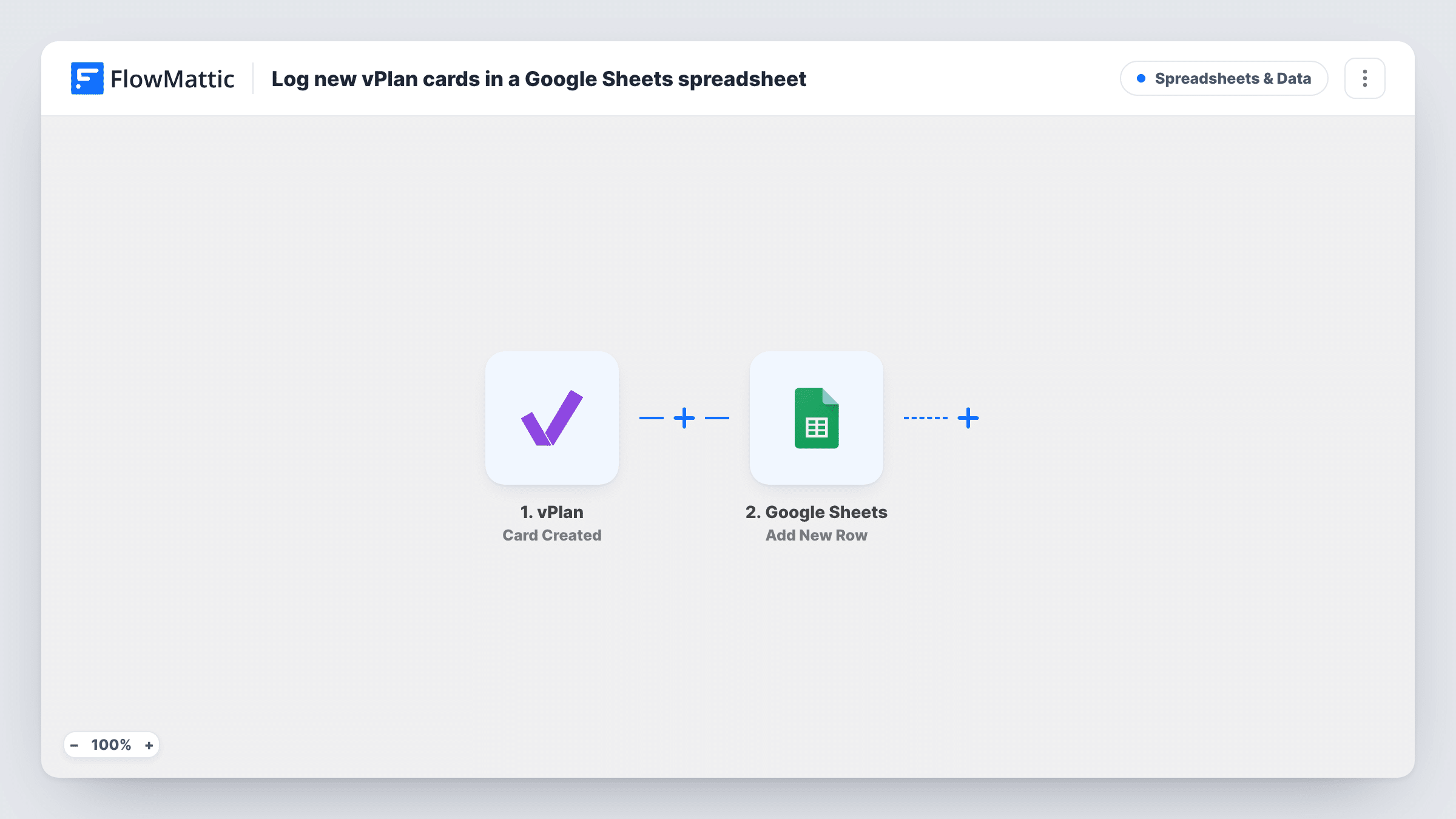
Whenever a card is created in vPlan, this workflow adds a row to a Google Sheets spreadsheet with the card details you map, giving you a running log of planned work you can sort, share and report on.
 vPlan
 Google Sheets
2 steps Setup ~5 min Used on 2.4k sites Free to import
What this workflow does
vPlan is where your team plans work as cards. Reporting on that work, or showing it to someone who doesn't use vPlan, is easier from a spreadsheet. Exporting by hand gives you a snapshot that is out of date by the next day. This workflow keeps a sheet growing as cards are added.
The vPlan trigger fires when a card is created. FlowMattic takes the card data vPlan sends and passes it to Google Sheets, where the Add New Row step writes it into the spreadsheet and worksheet you choose. You decide which card details go into which column.
The sheet records each card as it was when it was created. Later changes in vPlan, such as a new date or a finished card, don't update the row, because the trigger only fires on creation. Treat the sheet as a log of new work, not a live mirror of your plan.
Weekly intake report
An operations lead filters the sheet by date each Monday to see how many vPlan cards were added last week, without opening the planner.
Sharing planned work with a client
A production company shares a Google Sheet with a client, who sees each new vPlan card for their project appear as a row.
Archive of planning history
A team that clears old cards out of vPlan keeps the spreadsheet as a permanent record of every card that was created.
How this workflow runs
What happens at each step once the workflow is on, and what you need before you import it.
 vPlan Card Created
Fires when a new card is created in vPlan. The card data vPlan sends becomes available for mapping, so create a test card after import to see what arrives.
- Google Sheets Add New Row
Appends one row per new vPlan card to your chosen spreadsheet. Connect your Google account, select the sheet, and map the vPlan card details into the columns you set up.
What you need
- FlowMatticCore
- vPlan AccountAccount
- Google Sheets AccountAccount
After importing, map your own data. To keep the template universal, not every step is pre-filled. Open each step in the builder and connect your accounts and fields (channels, lists, sheets, recipients) before you switch the workflow on.
Make it yours
Changes worth making after you import it.
- Set up column headers in the sheet before you map, such as one for the card name, so each vPlan field has an obvious home.
- Add a Filter after the trigger on a value from the vPlan card data if only cards for one board or project belong in this sheet.
Questions about this workflow
Does the row change when I edit the vPlan card?
No. The trigger is Card Created, so only new cards start a run. Edits to a card after it was created don't touch the row.
Are vPlan cards created before I import this added?
No. The sheet only receives cards created after you switch the workflow on.
Can the vPlan log go to a sheet that other people use?
Yes. Any spreadsheet your connected Google account can edit works. Each run appends one row and leaves the rest of the sheet alone.
What if a vPlan card has an empty field?
The matching cell is left blank for that row. The run still adds the row with whatever data the card had.
More Spreadsheets & Data workflows
Other ready-to-import templates from the same category.




Import this workflow into your WordPress site
Download the JSON, import it from the Workflows screen and connect your accounts. Every run stays on your server, with no per-task fees.
30-day money-back guarantee Unlimited workflows and runs Self-hosted