

Log new Worksection projects to a Google Sheets spreadsheet
Each time a project is created in Worksection, this workflow adds a row to the Google Sheets spreadsheet you choose, building a list of projects you can sort, total and share with people outside Worksection.
 Worksection
 Google Sheets
2 steps Setup ~5 min Used on 2.8k sites Free to import
What this workflow does
Worksection is where your team runs projects, but finance, directors or clients often want a plain list of what has been started and when. Rebuilding that list from the project view every month is tedious. This workflow adds each new project to a spreadsheet as it is created.
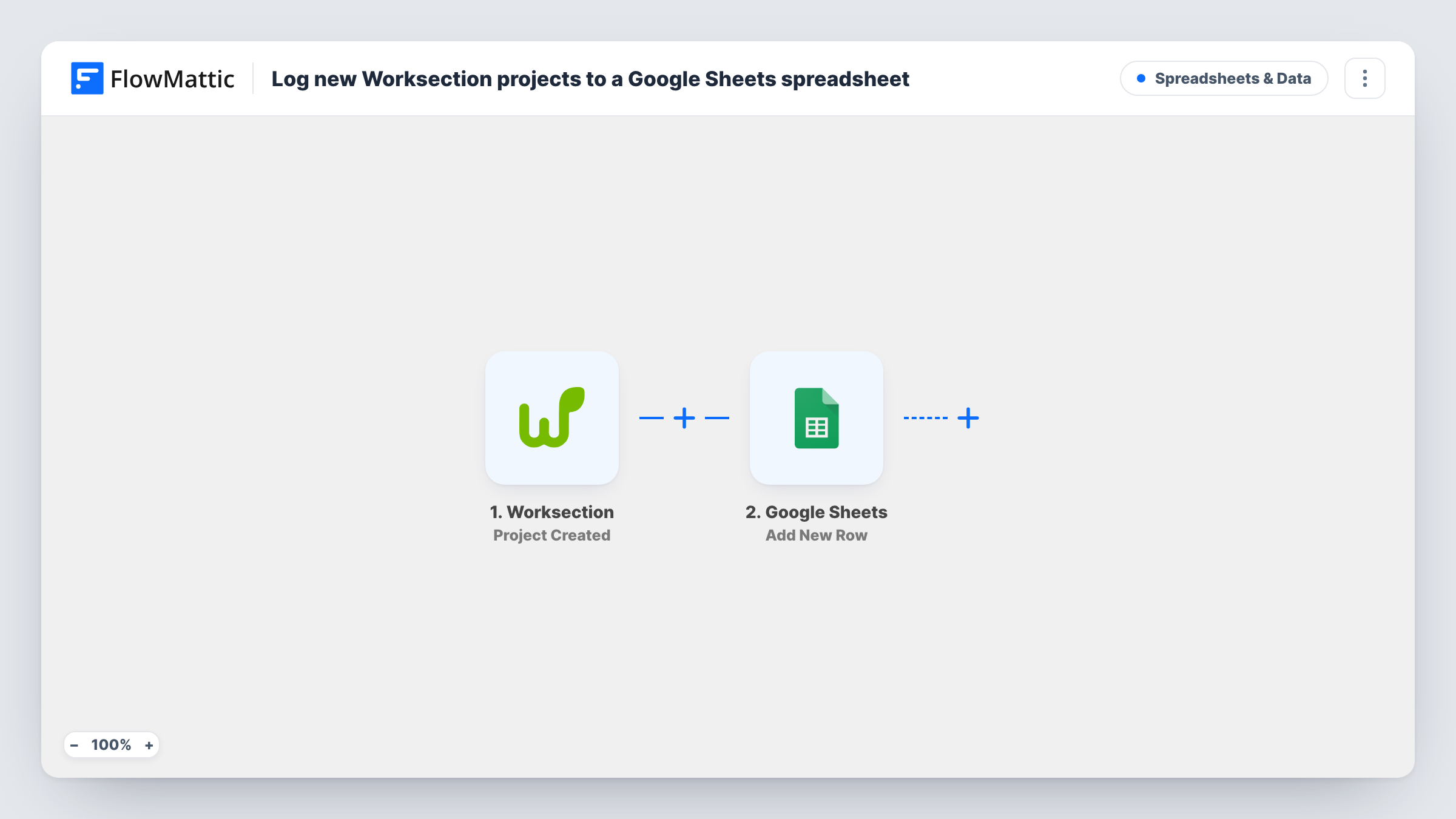
The Worksection trigger fires when a project is created. FlowMattic receives the project data Worksection sends and runs Add New Row in Google Sheets. You map the project's name and any other details Worksection includes, such as its manager or dates, to the columns you want.
The sheet records each project as it was when created. Edits to a project are a separate Worksection trigger, so renaming it or changing its dates later doesn't touch the row. Task History shows every run and the values written.
Agency project register for finance
A design agency opens a Worksection project for each client job. Finance reads the sheet to see which jobs have started and need a deposit invoice.
Portfolio overview for directors
Directors who rarely log into Worksection get a Google Sheet listing every new project, which they filter by manager in the monthly review.
Archiving project start dates
A construction firm keeps a dated record of every project opened in Worksection, separate from the tool, for its own reporting.
How this workflow runs
What happens at each step once the workflow is on, and what you need before you import it.
 Worksection Project Created
Fires when a project is created in Worksection. The project data from the event is passed on so you can place it in sheet columns.
- Google Sheets Add New Row
Adds one row to the Google Sheets worksheet you choose, filled with the Worksection project values you map. Prepare column headers first and connect your Google account on import.
What you need
- FlowMatticCore
- Worksection AccountAccount
- Google Sheets AccountAccount
After importing, map your own data. To keep the template universal, not every step is pre-filled. Open each step in the builder and connect your accounts and fields (channels, lists, sheets, recipients) before you switch the workflow on.
Make it yours
Changes worth making after you import it.
- Create a test project in Worksection after import, then read Task History to see which project fields arrive before mapping the spreadsheet.
- Leave a few columns after the mapped ones for your team's own notes, such as budget or invoice status. FlowMattic writes Worksection data only into the columns you set in the step.
- To log finished work as well, build a second workflow on Worksection's Task Completed trigger that writes to another worksheet.
Questions about this workflow
Does editing a Worksection project update its row?
No. This template only adds rows when projects are created. Changes made later fire Worksection's Project Edited trigger, which isn't part of this workflow.
Are existing Worksection projects added to the spreadsheet?
No. Only projects created after you switch the workflow on are logged. Add older projects to the sheet by hand or from a Worksection export.
Which Worksection project details can I log in Google Sheets?
Whatever the Project Created trigger sends, each mapped to a column you choose. A test project shows you the available fields.
Will tasks inside a Worksection project add rows too?
No. Tasks have their own Worksection triggers. This workflow reacts to new projects only, so each project gives one row.
More Spreadsheets & Data workflows
Other ready-to-import templates from the same category.




Import this workflow into your WordPress site
Download the JSON, import it from the Workflows screen and connect your accounts. Every run stays on your server, with no per-task fees.
30-day money-back guarantee Unlimited workflows and runs Self-hosted