

When a Magic Link is clicked, update a record in Airtable
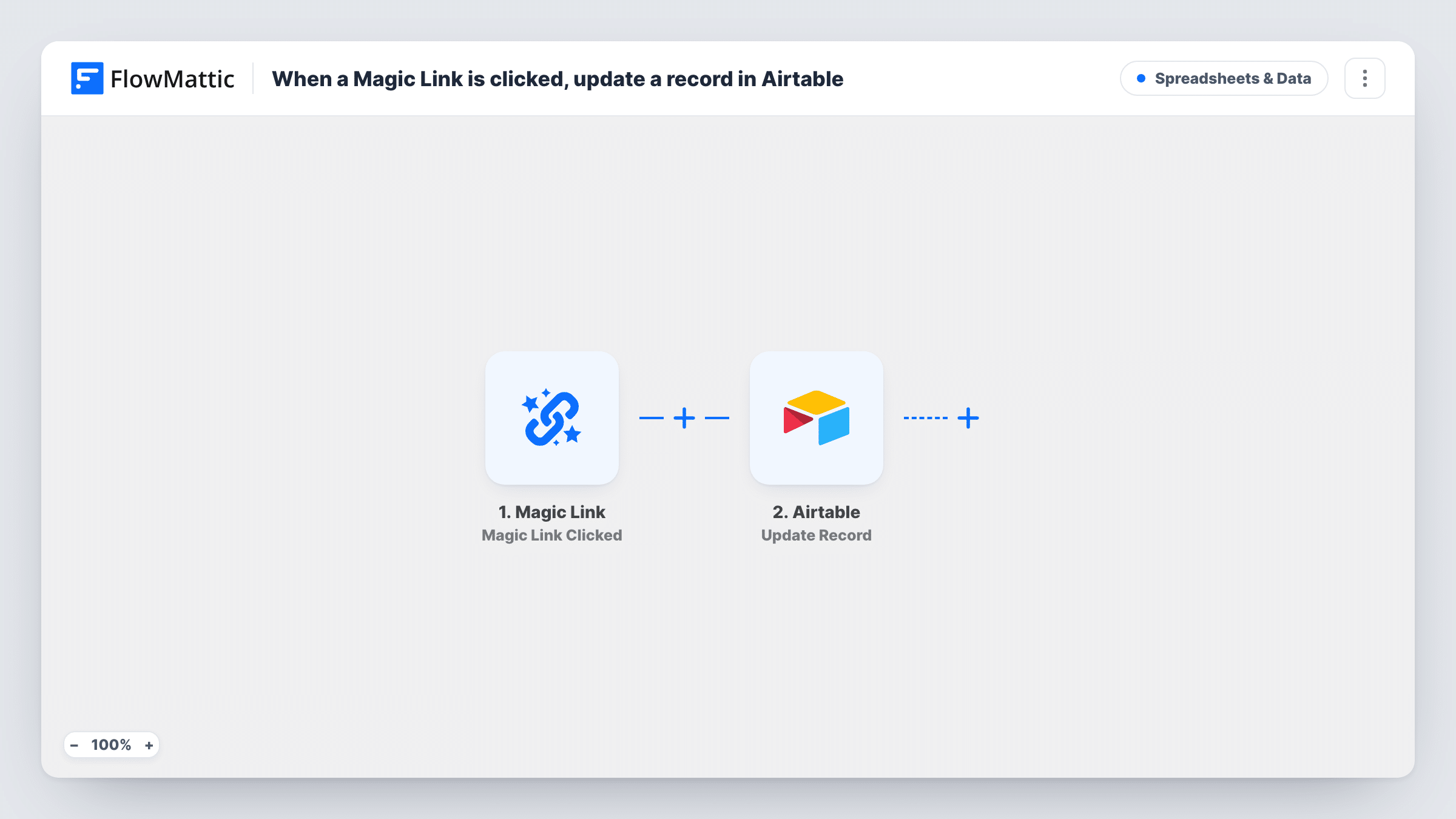
When a visitor clicks a FlowMattic Magic Link on your WordPress site, this workflow updates a record in Airtable, using the record ID and values you put into the link’s shortcode.
 Magic Link
 Airtable
2 steps Setup ~5 min Used on 3.5k sites Free to import
What this workflow does
Sometimes the only input you need from someone is a click: confirm, approve, mark done. A FlowMattic Magic Link gives you that without a form, and this workflow turns the click into a change in Airtable.
The Magic Link is a shortcode you place on a WordPress page. When it is clicked, FlowMattic receives the page URL and ID, any extra attributes you added to the shortcode, and, for a logged-in visitor, their user ID, email and name. The Airtable Update Record step then changes fields on an existing record.
Update Record needs the Airtable record ID, and nothing in the click looks it up. Add the ID as an extra attribute in the shortcode, so each link updates one known record. That suits a page per client or per project. Test with a record you know, then check Task History to confirm the change.
Client approval on a portal page
Each client has a private page with a Magic Link carrying their project's record ID. Clicking Approve sets the status field in Airtable.
Marking a task done from a checklist page
A team checklist page has one link per task, each with that task's record ID, and a click marks the record complete.
Logging who confirmed a document
Logged-in staff click a link under a policy page, and the record for that policy gets the clicker's name written into a field.
How this workflow runs
What happens at each step once the workflow is on, and what you need before you import it.
 Magic Link Magic Link Clicked
Runs when someone clicks the Magic Link shortcode on your site. It sends the page details, any extra shortcode attributes, and the logged-in user's ID, email and name.
- Airtable Update Record
Updates an existing record in the Airtable base and table you choose. Map the record ID from the shortcode attribute you added, then set the fields to change, such as a status.
What you need
- FlowMatticCore
- Airtable AccountAccount
After importing, map your own data. To keep the template universal, not every step is pre-filled. Open each step in the builder and connect your accounts and fields (channels, lists, sheets, recipients) before you switch the workflow on.
Make it yours
Changes worth making after you import it.
- Add the record ID as a custom attribute in the shortcode, for example record_id="recXXXX", then map it into the Update Record step.
- Add a Filter that continues only when the user email is not empty if only logged-in visitors should be able to change the record.
- Set a redirect URL in the shortcode so the visitor lands on a thank-you page after the click instead of staying put.
Questions about this workflow
How does the Magic Link know which Airtable record to update?
Only through data you put in the link. Add the record ID as an extra shortcode attribute, and map it into the Airtable step.
Can I put a Magic Link in an email for this Airtable update?
The Magic Link is a shortcode that works on a page of your WordPress site. You can email people a link to that page, where they click the Magic Link.
What does the workflow know about the person who clicked?
If they are logged in to WordPress, their user ID, email and display name. For visitors who are not logged in, only the page details and your shortcode attributes are sent.
Does clicking the Magic Link twice update the Airtable record twice?
Yes. Each click starts a run, which writes the same values again. That is harmless when you set fixed values like a status.
More Spreadsheets & Data workflows
Other ready-to-import templates from the same category.




Import this workflow into your WordPress site
Download the JSON, import it from the Workflows screen and connect your accounts. Every run stays on your server, with no per-task fees.
30-day money-back guarantee Unlimited workflows and runs Self-hosted