

Make Creatomate videos from new Airtable records and store them in Airtable
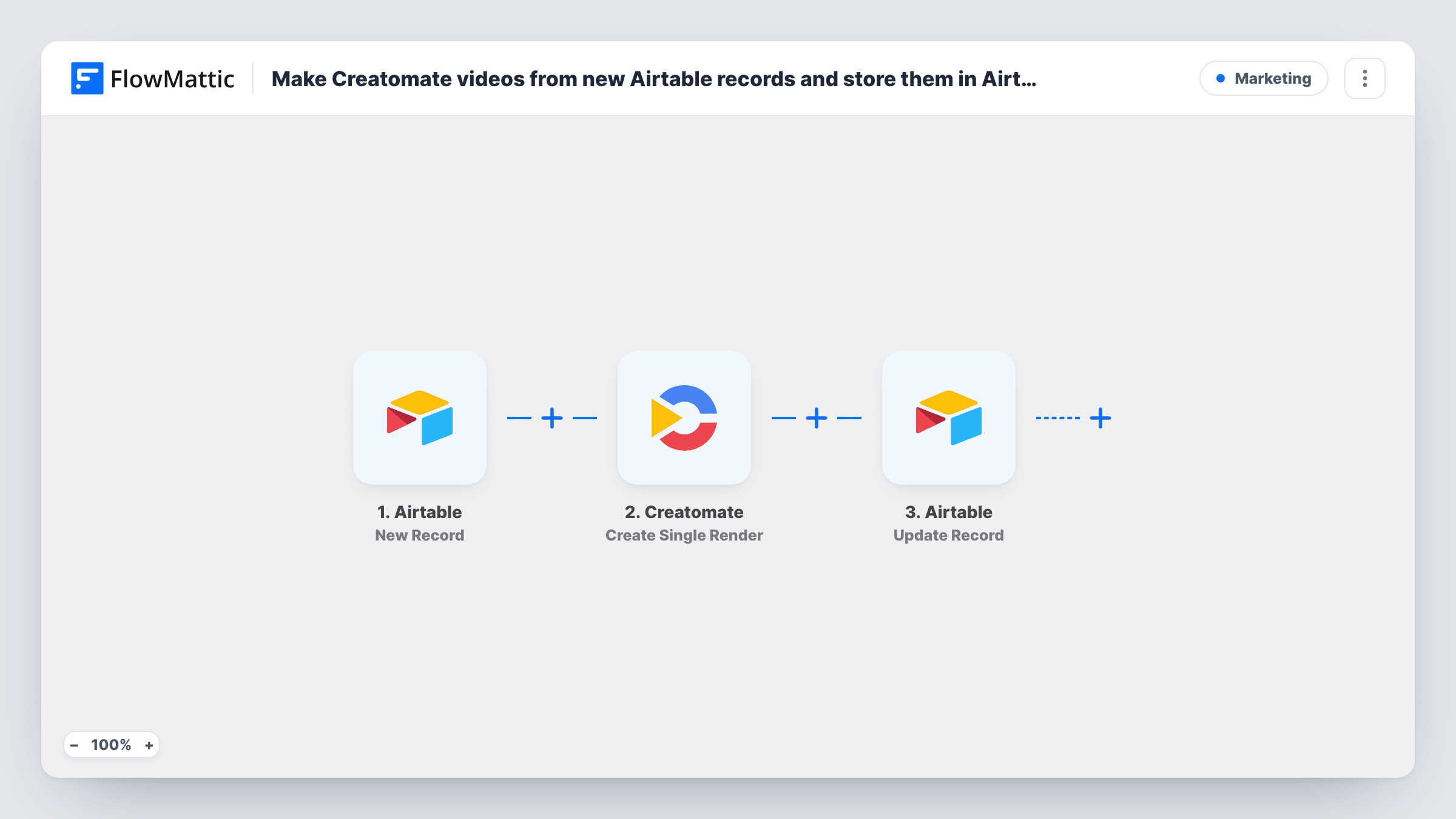
Each new record in your Airtable base starts a Creatomate render built from its fields, and the render details Creatomate returns are written back into the same Airtable record.
 Airtable
 Creatomate
3 steps Setup ~5 min Used on 3.0k sites Free to import
What this workflow does
Personalised videos, product clips and social graphics often share one design with different text and images. If those details already live in Airtable, rendering each version by hand is slow. This workflow sends every new record to Creatomate and keeps the result next to the data that made it.
The Airtable trigger is New Record, which fires when a new record is created in the table you connect. Its fields go to Creatomate, where Create Single Render creates one video, image or GIF from your template, using the values you map. The last step is Airtable's Update Record. Because the trigger came from Airtable, the record's own ID is available, so the step updates that exact record with what Creatomate returned, such as the render's link.
Creatomate's response arrives when the render is requested, so open a written link after a test run to confirm the file is ready before you share it. Task History keeps each run's data for checking.
Personalised welcome videos
Each new customer record with a first name and a photo link becomes a short video, and its link is saved on the customer's record.
Product clips for an online shop
Adding a product record with its title, price and image starts a Creatomate render, and the result is stored with the product.
Weekly social graphics
A content team adds one record per quote or statistic, and each gets a branded image or GIF linked back in Airtable.
How this workflow runs
What happens at each step once the workflow is on, and what you need before you import it.
 Airtable New Record
Starts whenever a record is created in the Airtable table you pick. The record's ID and fields are handed to the next two steps. Link Airtable while importing.
- Creatomate Create Single Render
Asks Creatomate to create one video, image or GIF. Choose your template and map the Airtable fields into it, then connect Creatomate. The render details it returns can be used in the next step.
- Airtable Update Record
Updates the record that started the run, using its Airtable ID from the trigger. Map the render details from Creatomate, such as its link, into a column of that record.
What you need
- FlowMatticCore
- Airtable AccountAccount
- Creatomate AccountAccount
After importing, map your own data. To keep the template universal, not every step is pre-filled. Open each step in the builder and connect your accounts and fields (channels, lists, sheets, recipients) before you switch the workflow on.
Make it yours
Changes worth making after you import it.
- Add a Delay after Creatomate and a Get Single Render step, which retrieves render details by ID, before Update Record if you want Airtable to hold the details from a later check.
- Add a Filter after the trigger that continues only when the fields your template needs are filled, so half-made records don't start a render.
- Add an empty column for the render link to your Airtable table before you test, then map Creatomate's link into it in the Update Record step.
Questions about this workflow
Does updating the Airtable record start another Creatomate render?
No. The trigger fires on new records, so the Update Record step at the end does not start a new run.
Which Airtable fields can go into the Creatomate render?
Any field in the new record. Map each one to the part of your Creatomate template it should fill, after a test record has come through.
Is the Creatomate video ready when the link is saved in Airtable?
Not always. The link is written as soon as Creatomate responds to the render request. Open it after a test run, or add a Delay and Get Single Render step before the update.
Can one Airtable record make several Creatomate versions?
Not as imported; this template uses Create Single Render. Creatomate also offers Create Multiple Renders, which you could swap in and map instead.
More Marketing workflows
Other ready-to-import templates from the same category.







Import this workflow into your WordPress site
Download the JSON, import it from the Workflows screen and connect your accounts. Every run stays on your server, with no per-task fees.
30-day money-back guarantee Unlimited workflows and runs Self-hosted