

Mirror Flock messages into a Slack channel
Messages that reach the Flock trigger are posted to a Slack channel you pick, so a team that works in Slack can read what is said in Flock without opening a second chat app.
 Flock
 Slack
2 steps Setup ~5 min Used on 615 sites Free to import
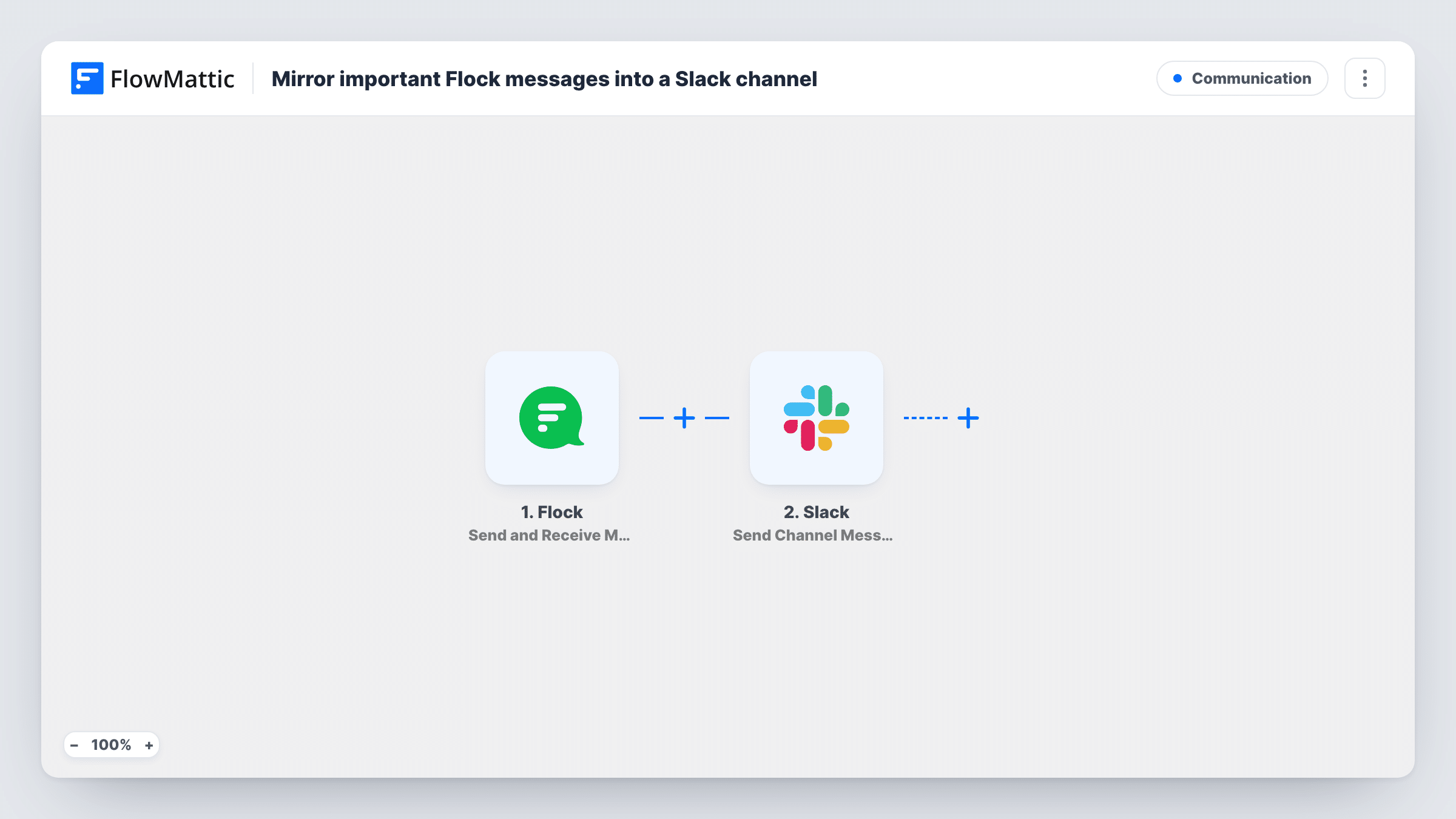
What this workflow does
Some companies end up with two chat tools: one team lives in Flock, another in Slack, and updates get retyped or lost between them. This workflow copies Flock messages into a Slack channel, so the Slack side can follow along without joining Flock.
The Flock trigger is Send and Receive Messages. FlowMattic describes it as firing when messages are sent and received from external services as JSON packets, so it receives message data from Flock rather than reading your chats on its own. Which conversations reach it depends on how you connect Flock during setup, so send a test message after import and look at what arrives.
The second step uses Slack to send a channel message. The template leaves it unmapped: after import you connect your Slack workspace, choose the channel and build the message from the Flock values, such as the text and the sender's name your test run shows.
There is no condition between the two steps, so every message the trigger receives becomes one Slack post. That suits a low-traffic Flock channel or an announcements feed. For a busy chat, add a keyword check before the Slack step. Task History lists each run and what Slack returned.
Two teams, two chat tools
After a merger, the support team keeps using Flock while engineering stays on Slack. Messages from the support team's Flock feed appear in an engineering Slack channel, so escalations are visible on both sides.
Announcements copied to Slack
Office notices posted through Flock are repeated in a Slack #general-style channel for contractors who only have Slack accounts.
Moving from Flock to Slack in stages
While a company switches tools, people who have already moved to Slack still see what is said in the Flock conversation that is connected to the trigger.
How this workflow runs
What happens at each step once the workflow is on, and what you need before you import it.
 Flock Send and Receive Messages
Starts a run each time a message reaches the Flock Send and Receive Messages trigger. The message data is passed on to Slack. Send a test message after import to see which values you can map.
- Slack Send Channel Message
Sends one Slack post per message into the channel you set. The step ships unmapped: connect Slack, pick the channel and write the message, mapping the Flock text and sender from the trigger.
What you need
- FlowMatticCore
- Flock AccountAccount
- Slack AccountAccount
After importing, map your own data. To keep the template universal, not every step is pre-filled. Open each step in the builder and connect your accounts and fields (channels, lists, sheets, recipients) before you switch the workflow on.
Make it yours
Changes worth making after you import it.
- To mirror only some messages, put a Filter between the Flock trigger and the Slack step, for example continuing only when the message text contains a word like urgent. The check ignores upper and lower case.
- Start the Slack message with the sender's name from the Flock data, so readers in Slack can tell who wrote each line.
- For a private Slack channel, use FlowMattic's Send Private Channel Message action for Slack instead of Send Channel Message. To reach a single person, Send Direct Message is the action to pick.
Questions about this workflow
Which Flock messages end up in Slack?
All messages that the Flock trigger receives are posted. What it receives depends on how you connect Flock, so send a test message from the conversation you want mirrored and check Task History.
Do Slack replies come back into Flock?
No. This workflow only runs one way, from Flock to Slack. Replies written in Slack stay in Slack.
Can I post the Flock messages to more than one Slack channel?
Yes. Add a second Send Channel Message step after the first one and pick another channel. Both steps run for every message.
Are older Flock messages copied over when I turn this on?
No. Only messages the trigger receives after the workflow is active create Slack posts.
More Communication workflows
Other ready-to-import templates from the same category.






Import this workflow into your WordPress site
Download the JSON, import it from the Workflows screen and connect your accounts. Every run stays on your server, with no per-task fees.
30-day money-back guarantee Unlimited workflows and runs Self-hosted