

Send a Twilio SMS welcome message to each new AiWifi guest
When a guest connects to your AiWifi captive portal, this workflow sends them a welcome SMS through your Twilio number, so visitors to your venue get a message from you as soon as they are online.
 AiWifi
 Twilio
2 steps Setup ~5 min Used on 2.2k sites Free to import
What this workflow does
Guest WiFi is often the first digital contact a venue has with a visitor. Cafes, hotels, gyms and shops collect phone numbers at the login page, then do nothing with them until a monthly export. This workflow greets each guest by text message right after they connect.
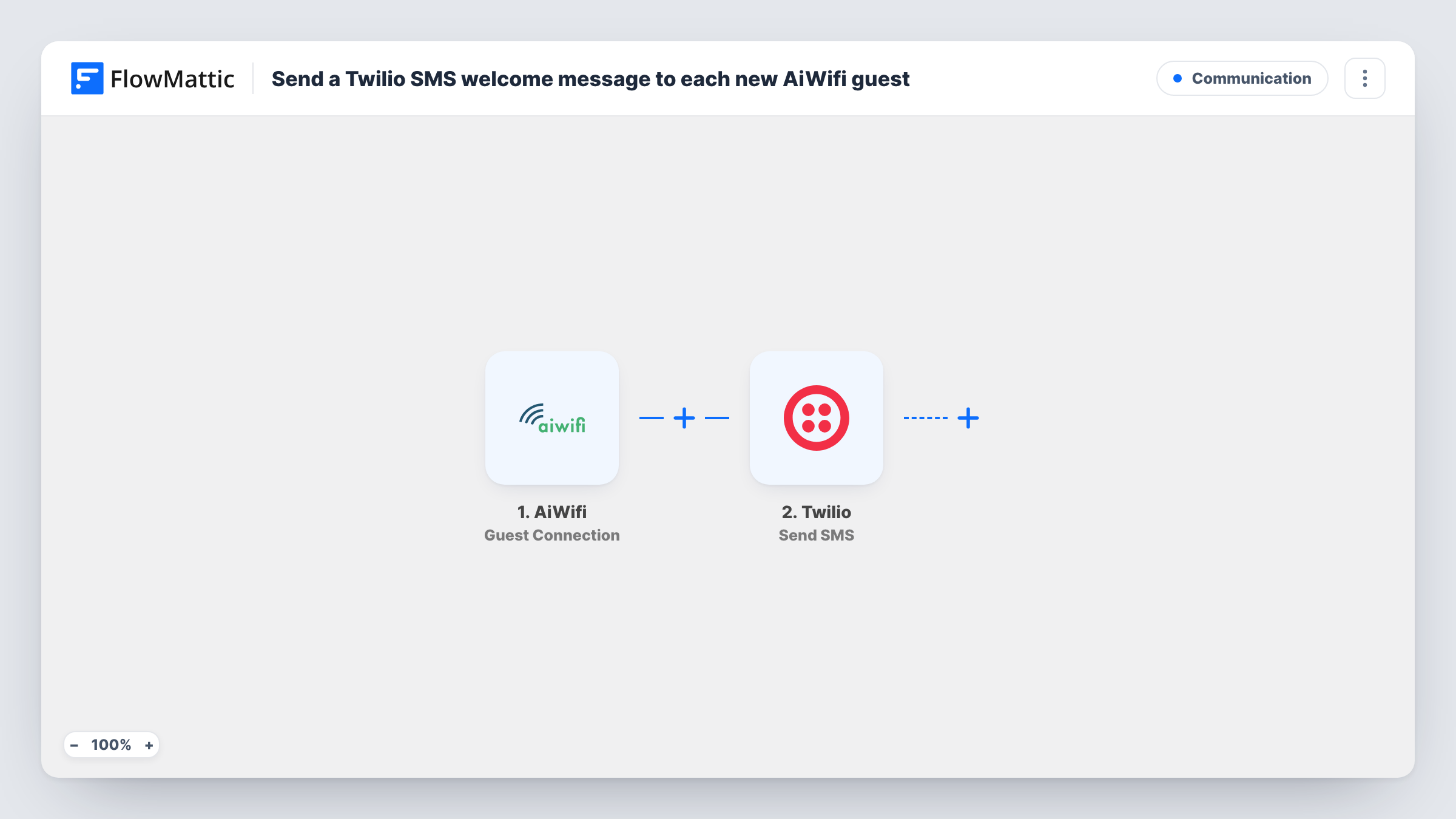
The AiWifi trigger, Guest Connection, starts a run whenever someone new logs in through your AiWifi captive portal. The details the guest gave at login, such as a name or phone number if your portal asks for them, become values you can map.
The Twilio step sends an SMS from your Twilio number. Map the guest's phone number as the recipient and write the welcome text, for example your WiFi rules, today's offer or a link to your menu. A guest who logs in without giving a phone number leaves the step with no recipient, and Task History shows the error for that run. Make sure your portal collects consent to receive texts before you switch this on.
Cafe welcome with a menu link
A guest joins the cafe WiFi and gets a text with a link to the menu and a note about ordering at the counter.
Hotel lobby information
Guests who connect in the lobby receive a text with breakfast times and the front desk number, mapped from your welcome message.
Gym or co-working check-in
Members connecting at the front door get an SMS with the day's class schedule or community events.
How this workflow runs
What happens at each step once the workflow is on, and what you need before you import it.
 AiWifi Guest Connection
Runs once a new guest gets online through the AiWifi login page. Whatever the guest entered at login is passed on so you can map it into the SMS.
- Twilio Send SMS
Sends a text message to the guest from your Twilio number. Map the phone number captured by AiWifi as the recipient and write the welcome message.
What you need
- FlowMatticCore
- AiWifi AccountAccount
- Twilio AccountAccount
After importing, map your own data. To keep the template universal, not every step is pre-filled. Open each step in the builder and connect your accounts and fields (channels, lists, sheets, recipients) before you switch the workflow on.
Make it yours
Changes worth making after you import it.
- If your AiWifi login page lets you require a phone number, turn that on, so every connection gives Twilio a number to text.
- Add a Filter after the trigger that continues only when the guest ticked your marketing consent box, if your portal asks for one.
- Connect to the portal yourself after import, with your own phone number, so FlowMattic captures real login data and you can read the SMS as a guest would.
Questions about this workflow
Does the AiWifi guest need to give a phone number?
Yes. The Twilio step texts the number captured at login. If the portal does not collect one, or the guest leaves it blank, no SMS can be sent for that run.
Will a returning guest get the welcome SMS again?
If AiWifi reports their connection as a new guest connection, the workflow runs again and sends another text. Test with a second login to see how your portal behaves.
Which number does the AiWifi welcome text come from?
From the Twilio phone number you set in the Send SMS step, using the Twilio account you connect.
Can the welcome go by email instead of SMS?
Yes. If your portal collects email addresses, swap the Twilio step for an email action in FlowMattic and map the guest's email as the recipient.
More Communication workflows
Other ready-to-import templates from the same category.





Import this workflow into your WordPress site
Download the JSON, import it from the Workflows screen and connect your accounts. Every run stays on your server, with no per-task fees.
30-day money-back guarantee Unlimited workflows and runs Self-hosted