

Notify team on Slack about movements in TradingView
When one of your TradingView alerts fires, this workflow posts it to a Slack channel, so everyone on your trading or research team sees the same price or indicator move in one shared place.
 Tradingview
 Slack
2 steps Setup ~5 min Used on 763 sites Free to import
What this workflow does
TradingView alerts usually reach one person, on one device. When a group follows the same markets, that means forwarding screenshots or messages by hand. This workflow sends each alert straight into a Slack channel the whole team reads.
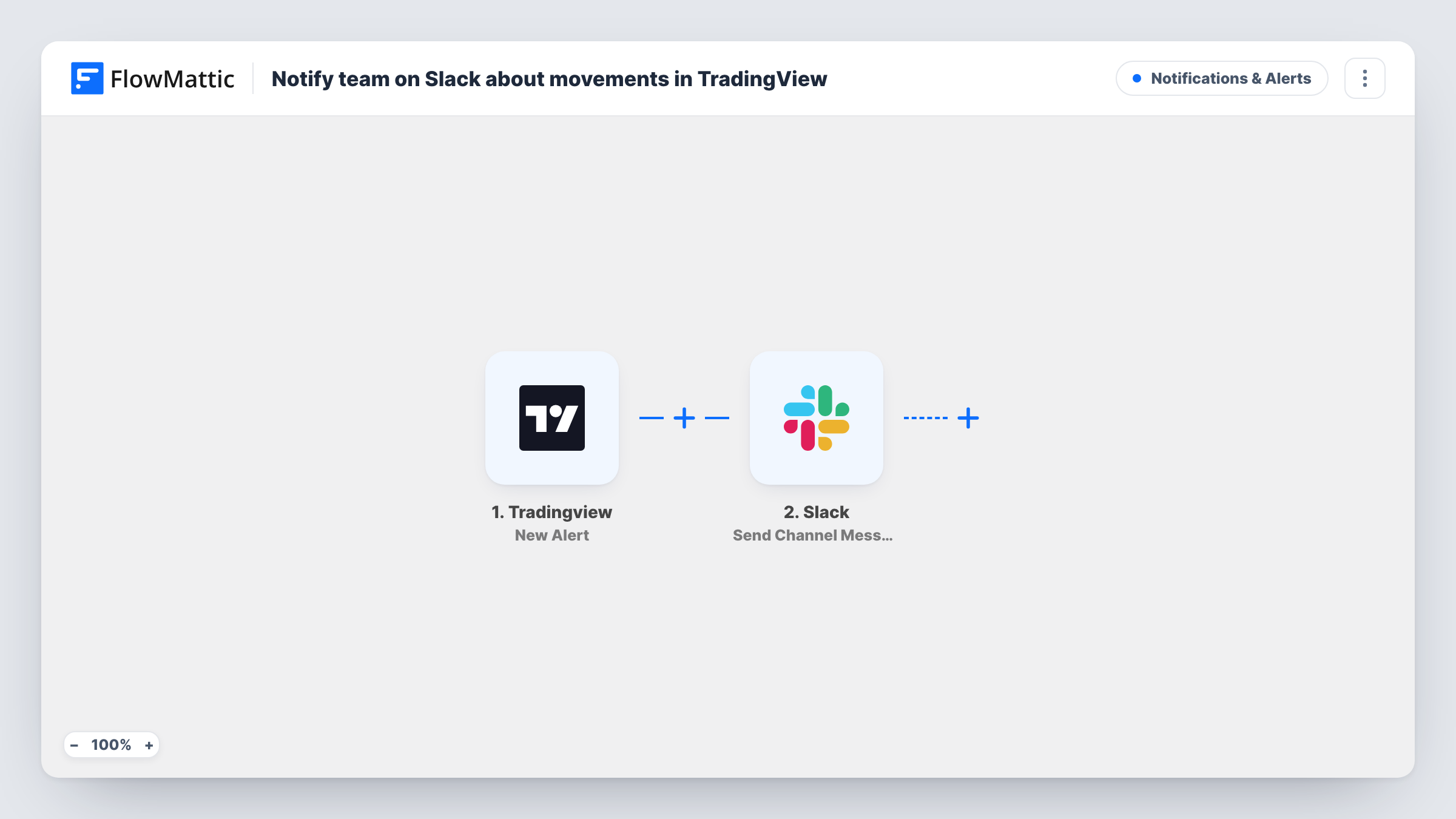
The TradingView New Alert trigger fires each time an alert event comes in from TradingView. FlowMattic takes the data in that alert and passes it to the Slack Send Channel Message action, which posts to the channel you choose. You decide the wording and where the alert's values sit in the post.
What the post can show depends on what your TradingView alert sends. Put the details you want, such as the symbol and price, into the alert's message in TradingView, then map them in the Slack step. Every alert produces one post, so a busy alert setup means a busy channel. The workflow only relays alerts; it does not place trades or change anything in TradingView. Task History keeps a record of each alert received and the post sent.
Shared watchlist for a trading desk
A small team sets alerts on the symbols they cover, and every alert lands in one Slack channel where they discuss what to do next.
Trading education community
An instructor's TradingView alerts post to a Slack channel for students, who see the setups as they trigger.
Research log
An analyst keeps a quiet Slack channel of alerts as a dated record of when each level or indicator condition was hit.
How this workflow runs
What happens at each step once the workflow is on, and what you need before you import it.
 Tradingview New Alert
Fires when a new alert event comes in from TradingView. The alert's contents are passed to FlowMattic so you can place them in the Slack message.
- Slack Send Channel Message
Posts a message to the Slack channel you pick, built from your own text and the TradingView alert values you map in. Trigger a test alert to see the result.
What you need
- FlowMatticCore
- TradingView AccountAccount
- Slack AccountAccount
After importing, map your own data. To keep the template universal, not every step is pre-filled. Open each step in the builder and connect your accounts and fields (channels, lists, sheets, recipients) before you switch the workflow on.
Make it yours
Changes worth making after you import it.
- Write a clear message in the TradingView alert itself, with the details you want in Slack, so there is useful data to map in the Slack step.
- Add a Filter after the trigger if only some alerts should reach this channel, for example ones whose message contains a particular symbol.
- Use a Router with routes on distinct symbols to send each market's alerts to its own Slack channel, each route ending in a Send Channel Message step.
Questions about this workflow
Can the TradingView workflow place trades from Slack?
No. It posts the alert to Slack and nothing else. Any trade is still placed by a person in your broker or trading platform.
What will the Slack post show from the TradingView alert?
Whatever the alert sends. Fire a test alert after import, then open the Slack step to see the captured values and arrange them in the message.
Will every TradingView alert post to Slack?
Yes, as imported. Each alert that reaches the trigger produces one post. Add a Filter if you want only some of them in the channel.
More Notifications & Alerts workflows
Other ready-to-import templates from the same category.





Import this workflow into your WordPress site
Download the JSON, import it from the Workflows screen and connect your accounts. Every run stays on your server, with no per-task fees.
30-day money-back guarantee Unlimited workflows and runs Self-hosted