

Parse supplier quote emails and add data to Airtable for tracking
Supplier quote emails sent or forwarded to your FlowMattic email parser address become records in an Airtable table, so purchasing can compare and follow up on quotes in one place.
 Email Parser by FlowMattic
 Airtable
2 steps Setup ~5 min Used on 2.7k sites Free to import
What this workflow does
Quotes from suppliers tend to sit in different inboxes, mixed in with everything else. When it is time to compare prices or chase a supplier, someone has to search for the right thread. This workflow gives each quote email a record in Airtable as it arrives, where you can sort, add a status and compare quotes side by side.
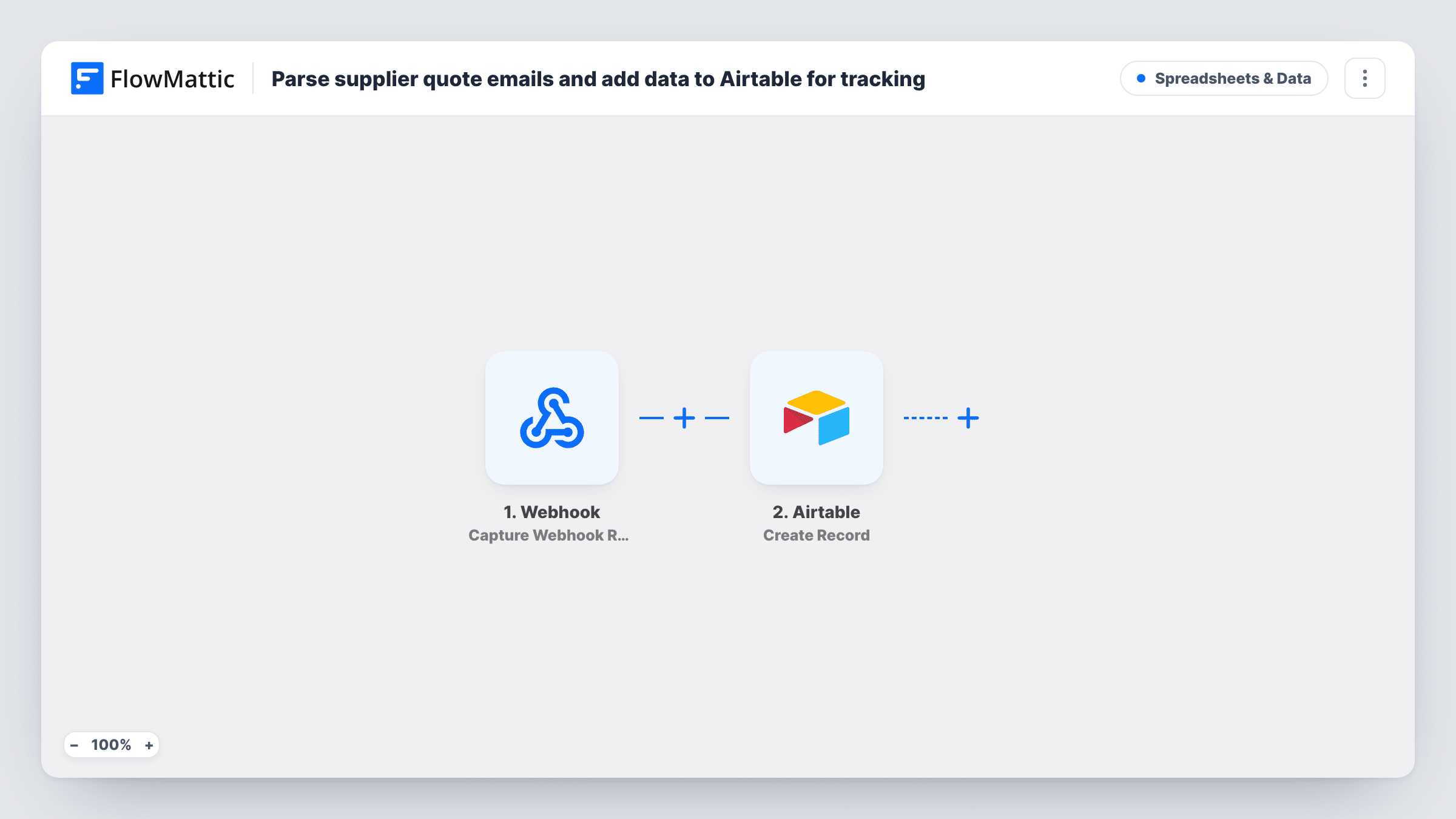
The Email Parser by FlowMattic trigger gives you an email address of its own. Each email that reaches it starts a run, and the email's contents, such as the sender, subject and body, are passed on. Ask suppliers to send quotes to that address, or forward them there yourself. Every email that arrives at it is treated as a quote, so keep the address for quotes only.
The Airtable Create Record step then adds a record to the base and table you choose. It ships unmapped: after import you match the email fields to your columns, for example sender to Supplier and subject to Quote reference.
The workflow doesn't pick out prices or line items from the email body by itself. If your suppliers use a consistent format, add a Text Formatter step between the trigger and Airtable to pull out values such as the total. Check a test email in Task History to see exactly what arrives.
Comparing quotes for a purchase
A facilities manager collects three suppliers' quotes for new office chairs in Airtable and sorts them before choosing one.
Chasing quotes that never arrived
A buyer adds a Requested status for each supplier in Airtable and spots which ones are missing once the quote records come in.
A history of supplier pricing
A small manufacturer keeps every raw-material quote as a record, and reviews last year's quotes before negotiating new prices.
How this workflow runs
What happens at each step once the workflow is on, and what you need before you import it.
 Email Parser by FlowMattic Email Received
Fires when an email reaches your FlowMattic email parser address. The sender, subject, body and other email details are passed on for mapping.
- Airtable Create Record
Adds one record to the Airtable table you pick for each email. The template leaves the columns unmapped, so match the email details to your fields after import.
What you need
- FlowMatticCore
- Airtable AccountAccount
After importing, map your own data. To keep the template universal, not every step is pre-filled. Open each step in the builder and connect your accounts and fields (channels, lists, sheets, recipients) before you switch the workflow on.
Make it yours
Changes worth making after you import it.
- Add a Text Formatter by FlowMattic step with Text Between between the trigger and the Airtable step to pull a value such as the quote total out of the email body, then map that result into its own column.
- Put a Filter between the Email Parser trigger and the Airtable step that continues only when the subject contains Quote, so other mail that reaches the address doesn't become a record.
- Add a Status column in Airtable with options like New, Reviewed and Accepted, and set new quote records to New by default.
Questions about this workflow
Does the workflow read prices out of the quote email?
Not as imported. The trigger passes the email's sender, subject and body, and the Airtable record holds what you map. To capture a price, add a Text Formatter step between the trigger and Airtable.
How do supplier quotes reach the Email Parser address?
Suppliers can send to the parser address directly, or you can forward quotes to it from your own inbox. Each email that arrives there starts one run.
What if a supplier sends the same quote twice?
Each email creates its own Airtable record, so you would see two. Review duplicates in Airtable, or search the table for the subject before you act on a quote.
Are attachments like PDF quotes saved to Airtable?
Not in this template. Only the email details you map are written to the record. Check a test email in Task History to see what the trigger provides about attachments.
More Spreadsheets & Data workflows
Other ready-to-import templates from the same category.



Import this workflow into your WordPress site
Download the JSON, import it from the Workflows screen and connect your accounts. Every run stays on your server, with no per-task fees.
30-day money-back guarantee Unlimited workflows and runs Self-hosted