

Post a Discord message when a new FullStory note is created
When someone on your team creates a note in FullStory, this workflow posts it to a Discord channel, so observations from session replays reach the people who chat in Discord without anyone copying them over.
 FullStory
 Discord
2 steps Setup ~5 min Used on 970 sites Free to import
What this workflow does
Notes in FullStory capture what someone saw while watching a session: a confusing form, a broken button, a user who gave up at a certain step. Those notes stay in FullStory unless someone shares them. If your product or community team works in Discord, this workflow passes each new note along.
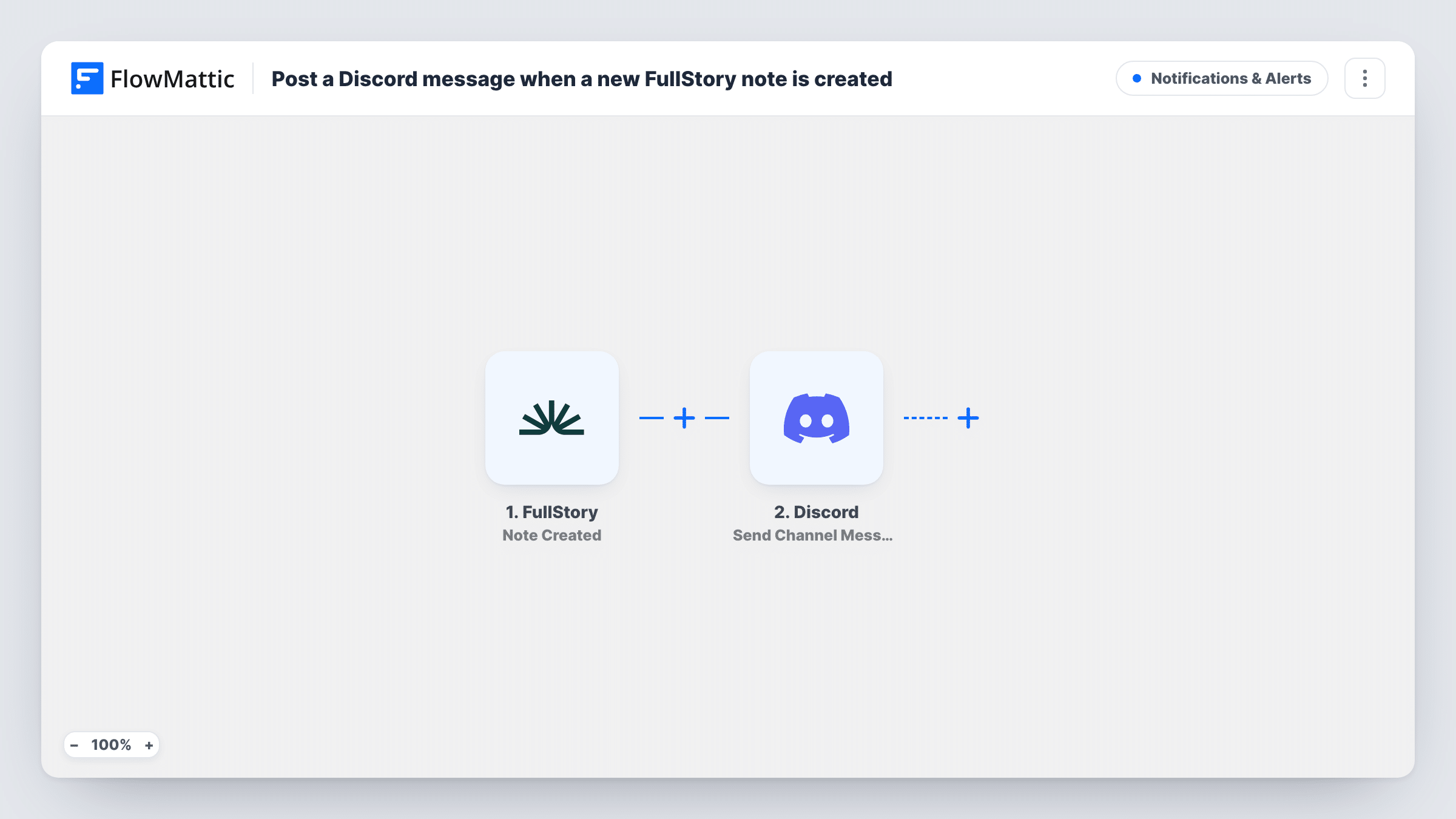
The FullStory trigger fires when a note is created in FullStory. FlowMattic receives the note's data and makes it available to map. The Discord step then posts a message to the channel you choose, with the note text and any other values from the event that you place in the message.
Every new note produces a post, so the channel reflects how many notes your team writes. The workflow does not edit or delete Discord messages if a note changes later, and notes written before you turned it on are not sent. A test note after import shows exactly which values FullStory includes, such as a link to the session if one is sent. You can review every note that was sent in Task History.
Bug reports from session replays
A designer spots a broken layout while watching a replay and leaves a note. The post lands in your #bugs channel in Discord, where the developers pick it up.
Sharing research with a small product team
A founder and two developers coordinate in Discord. Notes from user research sessions reach them there instead of sitting unread in FullStory.
Community feedback threads
If you run a Discord server for beta testers, posting notes about what you saw in their sessions gives you a starting point for a feedback thread.
How this workflow runs
What happens at each step once the workflow is on, and what you need before you import it.
 FullStory Note Created
Runs when a note is created in your FullStory account. The note's data is captured and passed to the Discord step for mapping.
- Discord Send Channel Message
Sends a message to a Discord channel you choose. Write the message after import and drop in the note text and any session details the FullStory event carries.
What you need
- FlowMatticCore
- FullStory AccountAccount
- Discord AccountAccount
After importing, map your own data. To keep the template universal, not every step is pre-filled. Open each step in the builder and connect your accounts and fields (channels, lists, sheets, recipients) before you switch the workflow on.
Make it yours
Changes worth making after you import it.
- Add a Filter after the FullStory trigger that continues only when the note text contains a tag such as #bug, so only tagged notes reach the Discord channel.
- Use a Router whose routes check for different tags in the note text, each with its own Discord step. Every matching route runs, so a note carrying two tags posts in both channels.
- Create a test note in FullStory after import so FlowMattic captures real data, then build the Discord message from the values you see.
Questions about this workflow
Does the Discord post include a link to the FullStory session?
Only if the note event carries one. Create a test note after import and check the captured data. If a link is there, map it into the Discord message.
Will every FullStory note go to Discord?
Yes, as imported. Each new note creates one post. Add a Filter after the trigger if only some notes should be shared.
Can people without a FullStory seat read the notes in Discord?
They can read the text that the workflow posts in the channel. Opening a linked session in FullStory still needs access to your FullStory account.
What happens when a FullStory note is edited later?
Nothing in Discord. The trigger is Note Created, so only new notes are posted. Edits to an existing note do not update the earlier message.
More Notifications & Alerts workflows
Other ready-to-import templates from the same category.





Import this workflow into your WordPress site
Download the JSON, import it from the Workflows screen and connect your accounts. Every run stays on your server, with no per-task fees.
30-day money-back guarantee Unlimited workflows and runs Self-hosted