

POST new Facebook Lead Ads to a webhook
Each new Facebook Lead Ads lead is sent as JSON in a POST request to the webhook URL you set, so your own system, CRM or script gets the lead data as it arrives.
 Facebook Lead Ads
 Webhook Outgoing
2 steps Setup ~5 min Used on 2.7k sites Free to import
What this workflow does
Not every business keeps leads in an app FlowMattic has a step for. You might have an in-house CRM, a script on your own server or a tool that only offers an incoming webhook. This workflow forwards each Facebook lead to that endpoint, so leads reach your system without anyone downloading them from Facebook.
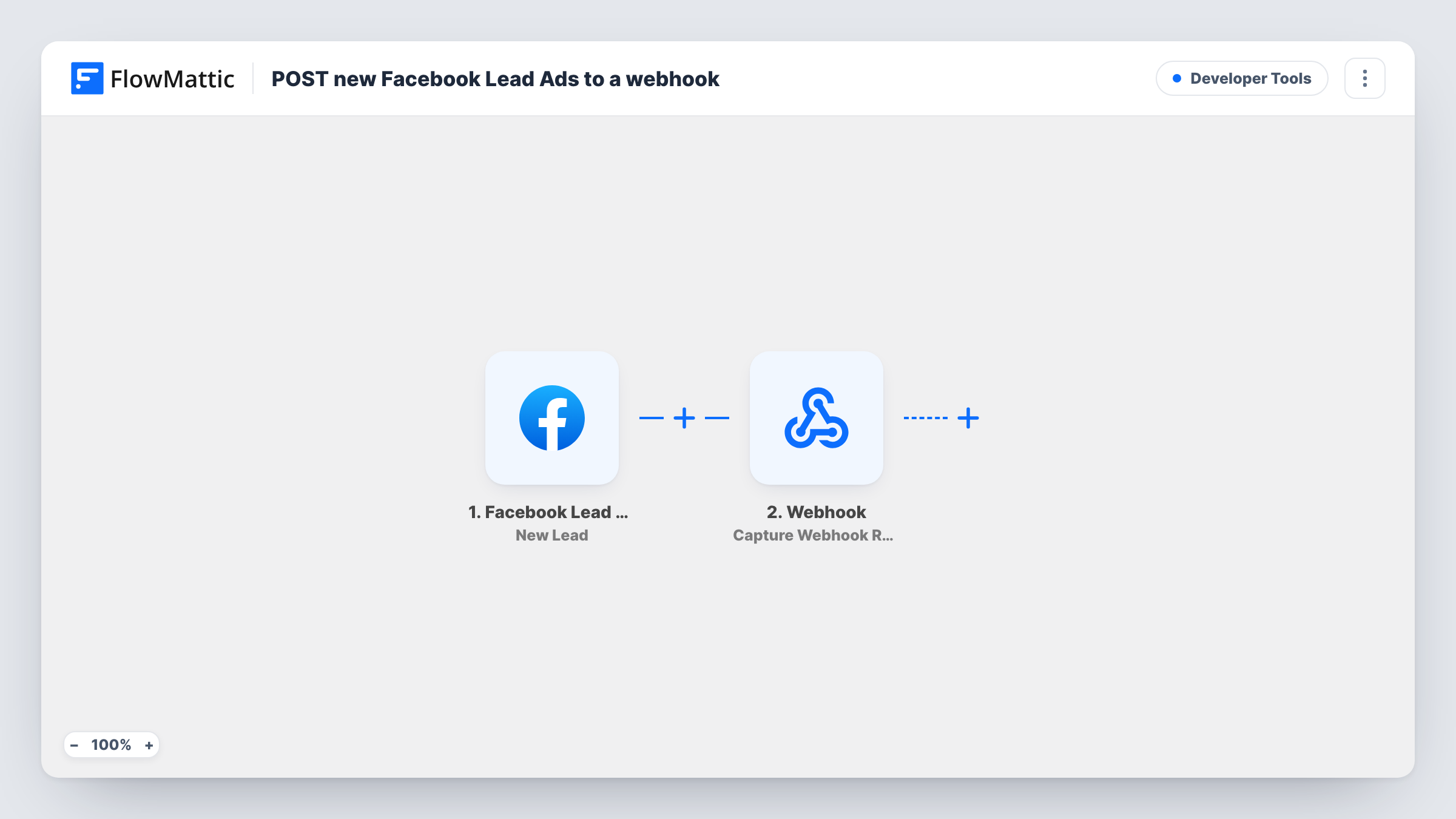
The Facebook Lead Ads New Lead trigger fires when a new lead is created on the lead form you connect. The lead's form answers, such as the name, email and phone, become available to the next step.
The Webhook Outgoing Submit Data to Webhook step then sends data to a webhook URL using the POST method in JSON format. It ships unmapped: after import, enter the URL that should receive the lead and map the lead fields you want included, under the keys your receiving system expects.
Each lead sends one request. Your endpoint decides what happens next, so make sure it accepts JSON and responds to each request. Task History shows the lead data and the response your endpoint returned for every run.
Leads into an in-house CRM
A real estate agency with a custom-built CRM receives every Facebook lead through its own webhook endpoint, with the fields it expects.
Feeding a tool that only takes webhooks
A marketing team sends leads to a dialler or messaging service that accepts incoming webhooks but has no FlowMattic integration.
Developer handling leads in code
A developer posts leads to a small serverless function that checks for duplicates and routes them, keeping that logic outside WordPress.
How this workflow runs
What happens at each step once the workflow is on, and what you need before you import it.
 Facebook Lead Ads New Lead
Starts a run as soon as Facebook records a new lead from your ad's form. Its answers and form details are available to map into the outgoing request.
- Webhook Outgoing Submit Data to Webhook
Sends the lead to your webhook URL as JSON in a POST request. Nothing is mapped yet: enter the URL after import and map each Facebook lead field to the key your system expects.
What you need
- FlowMatticCore
- Facebook Lead Ads AccountAccount
After importing, map your own data. To keep the template universal, not every step is pre-filled. Open each step in the builder and connect your accounts and fields (channels, lists, sheets, recipients) before you switch the workflow on.
Make it yours
Changes worth making after you import it.
- Include the lead's ID and the form name in the data you send, so your system can tell leads and campaigns apart and spot duplicates.
- Test with Facebook's Lead Ads Testing Tool and read your endpoint's response in Task History before turning the workflow on.
- Put a Filter between the Facebook trigger and the webhook step on a form answer, if only some leads should reach your system. Pick the question and value from your own lead form.
- Have your endpoint reply with a clear success or error message for each lead, so Task History shows whether your system accepted it.
Questions about this workflow
In what format does the Facebook lead reach my webhook?
As JSON in a POST request. You decide the keys and values when you map the lead fields in the Submit Data to Webhook step.
Does my endpoint need to be public?
It needs to be reachable from your WordPress site, because FlowMattic sends the request from there. An address only available inside your office network won't receive it.
Which Facebook lead fields are sent?
Only the ones you map. The step ships empty, so add the name, email, phone or any custom question you want your system to receive.
Can I send the same lead to two webhook URLs?
Yes. Place another Submit Data to Webhook step after the existing one, enter the second endpoint and map the lead fields again.
More Developer Tools workflows
Other ready-to-import templates from the same category.






Import this workflow into your WordPress site
Download the JSON, import it from the Workflows screen and connect your accounts. Every run stays on your server, with no per-task fees.
30-day money-back guarantee Unlimited workflows and runs Self-hosted