

When new user registered in WordPress, Purge all files in Cloudflare
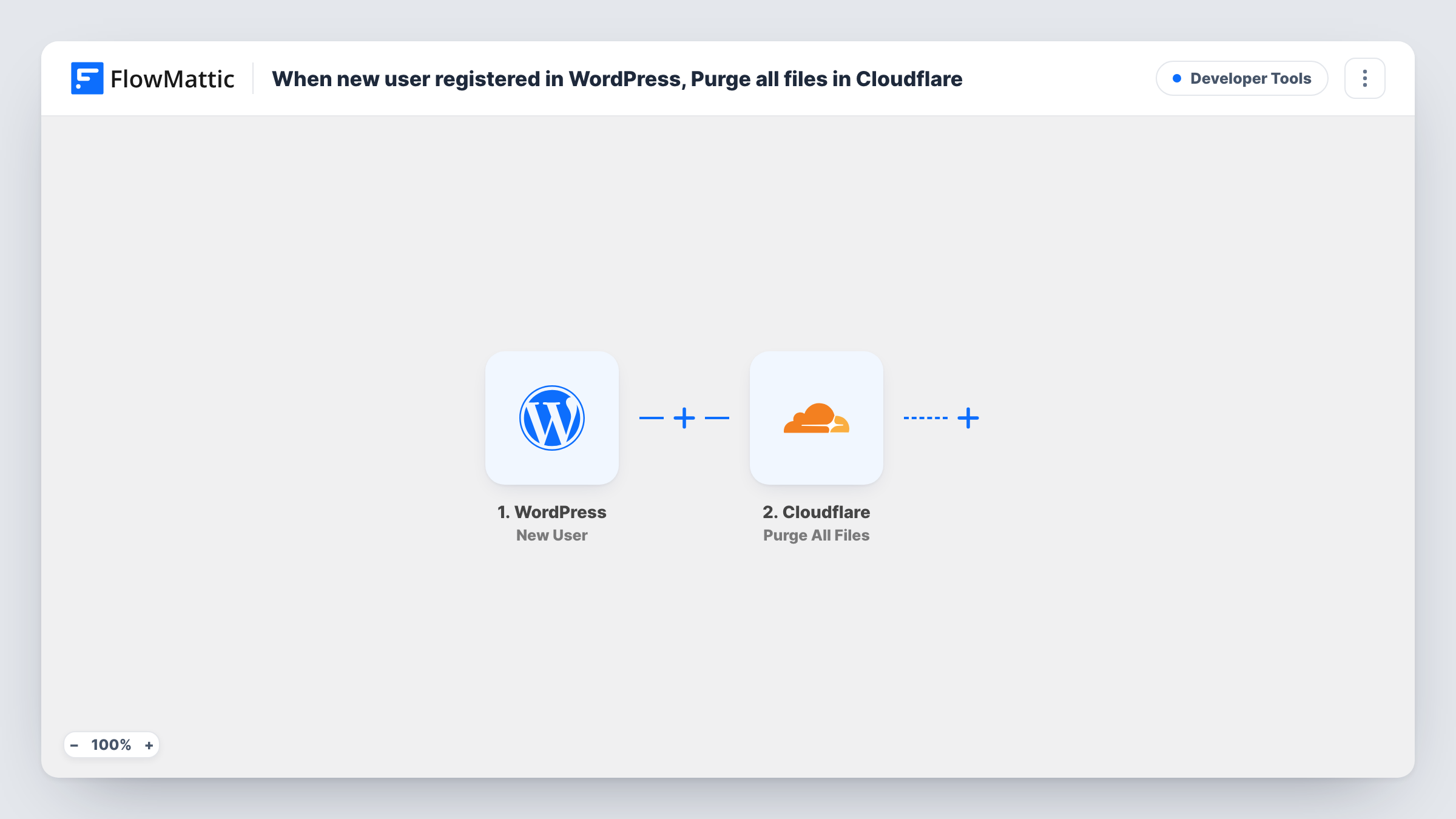
Each time a new user registers on your WordPress site, this workflow tells Cloudflare to purge all files from the cache for your domain zone, so pages that list members or show counts are served fresh.
 WordPress
 Cloudflare
2 steps Setup ~5 min Used on 1.1k sites Free to import
What this workflow does
Cloudflare caches your WordPress pages so they load from its network instead of your server. That works until a page should change, such as a member directory, a community page or a sign-up counter. A new registration doesn't clear the cache, so visitors keep seeing the old version. This workflow clears it whenever someone registers.
The WordPress trigger fires when a new user is registered on the site running FlowMattic. FlowMattic then runs Cloudflare's Purge All Files, which removes every file from Cloudflare's cache for the domain zone you choose.
This is a full purge, not a targeted one. Every cached page, image and script for the zone is dropped, and Cloudflare fetches each again from your server as visitors request it. On a site with frequent sign-ups, that means the cache is emptied often, so weigh that before you turn it on.
Member directory that must show new members
A community site lists members on a cached directory page. Purging on each registration means the new member appears there for the next visitor.
Low-volume sign-ups on a cached site
A small private club site sees a few registrations a week and caches everything at Cloudflare. A full purge on each sign-up keeps every cached page current.
Sign-up counters and welcome walls
A landing page shows how many people have joined. Clearing Cloudflare's cache on each new user keeps the number from going stale.
How this workflow runs
What happens at each step once the workflow is on, and what you need before you import it.
 WordPress New User
Starts a run for every new WordPress account on the site. Accounts an admin creates can fire it too, so check with a test. The new user's details are available if you add more steps.
- Cloudflare Purge All Files
Purges all files from Cloudflare's cache for the domain zone you pick. Connect your Cloudflare account on import and select the zone that serves this WordPress site.
What you need
- FlowMatticCore
- Cloudflare AccountAccount
After importing, map your own data. To keep the template universal, not every step is pre-filled. Open each step in the builder and connect your accounts and fields (channels, lists, sheets, recipients) before you switch the workflow on.
Make it yours
Changes worth making after you import it.
- Add a Filter after the trigger that continues only for the user role that appears on cached pages, such as subscribers, so admin-created staff accounts don't empty the cache.
- If sign-ups come in bursts, think about the load on your server: each registration drops the whole cache, and every page is fetched again from WordPress.
- Check that the zone selected in the Cloudflare step is the one serving this site. A purge on the wrong zone clears another domain's cache and leaves this one stale.
Questions about this workflow
Does this purge only the WordPress pages that changed?
No. Purge All Files removes every file from Cloudflare's cache for the zone. FlowMattic's Cloudflare actions don't include a single-URL purge.
Do users added by an admin trigger the Cloudflare purge?
Yes. The trigger listens for every new WordPress account, including ones an admin creates in the dashboard or a plugin adds. A Filter on the new user's role keeps staff accounts from purging the cache.
Will purging the Cloudflare cache take my site offline?
No. Cached files are removed, and Cloudflare requests them from your server again as visitors load pages, so your server handles more requests until the cache refills.
What do I need from Cloudflare to use this workflow?
A Cloudflare account with the domain zone for this site, connected to FlowMattic on import, with permission to purge the cache.
More Developer Tools workflows
Other ready-to-import templates from the same category.






Import this workflow into your WordPress site
Download the JSON, import it from the Workflows screen and connect your accounts. Every run stays on your server, with no per-task fees.
30-day money-back guarantee Unlimited workflows and runs Self-hosted