

When a BrowserStack build is approved, update the tracking row in Google Sheets and notify the team in Slack
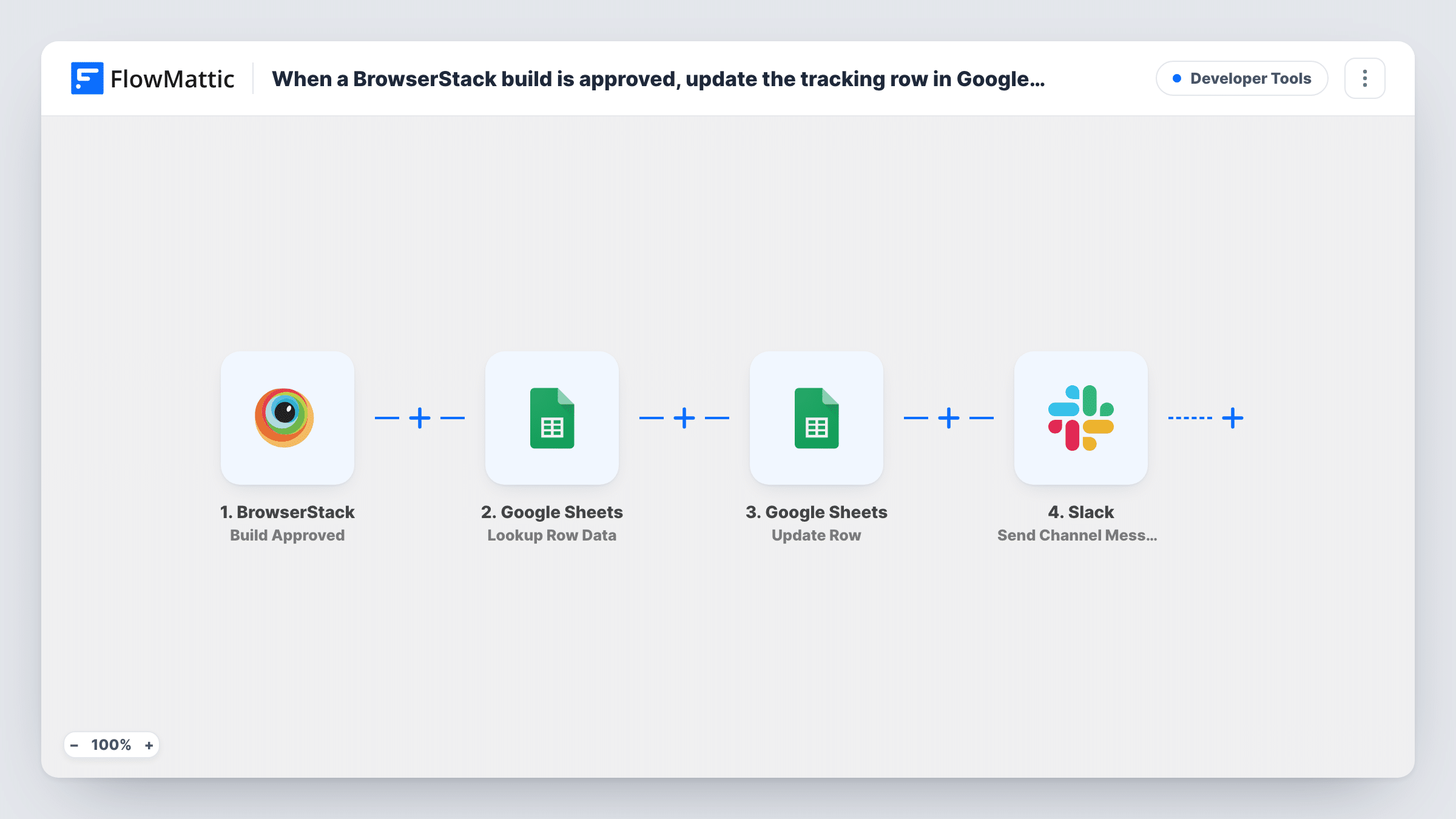
When a BrowserStack build is approved, FlowMattic finds that build’s row in your Google Sheets tracker, updates it with the approval, and posts a note to your team’s Slack channel.
 BrowserStack
 Google Sheets
 Slack
4 steps Setup ~8 min Used on 906 sites Free to import
What this workflow does
QA teams that track releases in a spreadsheet have to remember to mark each build as approved once the visual review is done, and then tell developers it is clear to ship. This workflow does both from BrowserStack's approval event, so the tracker stays current and the team hears about it in Slack.
The BrowserStack trigger fires when a build has been approved. The build details are passed to the Google Sheets steps. First, Lookup Row Data searches your tracking sheet for a value, so map an identifier from the build, such as its name or ID, and choose the column that holds it. Then Update Row changes that existing row. Both steps ship unmapped: point the update at the row the lookup found and pick the columns to change, for example a status set to Approved and an approval date.
The last step posts to a Slack #channel you choose. Its message is empty in the template, so write the note and map the build name and any link the event carries.
The tracker needs a row for every build before it is approved, or the lookup has nothing to find. Approve a test build and check Task History to see what the lookup returned and which row was updated.
Release tracker that marks itself
A QA lead keeps one sheet row per release candidate. When the visual review is approved in BrowserStack, the row's status changes to Approved and the date is filled in.
Go-ahead for developers
A mobile team's #releases channel gets a Slack message the moment a build passes review, so the developer on duty can start the store submission.
Audit record for clients
An agency shares the tracking sheet with clients so they can see when each build was approved, without giving them BrowserStack access.
How this workflow runs
What happens at each step once the workflow is on, and what you need before you import it.
 BrowserStack Build Approved
Starts the workflow when a build is approved in BrowserStack. The build's details are passed on so the Google Sheets steps can find and update its row.
- Google Sheets Lookup Row Data
Searches your tracking sheet for the approved build. Nothing is set yet, so choose the sheet, the column that holds your build identifier, and map the matching value from BrowserStack.
- Google Sheets Update Row
Writes the approval into the tracking row that step 2 located. Map the row reference from step 2 and pick the columns to change, such as a status of Approved and the approval time.
- Slack Send Channel Message
Tells the team in a Slack #channel of your choice that the build passed. The text ships empty, so write the approval notice and map the build name or other build details into it.
What you need
- FlowMatticCore
- BrowserStack AccountAccount
- Google Sheets AccountAccount
- Slack AccountAccount
After importing, map your own data. To keep the template universal, not every step is pre-filled. Open each step in the builder and connect your accounts and fields (channels, lists, sheets, recipients) before you switch the workflow on.
Make it yours
Changes worth making after you import it.
- Put a Filter between Lookup Row Data and Update Row that continues only when the lookup returned a row. Builds with no row in the sheet then stop before the update and the Slack message.
- Use the same build name or ID in the sheet that BrowserStack sends, so the lookup finds an exact match. Approve one test build first to see the exact value.
- For a private release channel, use Slack's Send Private Channel Message action in place of the template's channel step.
Questions about this workflow
Does this add a new sheet row for BrowserStack builds that aren't listed yet?
No. The workflow looks up an existing row and updates it. Add each build to the tracker before review, or build a separate workflow that adds rows when builds start.
Which BrowserStack events start the workflow?
Only Build Approved. Other review outcomes don't run it, so rejected builds leave the sheet and Slack untouched.
How does the update know which row to change in Google Sheets?
From the Lookup Row Data result. Map the row it found into the Update Row step after import, then approve a test build to confirm the right row changes.
What does the Slack message about the approved build say?
Whatever you write. The step has no text in the template, so add the wording and map build details such as the name from the BrowserStack event.
More Developer Tools workflows
Other ready-to-import templates from the same category.







Import this workflow into your WordPress site
Download the JSON, import it from the Workflows screen and connect your accounts. Every run stays on your server, with no per-task fees.
30-day money-back guarantee Unlimited workflows and runs Self-hosted