

Send a Slack alert when a Runscope test run completes
Every time a Runscope Radar API test finishes a run, FlowMattic posts a message about it to the Slack channel you choose, so your developers see test results where they already talk.
 Runscope
 Slack
2 steps Setup ~5 min Used on 2.1k sites Free to import
What this workflow does
API tests are only useful if someone looks at the results. When Runscope reports into its own dashboard, a broken endpoint can sit unnoticed until a customer complains. This workflow puts each finished test run into a Slack channel your team already reads.
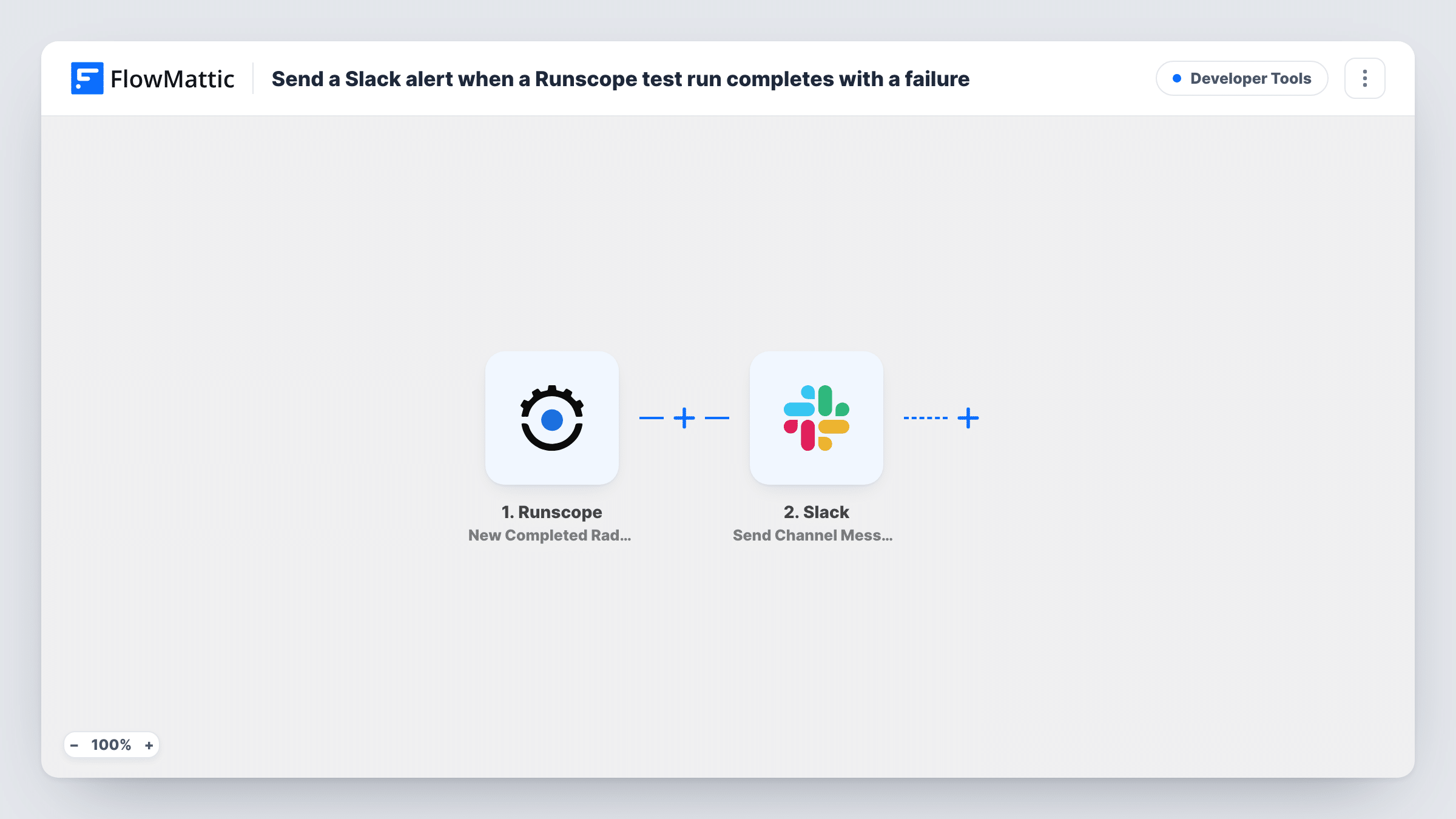
The Runscope trigger starts a run of this workflow as soon as Runscope finishes a Radar test. That happens for every completed run, passing and failing alike, and hands the run's details to the next step.
The Slack step comes next and posts into one channel of your workspace. It ships unmapped: after import you connect Slack, pick the channel and write the message, mapping run details such as the test name and result from the trigger. Run a test in Runscope first so you can see which values arrive.
If your tests run often, a message for every pass can bury the failures. The tips below show how to post only failed runs, or send them to a separate channel. For each run, Task History records the Runscope data and Slack's reply.
Failing endpoint alerts for on-call
A SaaS team schedules Radar tests on its public API and gets a Slack post in #api-alerts each time a run completes, so the person on call sees the result without opening Runscope.
Release checks after a deploy
Developers trigger a Runscope test after shipping, then watch the Slack channel for the finished run instead of opening the Runscope dashboard.
Partner API monitoring
An agency tests the third-party APIs its client sites depend on and keeps a running history of every result in one shared Slack channel.
How this workflow runs
What happens at each step once the workflow is on, and what you need before you import it.
 Runscope New Completed Radar Test Run
Fires when a Runscope Radar API test completes a run, whether it passed or failed. The run's details are passed on so you can map them into the Slack message.
- Slack Send Channel Message
Sends the message into whichever Slack channel you select. The step ships unmapped: after import, choose the channel and write the text, mapping the test name, result and other run details.
What you need
- FlowMatticCore
- Runscope AccountAccount
- Slack AccountAccount
After importing, map your own data. To keep the template universal, not every step is pre-filled. Open each step in the builder and connect your accounts and fields (channels, lists, sheets, recipients) before you switch the workflow on.
Make it yours
Changes worth making after you import it.
- To hear only about failures, put a Filter between the Runscope trigger and the Slack step on the run's result field. Find the exact field and its values in a test run first.
- Use Slack's Send Private Channel Message action instead if results belong in a private engineering channel, or Send Direct Message to alert one person.
- Include a link to the run in the message if the trigger passes one, so people can jump from Slack to the details. A test run shows what's available.
Questions about this workflow
Does Slack get a message when a Runscope test passes?
Yes. As imported, every completed Radar test run posts to Slack, pass or fail. Add a Filter on the result between the trigger and the Slack step to post failures only.
Can passing and failing Runscope runs go to different Slack channels?
Yes. Replace the single Slack step with a Router after the trigger, with one route for passed runs and one for failed runs, each ending in its own Send Channel Message step. Use result values that can't both match.
Which Runscope tests start this workflow?
Completed runs of Radar API tests from the Runscope account you connect. Run one test after import and check Task History to confirm the trigger picked it up.
More Developer Tools workflows
Other ready-to-import templates from the same category.







Import this workflow into your WordPress site
Download the JSON, import it from the Workflows screen and connect your accounts. Every run stays on your server, with no per-task fees.
30-day money-back guarantee Unlimited workflows and runs Self-hosted