

Predict age in Agify for new Mailchimp subscribers and tag them for age-based campaigns
When someone subscribes to your Mailchimp audience, Agify predicts an age from their name and FlowMattic tags the subscriber with it, such as age-34, so you can build age-based segments for campaigns.
 Mailchimp
 Agify
Agify3 steps Setup ~5 min Used on 2.3k sites Free to import
What this workflow does
Most sign-up forms ask for a name and an email, not an age, yet age can shape which offers or content make sense. Agify estimates a likely age from a first or full name. This workflow adds that estimate to each new Mailchimp subscriber as a tag you can segment on.
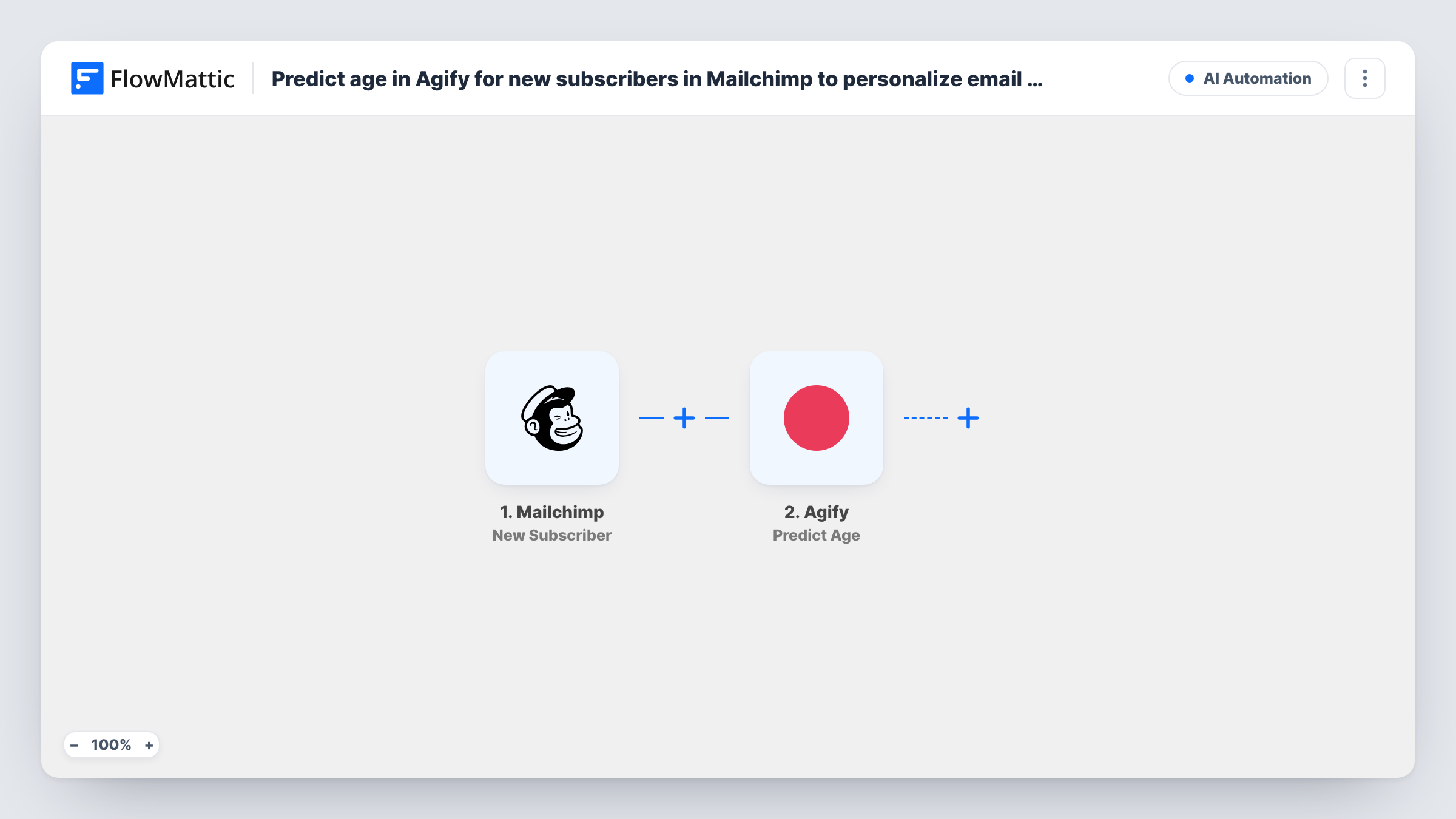
The Mailchimp New Subscriber trigger starts a run each time a person joins the audience you connect. The Agify Predict Age step then estimates an age from a name. It ships unmapped, so after import you map the subscriber's first name from the trigger into it.
The last step adds a tag to that subscriber in Mailchimp. The tag is already written as age- followed by the age Agify returned, so a 34 becomes age-34. Map the subscriber's email so Mailchimp tags the right member. A tag that isn't in Mailchimp yet is created on first use.
Keep in mind that Agify's figure is a statistical guess from the name, not the person's real age. Subscribers who left the name blank, or whose name Agify can't place, may get a tag with no number. Test with a few sign-ups and check Task History for what Agify returned.
Different product picks by age group
A fashion retailer builds Mailchimp segments from the age tags and sends a younger and an older audience different product highlights.
Content choices for a newsletter
A finance blog tests whether articles on student loans or retirement plans get more opens within each estimated age segment.
Rough audience profile
A small business looks at how its age tags are spread across the audience to get a rough sense of who is signing up.
How this workflow runs
What happens at each step once the workflow is on, and what you need before you import it.
 Mailchimp New Subscriber
Starts the run when a person subscribes to your Mailchimp audience. The subscriber's email and any name fields from the sign-up are passed on.
- Agify Predict Age
Asks Agify to predict an age from a first or full name. The step ships unmapped: map the subscriber's first name from the Mailchimp trigger after import.
- Mailchimp Add Member Tag
Tags the subscriber in Mailchimp with age- followed by the predicted age, such as age-34. Map the subscriber's email so the tag lands on the right member.
What you need
- FlowMatticCore
- Mailchimp AccountAccount
- Agify AccountAccount
After importing, map your own data. To keep the template universal, not every step is pre-filled. Open each step in the builder and connect your accounts and fields (channels, lists, sheets, recipients) before you switch the workflow on.
Make it yours
Changes worth making after you import it.
- Make the first name required on your Mailchimp sign-up form, so Agify always has a name to work with.
- Put a Filter between the Agify step and the Add Member Tag step that continues only when the predicted age is not empty, so subscribers Agify can't place don't get an empty age- tag.
- For age bands instead of exact ages, add a Router between Agify and the tag step with routes such as less than 30 and greater than 29. Move the tag step into one route, copy it into the other, and keep conditions that can't both match.
Questions about this workflow
How accurate is the Agify age on my Mailchimp subscribers?
It is an estimate based on the name, so treat it as a rough signal. People with the same first name get the same prediction whatever their real age.
What tag does each Mailchimp subscriber get?
The template sets the tag to age- followed by Agify's result, so a prediction of 41 gives age-41. Edit the tag text in the Add Member Tag step if you prefer another format.
What if a new subscriber didn't give a name?
Agify has nothing to work from, and the tag may end up as age- with no number. Use a Filter on the predicted age between the Agify step and the tag step to skip those.
Are existing Mailchimp subscribers tagged when I turn this on?
No. Only people who subscribe after the workflow is active trigger it.
More AI Automation workflows
Other ready-to-import templates from the same category.






Import this workflow into your WordPress site
Download the JSON, import it from the Workflows screen and connect your accounts. Every run stays on your server, with no per-task fees.
30-day money-back guarantee Unlimited workflows and runs Self-hosted