

When a new post is published in WordPress, create translation in CAMB AI
When you publish a new WordPress post, this workflow sends the text you map from it to CAMB AI for translation into another language. A base for multilingual publishing that you extend with a step that stores the result.
 WordPress
 CAMB AI
2 steps Setup ~5 min Used on 891 sites Free to import
What this workflow does
Publishing in more than one language usually means pasting each article into a translation tool after it goes live. This workflow hands that first job to FlowMattic. Each newly published post on your site is sent to CAMB AI for translation, with no copying on your part.
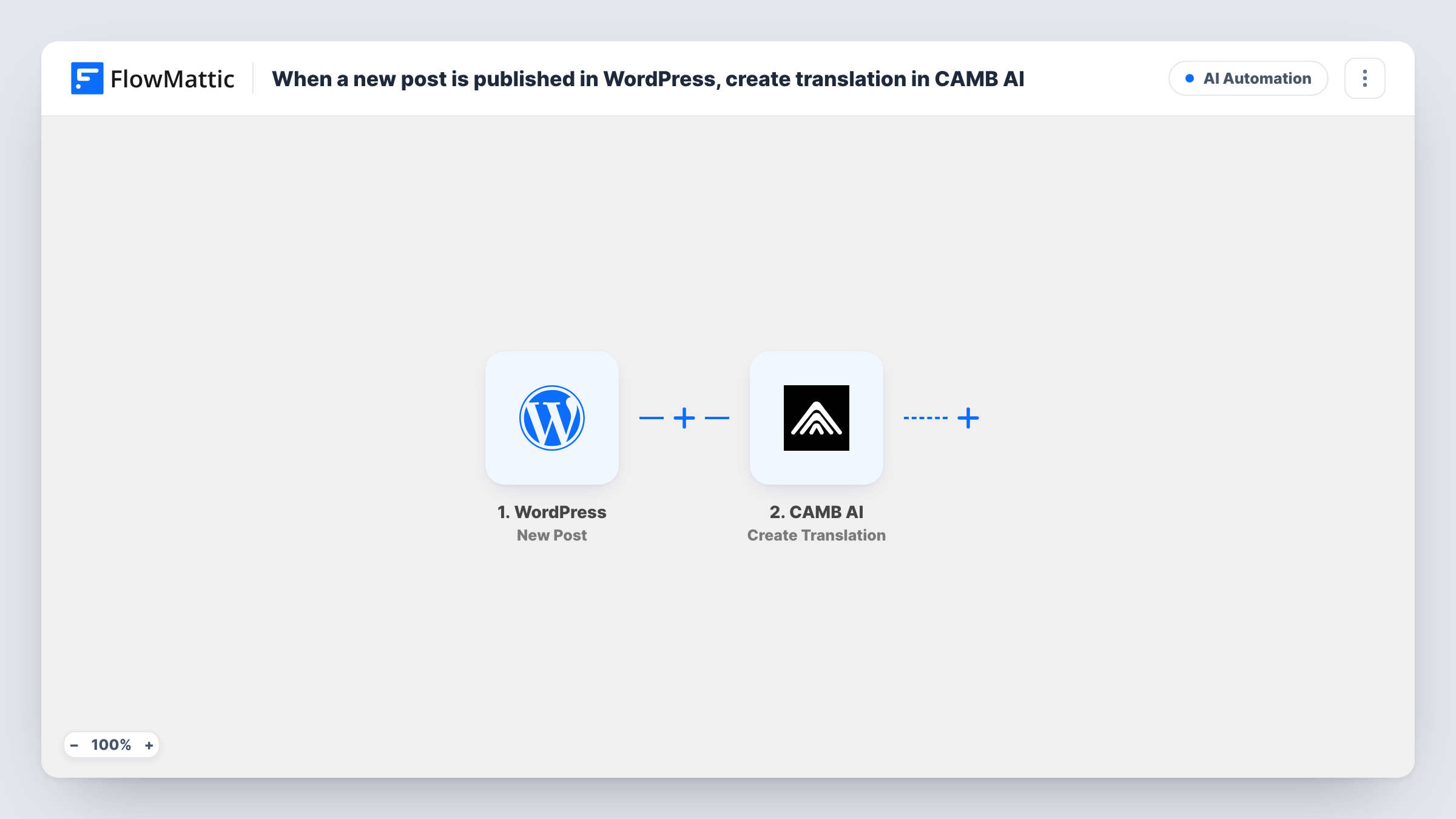
The WordPress New Post trigger fires when a new post is published. Its data, such as the title and content, becomes available to map. The next step calls Create Translation in CAMB AI, which translates text into another language. You pick which parts of the post are sent.
Be clear about where the template ends. The CAMB AI step returns its response to FlowMattic, but no later step saves the translated text, publishes it or emails it to anyone. Add a step that uses the result, for example a Google Sheets row or an email to your editor. Task History keeps every run's response, so you can read a translation there while you build the rest.
Drafting a second-language edition
A travel blog publishes in English. Each new post is translated by CAMB AI so an editor can review the text before it goes into the Spanish edition.
Checking translation quality first
Before committing to a translation process, you run new posts through CAMB AI and read the results in Task History to judge whether they suit your content.
Briefing a regional team
A company news blog posts in one language. Translations of each new post give the overseas office a version they can read, once you add a step that delivers it.
How this workflow runs
What happens at each step once the workflow is on, and what you need before you import it.
 WordPress New Post
Starts each time a post goes live on your WordPress site. The post's details are passed on so you can map them into the translation step.
- CAMB AI Create Translation
Sends the post text you map to CAMB AI, which translates it into another language. Connect your CAMB AI account and run a test to see the response and the translated text it returns.
What you need
- FlowMatticCore
- CAMB AI AccountAccount
After importing, map your own data. To keep the template universal, not every step is pre-filled. Open each step in the builder and connect your accounts and fields (channels, lists, sheets, recipients) before you switch the workflow on.
Make it yours
Changes worth making after you import it.
- Add a Google Sheets Add New Row step after CAMB AI and map the post title, link and translated text, so every translation is stored in one place for review.
- Add a Filter after the trigger that checks a value from the post data, such as its author or a word in the title, so CAMB AI only receives posts you plan to translate.
- Don't add a WordPress step that publishes the translation as a new post. That post would fire the New Post trigger again and start another translation run.
Questions about this workflow
Does this workflow publish the CAMB AI translation on my site?
No. It only requests the translation. Nothing is posted, saved or sent until you add a step that uses the CAMB AI result.
Which WordPress posts are sent to CAMB AI?
Every new post that gets published after you switch the workflow on. Add a Filter on a value in the post data if you want to limit which posts are sent.
Are my existing WordPress posts translated?
No. The trigger reacts to new publications only, so posts already live before import are not sent.
Where do I see the translated text from CAMB AI?
In Task History, inside the CAMB AI step's response for each run. Map that response into any step you add after it.
More AI Automation workflows
Other ready-to-import templates from the same category.








Import this workflow into your WordPress site
Download the JSON, import it from the Workflows screen and connect your accounts. Every run stays on your server, with no per-task fees.
30-day money-back guarantee Unlimited workflows and runs Self-hosted