

Record each Chip payment refund in an Airtable tracker
Whenever a Chip payment is refunded, this workflow adds a record to your Airtable refund tracker with the details Chip sends, so finance can review refunds without exporting reports.
 Chip
 Airtable
2 steps Setup ~5 min Used on 2.0k sites Free to import
What this workflow does
Refunds are easy to lose track of when they live only in a payment dashboard. Bookkeepers want them in one list, support wants to know a customer was paid back, and the owner wants to see which products get refunded. An Airtable table gives each of them a view of the same data.
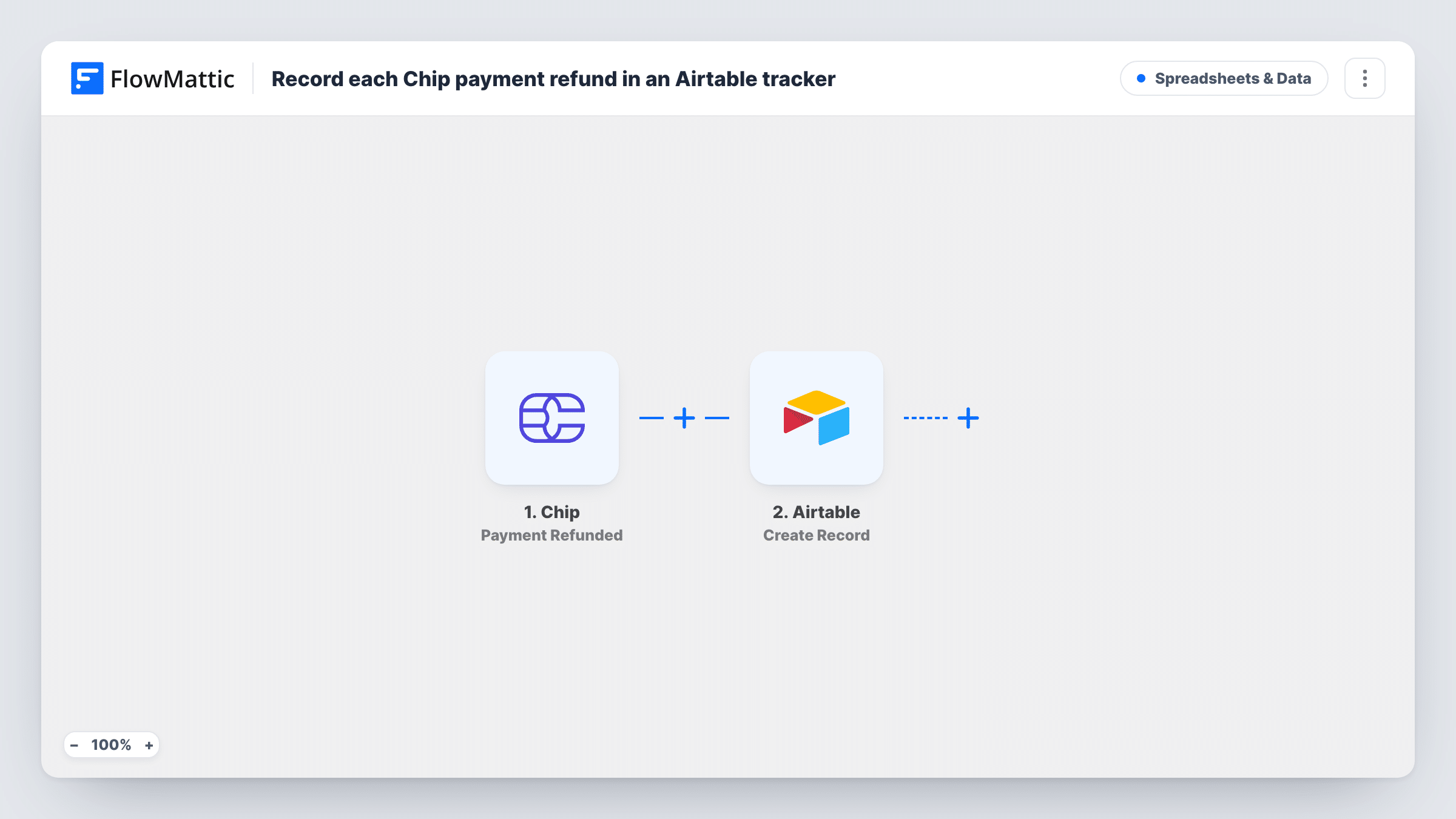
The Chip trigger fires when a payment is refunded. FlowMattic receives the refund event and passes its details to Airtable. Create Record then adds a new row in the base and table you pick, with the Chip fields mapped to your columns.
Each refund produces one new record. The workflow doesn't look for the original payment in Airtable, so if you also log sales there, link the two yourself using a reference you map from Chip. Task History keeps every run, which helps you confirm that each refund was recorded.
Monthly bookkeeping for an online store
At month end, your bookkeeper filters the Airtable tracker by date and has every Chip refund for the period in one view.
Spotting products with many refunds
Group the refund records by product or description in Airtable to see where refunds pile up and which listings need a closer look.
Support follow-up after a refund
Add a Followed Up checkbox to the table. Your support team ticks it once they have contacted the customer about the refund.
How this workflow runs
What happens at each step once the workflow is on, and what you need before you import it.
 Chip Payment Refunded
Fires when a payment is refunded in your Chip account. The refund event's details are passed on so you can map them into Airtable.
- Airtable Create Record
Adds a record to your chosen Airtable base and table for each refund. Map the Chip details, such as the amount and reference, into your columns.
What you need
- FlowMatticCore
- Chip AccountAccount
- Airtable AccountAccount
After importing, map your own data. To keep the template universal, not every step is pre-filled. Open each step in the builder and connect your accounts and fields (channels, lists, sheets, recipients) before you switch the workflow on.
Make it yours
Changes worth making after you import it.
- Add a Slack or email step after Airtable so the person who handles refunds hears about each one as it is logged.
- Use an Airtable date column filled from the refund event, so you can filter the tracker by month for reporting.
- Refund a small test payment in Chip after import so FlowMattic captures the event data, then map each column and run a test.
Questions about this workflow
Does this record partial Chip refunds too?
The trigger fires when Chip reports a payment as refunded. Run a partial refund in a test and check Task History to see whether it fires and what amount it carries.
Will the Airtable refund record be linked to the original sale?
Not automatically. The workflow creates a new record and does not search for the sale. Map a Chip reference into a column and link records in Airtable if you need that.
Are past Chip refunds added to the Airtable tracker?
No. Only refunds that happen after the workflow is switched on are recorded.
Can I track Chip refunds in Google Sheets instead of Airtable?
Yes. Replace the Airtable step with Google Sheets Add New Row and map the same refund details into its columns.
More Spreadsheets & Data workflows
Other ready-to-import templates from the same category.




Import this workflow into your WordPress site
Download the JSON, import it from the Workflows screen and connect your accounts. Every run stays on your server, with no per-task fees.
30-day money-back guarantee Unlimited workflows and runs Self-hosted