

Remove Encharge tags when HubSpot deal moves to closed-lost
When HubSpot posts a closed-lost deal to this workflow’s webhook URL, FlowMattic removes the tags you choose from that contact in Encharge, so a lost prospect stops carrying your active-deal tags.
 Webhook
 Encharge
2 steps Setup ~5 min Used on 1.5k sites Free to import
What this workflow does
A deal that ends in closed-lost often leaves the contact tagged in Encharge as an open opportunity. Those tags can keep the person inside sales-stage segments and email flows meant for live prospects. This workflow clears them as soon as HubSpot reports the lost deal.
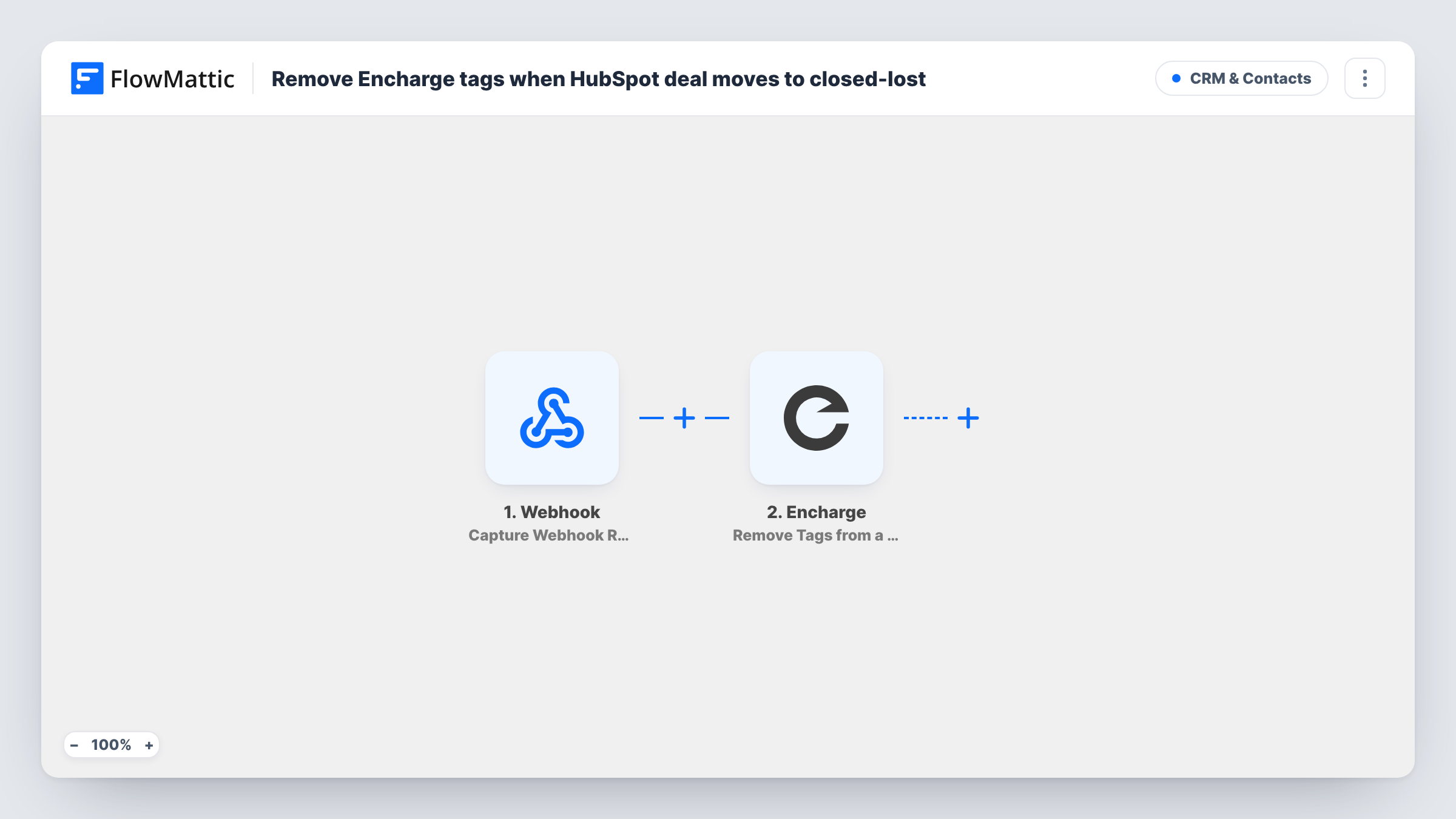
FlowMattic has no built-in HubSpot trigger, so step one is a Webhook that gives you a unique URL. You set HubSpot up to send a request to that URL when a deal moves to closed-lost, with the contact's email address in the data. FlowMattic captures whatever HubSpot sends and passes it on. The Encharge step then runs Remove Tags from a User on the matching person, taking off the tags you pick after import.
The workflow itself does not check the deal stage. It acts on every request that reaches the URL, so the closed-lost condition has to live on the HubSpot side. Task History logs each request and the response from Encharge, which helps you confirm the right person lost the right tags.
Ending a demo follow-up sequence
Contacts tagged for a post-demo sequence in Encharge lose that tag once the deal is marked closed-lost in HubSpot, so the sequence's segment no longer includes them.
Cleaning up hot-lead segments
Sales tags such as a pipeline-stage tag come off when HubSpot records the loss, keeping the Encharge segment built on those tags limited to open deals.
Preparing a win-back list
Removing the active-deal tag is the first half of moving a lost prospect into a separate nurture track that you run later from Encharge.
How this workflow runs
What happens at each step once the workflow is on, and what you need before you import it.
 Webhook Capture Webhook Response
Gives you a webhook URL and waits for data posted to it. Point HubSpot at this URL for closed-lost deals, then send one real request so FlowMattic captures the fields, including the contact's email.
- Encharge Remove Tags from a User
Removes tags from an existing Encharge user. Map the contact's email from the webhook data so Encharge can find the person, choose the tags to take off, and connect your account. Test on a contact you know.
What you need
- FlowMatticCore
- Encharge AccountAccount
After importing, map your own data. To keep the template universal, not every step is pre-filled. Open each step in the builder and connect your accounts and fields (channels, lists, sheets, recipients) before you switch the workflow on.
Make it yours
Changes worth making after you import it.
- Add a Filter after the webhook that continues only when the deal stage in the payload equals closed-lost. Then a request sent by mistake for another stage does not strip tags.
- To move the person into a re-engagement track, add an Encharge Add Tags step after the removal and give them a lost-deal tag your win-back flow listens for.
- Include the contact's email in the HubSpot request body, not only the deal ID. The Encharge step needs to know which person to update, and a deal ID alone does not tell it.
Questions about this workflow
How does HubSpot know to call this webhook on closed-lost?
You set that up in HubSpot so that it sends a request to the workflow's URL when a deal reaches closed-lost. FlowMattic does not watch HubSpot deals on its own here; it only reacts to requests that arrive at the URL.
What if the contact does not exist in Encharge?
The action works on an existing user, so there is no one to update. Task History shows Encharge's response on that step, so you can see the run did not change anyone.
Which Encharge tags are removed?
Only the ones you choose in the Encharge step after import. Other tags on the person stay as they are, and the person stays in your Encharge account.
Can a HubSpot deal with several contacts clear tags for all of them?
Not as imported. The workflow handles the data in one request as one person. If HubSpot sends a list of contacts, add an Iterator before the Encharge step so each one is processed in turn.
More CRM & Contacts workflows
Other ready-to-import templates from the same category.





Import this workflow into your WordPress site
Download the JSON, import it from the Workflows screen and connect your accounts. Every run stays on your server, with no per-task fees.
30-day money-back guarantee Unlimited workflows and runs Self-hosted