

When a new report is created in FaceUp, create a new contact in FluentCRM
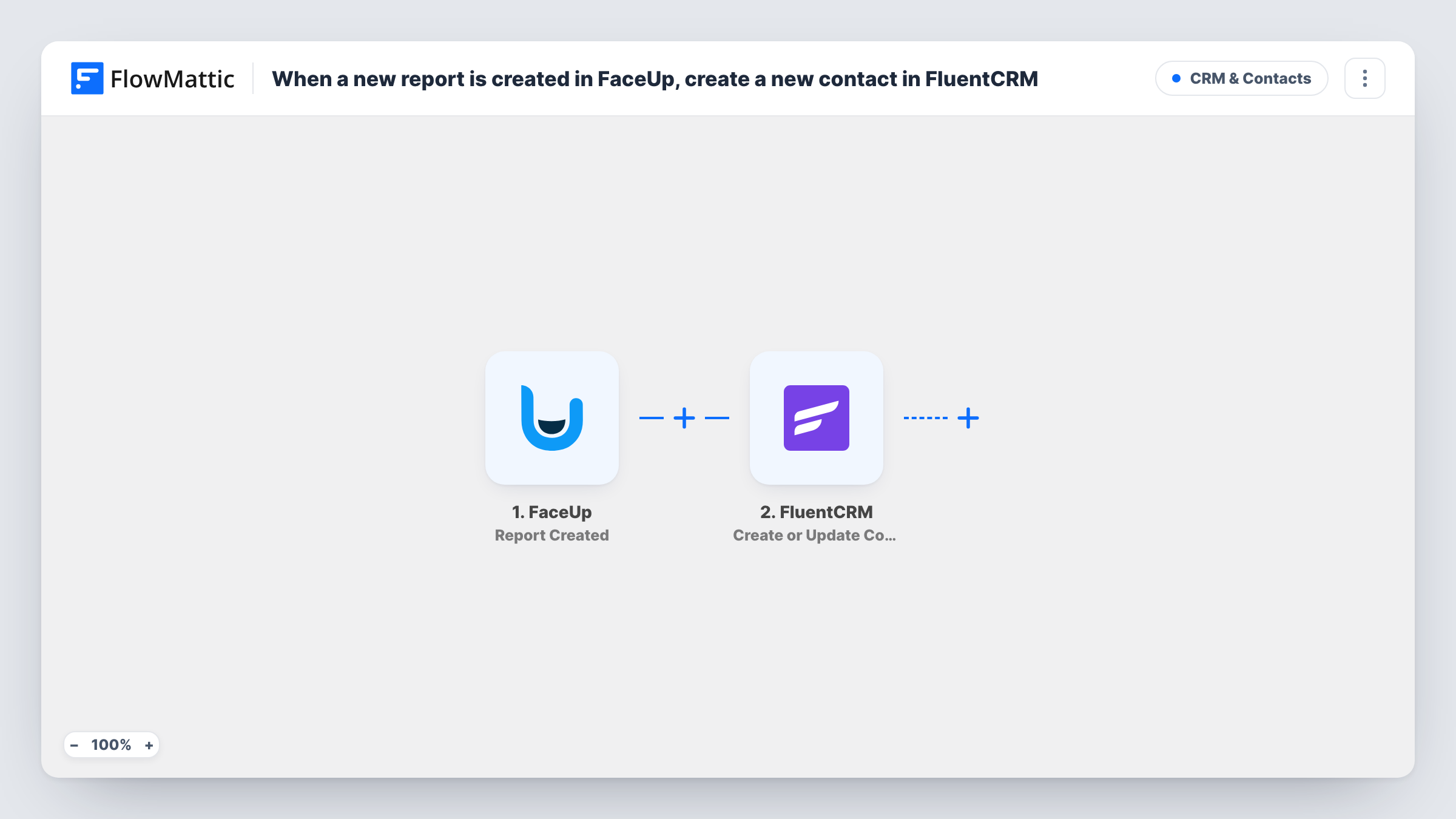
When a report is created in FaceUp, this workflow creates a contact in FluentCRM, or updates the matching one by email, so people who reported through FaceUp and left an address have a record on your WordPress site.
 FaceUp
 FluentCRM
2 steps Setup ~5 min Used on 379 sites Free to import
What this workflow does
FaceUp collects reports from employees, students or customers, and some reporters leave an email address so you can get back to them. If your team already tracks people in FluentCRM, those reporters otherwise stay inside FaceUp. This workflow copies each new report's contact details into FluentCRM.
The FaceUp trigger fires when a report is created. The values in that event become data you can map. The FluentCRM step runs Create or Update Contact, which matches on email address: a new address creates a contact, and an address already in FluentCRM updates that contact.
FaceUp is built for anonymous reporting, so many reports may carry no email at all. FluentCRM matches on email, so a report without one can't become a contact, and Task History shows the error for that run. Send a test report first to see which reporter details FaceUp passes on. Think about who can see your FluentCRM contacts before you copy reporters into it.
HR follow-up with named reporters
An employee files a FaceUp report and chooses to leave a work email. HR finds that person in FluentCRM and can tag them for a follow-up conversation.
School safeguarding contacts
Parents who report a concern through FaceUp and give an email address appear as FluentCRM contacts, so the school can send them updates from WordPress.
Customer complaints line
A business uses FaceUp for customer complaints. Each complainant who leaves an address is created in FluentCRM, or their existing contact is updated.
How this workflow runs
What happens at each step once the workflow is on, and what you need before you import it.
 FaceUp Report Created
Fires when a new report is created in FaceUp. Whatever reporter and report values the event carries are passed on; a test report shows which ones you can map.
- FluentCRM Create or Update Contact
Creates a FluentCRM contact from the report, or updates the contact with the same email address. Map the reporter's email, plus a name if FaceUp sends one. Reports without an email can't create a contact.
What you need
- FlowMatticCore
- FaceUp AccountAccount
- FluentCRM PluginPlugin
After importing, map your own data. To keep the template universal, not every step is pre-filled. Open each step in the builder and connect your accounts and fields (channels, lists, sheets, recipients) before you switch the workflow on.
Make it yours
Changes worth making after you import it.
- Add a Filter after the FaceUp trigger that continues only when the reporter email is not empty, so anonymous reports stop there instead of reaching FluentCRM with nothing to match on.
- Keep these contacts out of your newsletters by tagging them in FluentCRM and excluding that tag from marketing campaigns.
- Submit one test report with an email address and one without after import, then check Task History to see how each run behaves.
Questions about this workflow
Do anonymous FaceUp reports create FluentCRM contacts?
Not without an email address. FluentCRM's Create or Update Contact matches on email, so a report with no address can't become a contact, and Task History shows the error on that step.
What if the FaceUp reporter is already in FluentCRM?
The step updates the existing contact with that email address instead of creating a second one. Values in the new report replace the mapped fields, so leave fields unmapped that you don't want overwritten.
Will FaceUp messages or comments also reach FluentCRM?
No. This trigger fires only when a report is created. FaceUp's Message Created and Internal Comment Created triggers would need their own workflows.
Where does FluentCRM need to run for FaceUp reports to land?
FluentCRM is a WordPress plugin, so it has to be active on the site where FlowMattic runs. The FaceUp reporter becomes a contact in that install.
More CRM & Contacts workflows
Other ready-to-import templates from the same category.





Import this workflow into your WordPress site
Download the JSON, import it from the Workflows screen and connect your accounts. Every run stays on your server, with no per-task fees.
30-day money-back guarantee Unlimited workflows and runs Self-hosted