

Run Hexomatic workflow every day for two hours
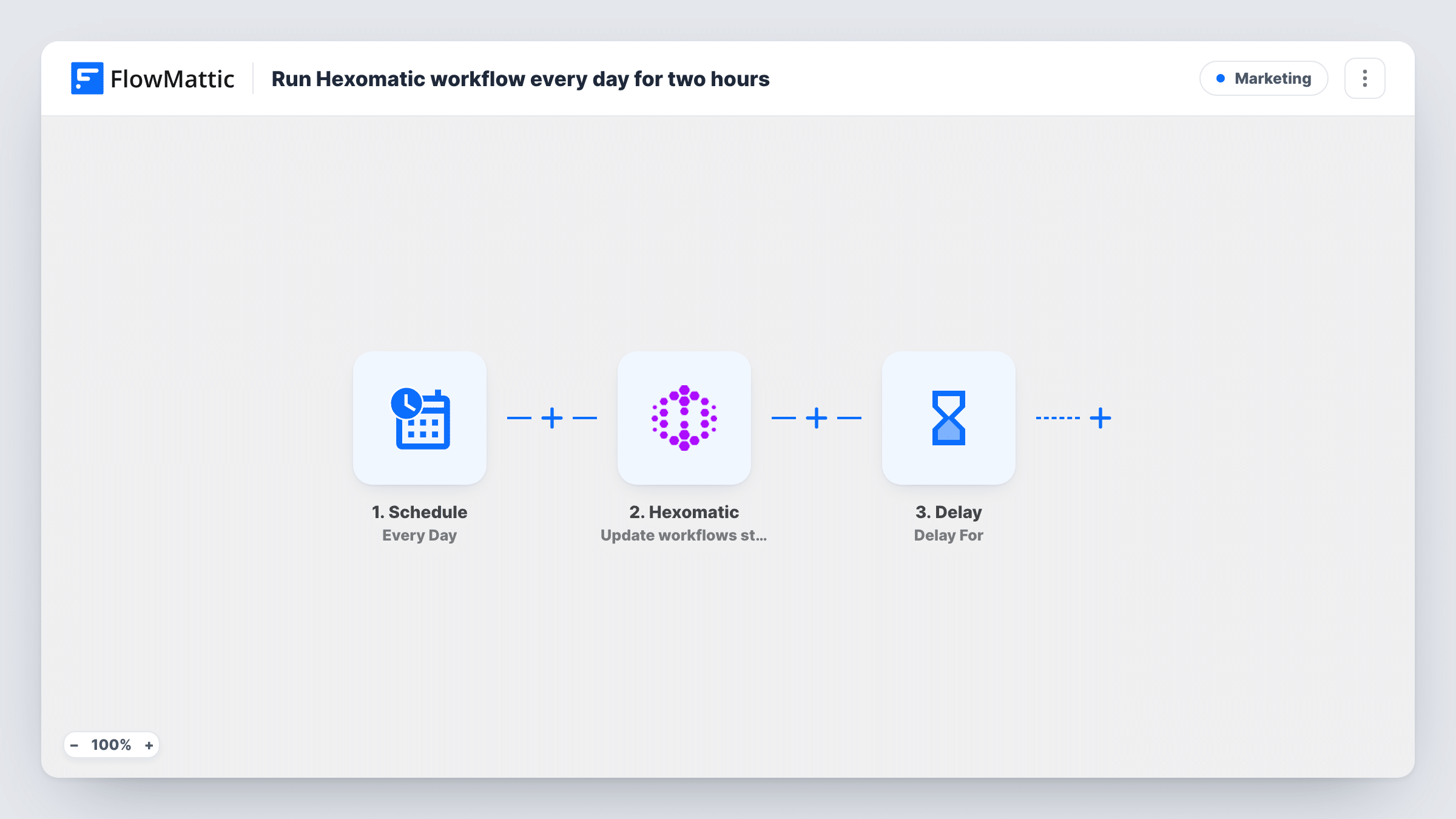
Once a day, FlowMattic changes the status of a Hexomatic workflow to start it, waits two hours with a Delay, then changes the status again to stop it, giving your scraping or automation recipe a fixed daily window.
 Schedule
 Hexomatic
 Delay
4 steps Setup ~8 min Used on 1.4k sites Free to import
What this workflow does
Some Hexomatic automations only need to run part of the day: a scraper that should pick up the morning's listings, or a recipe you don't want using credits around the clock. Switching it on and off by hand is easy to forget. This FlowMattic workflow does it on a timer.
The Schedule Every Day trigger starts a run once a day at the time you set after import. The first Hexomatic Update workflows status step then changes the status of the Hexomatic workflow you choose, which you set to the status that starts it.
A Delay step holds the run for two hours; this value is already set in the template. After the wait, the second Update workflows status step changes the same Hexomatic workflow's status again, this time to the one that stops or pauses it.
Both Hexomatic steps ship unmapped. After import you connect your Hexomatic account, pick the Hexomatic workflow in each step and choose the status each one should set. Pick the same Hexomatic workflow in both, or the second step will stop something else. After the first scheduled run, check Task History for both status changes and confirm the Hexomatic workflow's status in Hexomatic itself.
Morning listings scraper
A real estate researcher runs a Hexomatic scraping workflow from 7 to 9 each morning, when new listings appear, and keeps it off the rest of the day.
Daily price checks in a fixed window
An online seller lets a Hexomatic competitor price recipe run for two hours each afternoon instead of leaving it on all day.
Off-peak automation runs
A marketing team starts a Hexomatic lead research workflow late at night and stops it two hours later, before the working day begins.
How this workflow runs
What happens at each step once the workflow is on, and what you need before you import it.
 Schedule Every Day
Starts the FlowMattic workflow once every day. Set the time of day in the trigger after import, choosing when the two-hour Hexomatic window should open.
- Hexomatic Update workflows status
Changes the status of the Hexomatic workflow you choose so it starts running. The step ships unmapped: connect Hexomatic, pick the workflow and select the status that starts it.
- Delay Delay For
Pauses this run for two hours before the next step. The template sets the Delay to 2 hours; change the value if you want a shorter or longer window.
- Hexomatic Update workflows status
Changes the same Hexomatic workflow's status again, this time to stop it. After import, pick the same workflow as in step 2 and select the status that stops or pauses it.
What you need
- FlowMatticCore
- Hexomatic AccountAccount
After importing, map your own data. To keep the template universal, not every step is pre-filled. Open each step in the builder and connect your accounts and fields (channels, lists, sheets, recipients) before you switch the workflow on.
Make it yours
Changes worth making after you import it.
- Change the Delay from 2 hours to whatever window suits your recipe, such as 30 minutes for a quick daily scrape.
- Add a Slack or Gmail step after the last Hexomatic step and map in the response from that step, so you get a daily note of what Hexomatic returned when the window closed.
- If a daily window is more than you need, switch the Every Day trigger to a weekly Schedule trigger, so the Hexomatic workflow gets its two hours once a week.
- Use Hexomatic's own Configure Webhooks trigger in a separate FlowMattic workflow to act on the results when the recipe completes.
Questions about this workflow
Does this FlowMattic workflow run the Hexomatic recipe itself?
No. It only changes the Hexomatic workflow's status at the start and end of the window. What the Hexomatic workflow does while active is set up in Hexomatic.
Which statuses do the Hexomatic steps set?
The ones you choose after import. Both Update workflows status steps ship empty, so pick the starting status in the first and the stopping status in the second, using the options Hexomatic offers.
Can the two-hour Hexomatic window be changed?
Yes. The Delay step is set to 2 hours in the template. Edit its value or unit to make the window shorter or longer.
What time does the Hexomatic window open each day?
Whenever you set the Every Day trigger to fire. The template doesn't set a time, so choose it in the Schedule trigger after import.
More Marketing workflows
Other ready-to-import templates from the same category.








Import this workflow into your WordPress site
Download the JSON, import it from the Workflows screen and connect your accounts. Every run stays on your server, with no per-task fees.
30-day money-back guarantee Unlimited workflows and runs Self-hosted