

Save data scraped by a TaskMagic automation to a Google Sheets spreadsheet
When a TaskMagic automation sends out the data it scraped, this workflow writes it to a new row in the Google Sheets spreadsheet you choose, giving each run a lasting record.
 TaskMagic
 Google Sheets
2 steps Setup ~5 min Used on 841 sites Free to import
What this workflow does
TaskMagic automations can pull information from web pages, but scraped results are only useful once they sit somewhere you can sort, share and work with. This workflow takes the data a TaskMagic automation sends out and stores it in a spreadsheet.
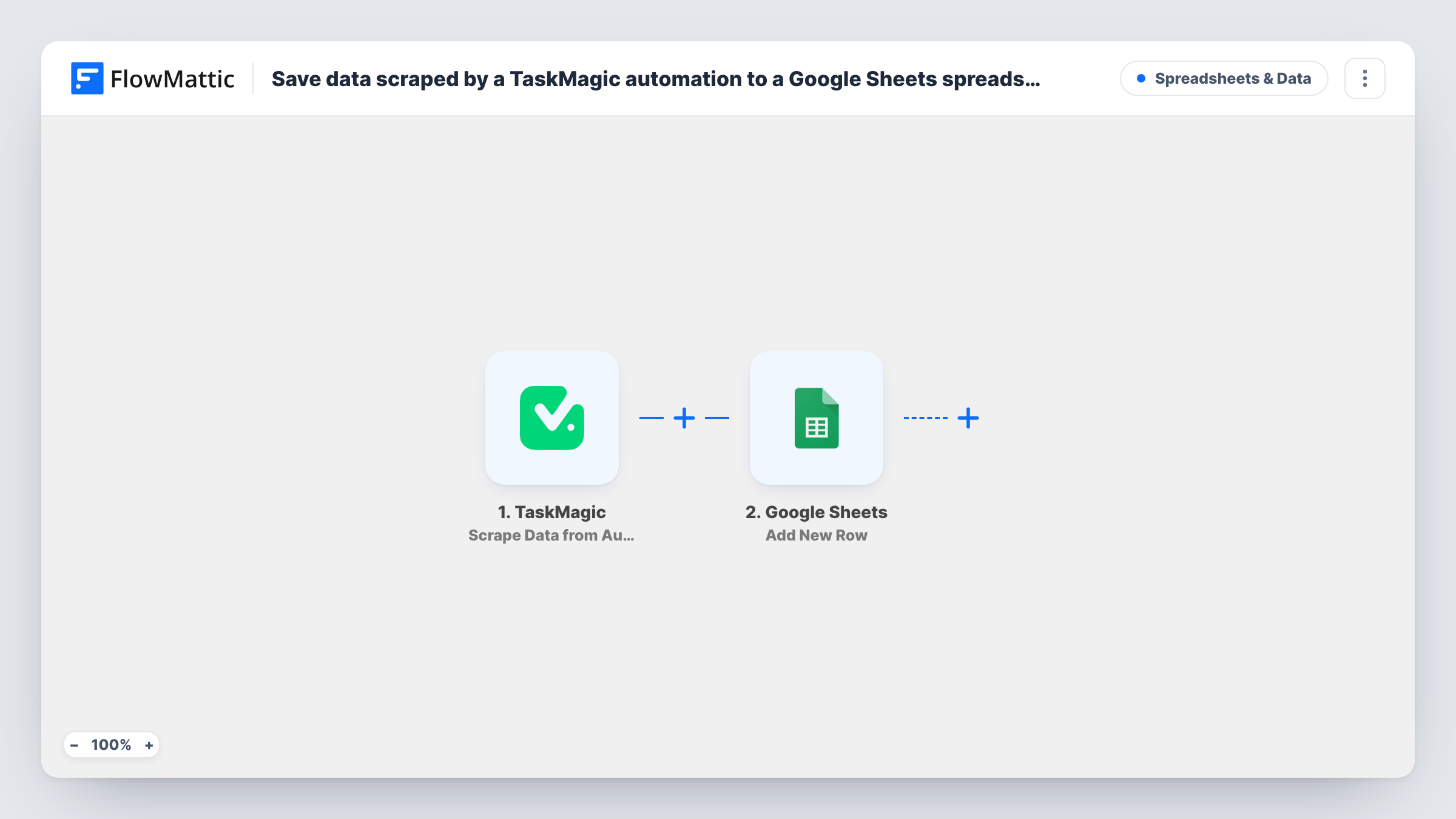
The TaskMagic trigger fires when scraped data is sent from your automation to FlowMattic. Each value that arrives becomes a field you can map. The Google Sheets step then adds a new row to the spreadsheet and sheet you pick, with each column filled from the field you assign to it.
Every time the automation sends data, a new row is added, so the sheet grows into a log of what was captured. The workflow does not compare against existing rows, so if the automation sends the same values twice, you get two rows. Task History records each run with the data received and what was written.
Track competitor prices
A TaskMagic automation reads prices from product pages, and each result becomes a dated row you can chart or compare in Google Sheets.
Collect listings for review
Job posts, property listings or directory entries scraped by TaskMagic land in one sheet your team can filter and comment on.
Keep a record of each scrape run
Every time the automation sends data, a row is added, so you can see what came back on each run and spot when a page changed.
How this workflow runs
What happens at each step once the workflow is on, and what you need before you import it.
 TaskMagic Scrape Data from Automation
Fires when your TaskMagic automation sends its scraped data to FlowMattic. Each value it includes is available to map in the Google Sheets step.
- Google Sheets Add New Row
Adds a new row to the Google Sheets spreadsheet and sheet you select. Connect your Google account, then map each column to a value from the TaskMagic data.
What you need
- FlowMatticCore
- TaskMagic AccountAccount
- Google Sheets AccountAccount
After importing, map your own data. To keep the template universal, not every step is pre-filled. Open each step in the builder and connect your accounts and fields (channels, lists, sheets, recipients) before you switch the workflow on.
Make it yours
Changes worth making after you import it.
- Run your TaskMagic automation once after import so FlowMattic receives sample data. The scraped fields then appear for mapping in the Google Sheets step.
- Name the sheet's columns after the values TaskMagic sends, so mapping is quick and the sheet reads clearly to others.
- If some runs return empty results, add a Filter after the trigger that continues only when a key field is not empty.
Questions about this workflow
How does TaskMagic send scraped data to FlowMattic?
The trigger fires when your TaskMagic automation sends its scraped data out. Set the automation to send to the trigger set up in this workflow, then run it once to confirm the data arrives.
Will repeated TaskMagic runs overwrite earlier rows in Google Sheets?
No. Each time data arrives, the workflow adds a new row. Earlier rows stay as they are, and identical results are added again rather than merged.
Can one TaskMagic scrape fill several rows?
As imported, each trigger event adds one row. If your automation sends a list of items in one go, add an Iterator before the Google Sheets step so each item gets its own row.
Do I need a TaskMagic account to import this sheet workflow?
Yes. You need a TaskMagic account with an automation that scrapes data, plus a Google account with access to the spreadsheet you want to fill.
More Spreadsheets & Data workflows
Other ready-to-import templates from the same category.




Import this workflow into your WordPress site
Download the JSON, import it from the Workflows screen and connect your accounts. Every run stays on your server, with no per-task fees.
30-day money-back guarantee Unlimited workflows and runs Self-hosted