

Save Descript rendered audio details to a Notion database
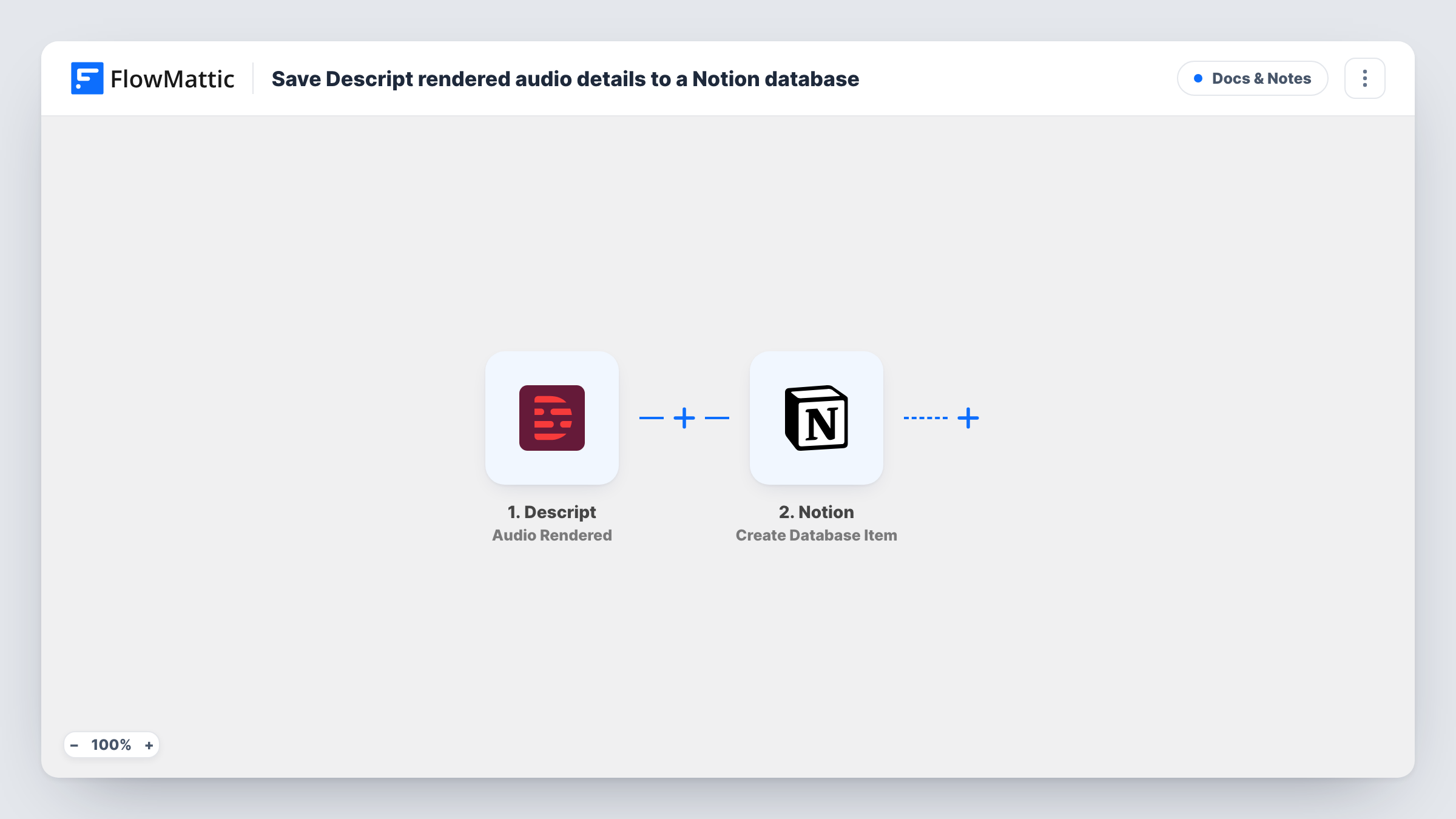
Whenever Descript finishes rendering an audio recording, this workflow creates an item in your Notion database with the render details you map, giving you a running log of finished audio.
 Descript
 Notion
2 steps Setup ~5 min Used on 2.7k sites Free to import
What this workflow does
When you record a lot of audio, finished renders pile up and it gets hard to say which episode or interview is ready. A Notion database makes a good tracker, but only if someone fills it in. This workflow adds the entry for you each time a render completes.
The Descript trigger fires when an audio recording has been rendered. FlowMattic takes the details Descript sends about that render and passes them to Notion, where Create Database Item adds a new item to the database you select. You choose which render details go into which database properties.
Each render produces one new item, every time. If the same recording is rendered again, you get another item for it, since the step only creates and never looks for an earlier one. Task History records each run along with the data Descript sent.
Podcast production tracker
Each rendered episode appears in a Notion board where the producer adds show notes, a publish date and status.
Interview archive for a research team
Rendered interview audio is listed in a Notion database the team tags by topic and searches later.
Client deliverables log
An audio editor keeps one Notion database per client and sees every finished render listed there for invoicing.
How this workflow runs
What happens at each step once the workflow is on, and what you need before you import it.
 Descript Audio Rendered
Runs when Descript reports that an audio recording has been rendered. The render details it sends can be mapped into the Notion item.
- Notion Create Database Item
Adds one entry per render to your Notion tracking database. Connect Notion, give FlowMattic access to that database, and map Descript render details to its properties.
What you need
- FlowMatticCore
- Descript AccountAccount
- Notion AccountAccount
After importing, map your own data. To keep the template universal, not every step is pre-filled. Open each step in the builder and connect your accounts and fields (channels, lists, sheets, recipients) before you switch the workflow on.
Make it yours
Changes worth making after you import it.
- Add a Status property in Notion with a default value such as Needs review, so every new render enters your process at the same point.
- Render one recording after import, then open the run in Task History to see which details Descript provides before you map the Notion properties.
- Use the Video Rendered trigger from Descript in a copy of this workflow if you also want video renders logged in the same database.
Questions about this workflow
Does the audio file itself go into Notion?
The step creates a database item from the details you map. Check a test run to see what Descript sends, such as a link, and map it to a property if it is there.
What if a Descript recording is rendered twice?
Each render is a new event, so you get a second Notion item. The Create Database Item step doesn't look for earlier items.
Which properties should my Notion database have for Descript renders?
Any layout works. Just give the database properties for the details you want to store, then map them in the Notion step.
More Docs & Notes workflows
Other ready-to-import templates from the same category.



Import this workflow into your WordPress site
Download the JSON, import it from the Workflows screen and connect your accounts. Every run stays on your server, with no per-task fees.
30-day money-back guarantee Unlimited workflows and runs Self-hosted