

Save each finished Plumsail Documents file to a Google Drive folder
When a Plumsail Documents process finishes, this workflow uploads the document it produced to a Google Drive folder you choose, so generated contracts, invoices and reports are stored in one shared place.
 Plumsail Documents
 Google Drive
2 steps Setup ~5 min Used on 3.2k sites Free to import
What this workflow does
Plumsail Documents builds files from your templates, such as contracts, quotes and certificates. Once a file is made, someone usually has to download it and put it in the right shared folder, and that step is where documents go missing. This workflow files each finished document in Google Drive for you.
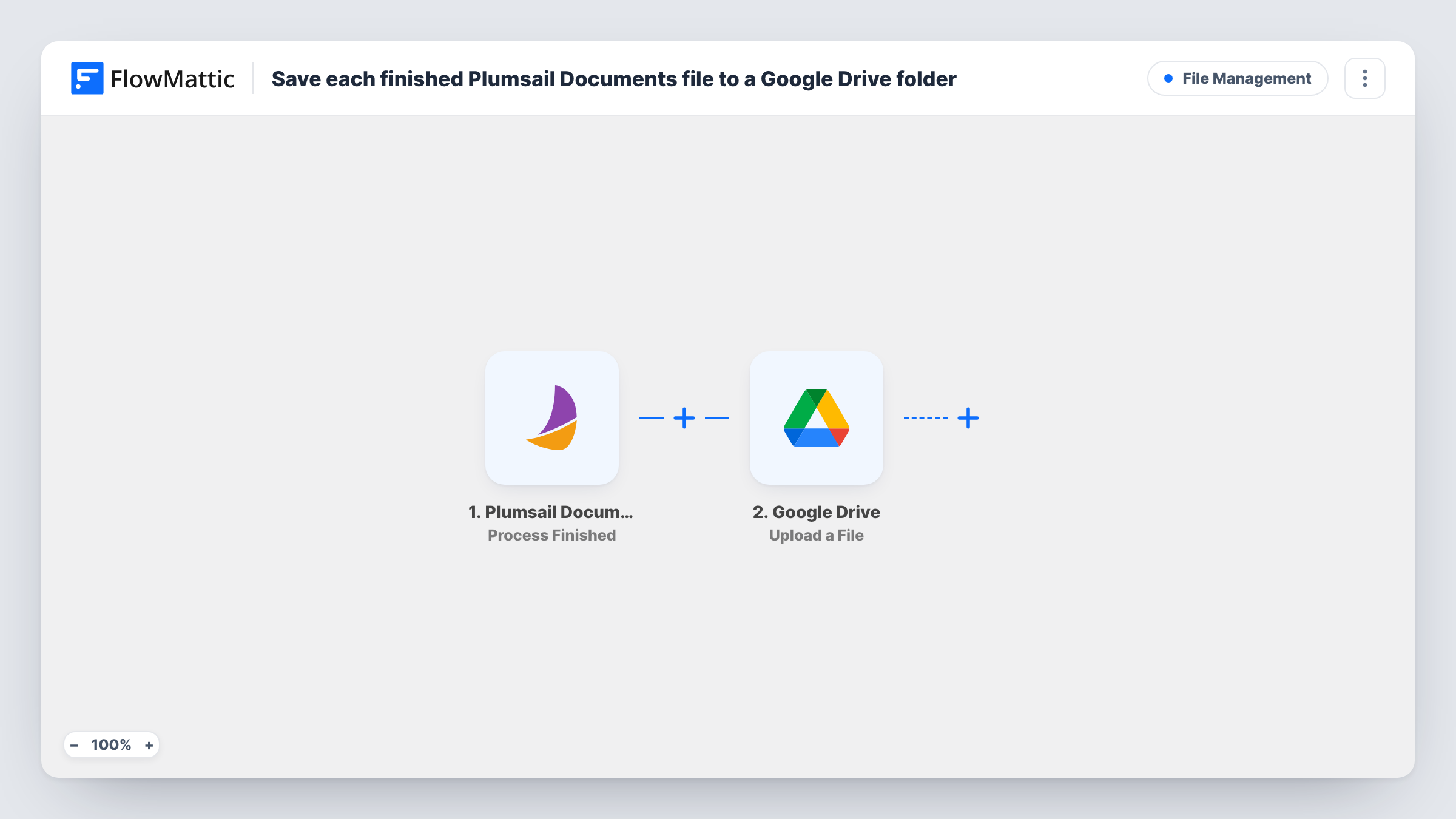
The Plumsail Documents trigger fires when a process is finished. FlowMattic receives the data Plumsail sends about that finished run, and the next step sends the resulting document to Google Drive. The Upload a File action places it in the folder you select.
Every finished process leads to one upload, and nothing in the template checks which process ran. If several Plumsail processes are connected, all of their output ends up in the same folder unless you add a condition. Run a test process after import to see what file data Plumsail sends, then map it in the upload step. Task History lists each run, which helps you trace a document that did not arrive.
Signed-off contracts for a sales team
Each contract Plumsail generates from a deal is saved to a shared Contracts folder in Google Drive that the whole sales team can open.
Course certificates for a training business
Certificates created by a Plumsail process are uploaded to a Drive folder, giving staff a single place to find and re-send them.
Monthly client reports
Reports built from a Plumsail template go straight to a Drive folder shared with account managers, ready to review before sending.
How this workflow runs
What happens at each step once the workflow is on, and what you need before you import it.
 Plumsail Documents Process Finished
Fires when a Plumsail Documents process finishes. The data Plumsail sends about that finished run becomes available to map in the Google Drive step.
- Google Drive Upload a File
Uploads the document to the Google Drive folder you pick. Connect your Google account, choose the folder, and map the generated file from the trigger. A test run shows you which file values Plumsail passes.
What you need
- FlowMatticCore
- Plumsail Documents AccountAccount
- Google Drive AccountAccount
After importing, map your own data. To keep the template universal, not every step is pre-filled. Open each step in the builder and connect your accounts and fields (channels, lists, sheets, recipients) before you switch the workflow on.
Make it yours
Changes worth making after you import it.
- Use a Router with one route per Plumsail process, each with its own Upload a File step, to file contracts and invoices in separate Drive folders.
- Add an email or Slack step after the upload so the right person hears that a new document is in Drive.
- Run one Plumsail process right after import so FlowMattic captures real output, then finish mapping the upload step before you switch the workflow on.
Questions about this workflow
Does this save Plumsail documents generated before I import it?
No. Only processes that finish after the workflow is turned on start a run, so older documents stay where they are.
Which Google Drive folder do the Plumsail files go to?
You pick it once in the upload step, and every finished process sends its file there until you change that choice or add a Router.
Do I still get the document from Plumsail Documents as before?
Yes. The workflow only listens for finished processes and copies the result to Drive. It does not change how your Plumsail process delivers or stores its output.
What happens if the Google Drive upload fails for one document?
Task History shows the error on the Google Drive step for that run, so you can check the folder and connection and upload that file again yourself.
More File Management workflows
Other ready-to-import templates from the same category.




Import this workflow into your WordPress site
Download the JSON, import it from the Workflows screen and connect your accounts. Every run stays on your server, with no per-task fees.
30-day money-back guarantee Unlimited workflows and runs Self-hosted