

When an email is received in Email Parser, send the email data to Google Sheet, upload attachments to Google Drive
Every email that reaches your FlowMattic Email Parser address is logged as a row in Google Sheets, and the attachment you map is uploaded to a Google Drive folder, so messages and their files are filed together.
 Email Parser by FlowMattic
 Google Sheets
 Google Drive
3 steps Setup ~5 min Used on 2.6k sites Free to import
What this workflow does
Invoices, receipts and reports often arrive by email with a file attached. Saving each attachment and noting who sent it is dull work that piles up. This workflow logs each message in a spreadsheet and puts its file in Drive.
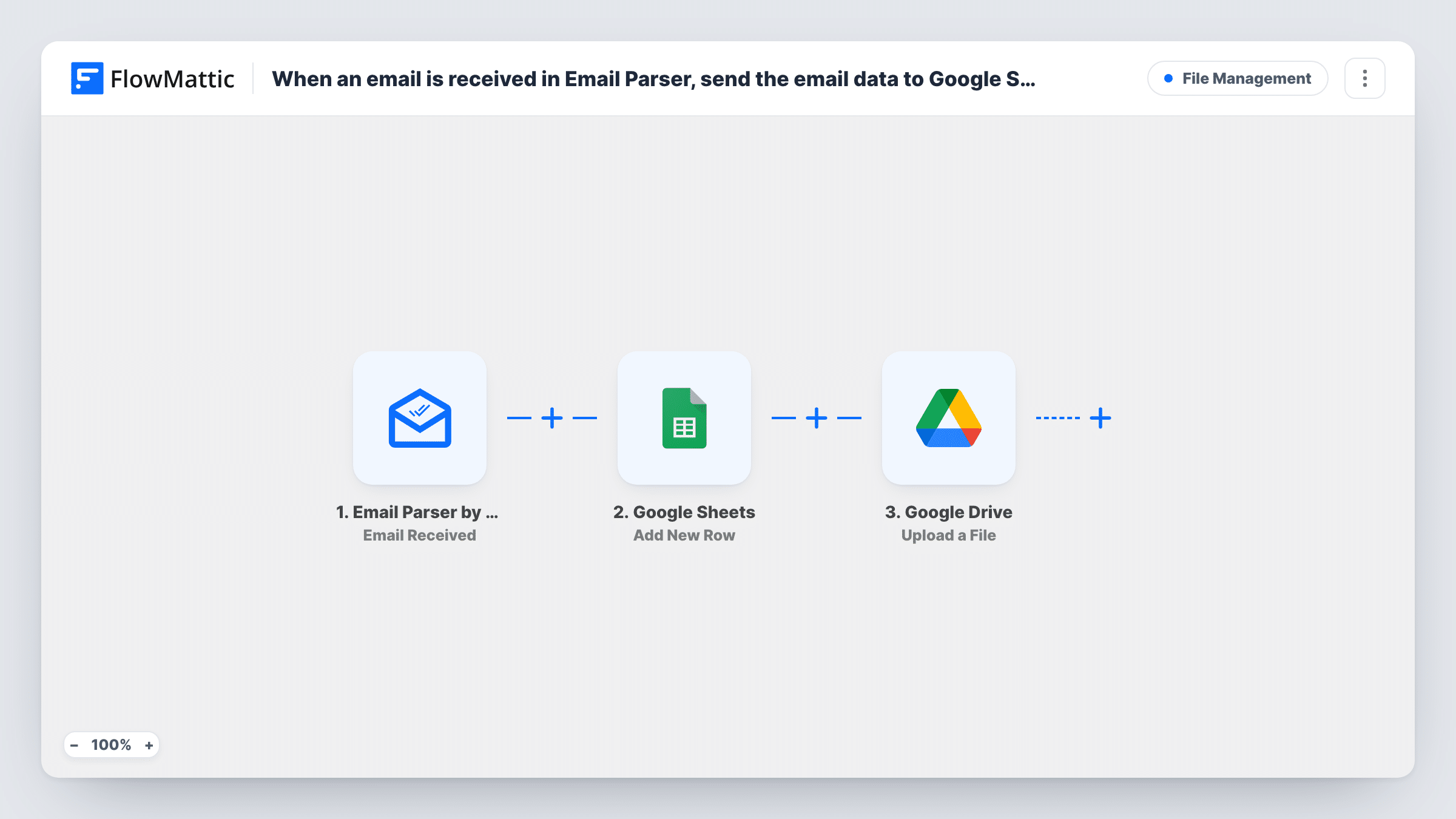
The Email Parser trigger, Email Received, fires when an email arrives at the email parser address FlowMattic gives you. Forward mail there, or have senders write to it directly. The email's data, such as sender, subject, body and attachments, becomes available to map. The Google Sheets step adds a row with the values you choose.
The Google Drive step, Upload a File, uploads one file per run to the folder you pick: the attachment you map. If an email has several attachments, only the mapped one is uploaded unless you add an Iterator. Every email to the address starts a run, including ones with no attachment, where the Drive step has nothing to upload and Task History shows the error.
Supplier invoices for a bookkeeper
Suppliers send invoices to the parser address. Each one gets a row with sender and subject, and the PDF lands in the Drive folder your bookkeeper works from.
Field reports from staff
Staff email a photo or report from site. The sheet records who sent what and when, and the file sits in a shared Drive folder for the office.
Signed forms returned by clients
Clients reply with a signed form attached. You keep a log of returns in Sheets and every signed copy in one Drive location.
How this workflow runs
What happens at each step once the workflow is on, and what you need before you import it.
 Email Parser by FlowMattic Email Received
Runs when an email reaches your FlowMattic Email Parser address. The sender, subject, body and attachment data are passed on for mapping in the next two steps.
- Google Sheets Add New Row
Adds a row to the Google Sheets spreadsheet you select with the email values you map, such as sender, subject and date, once your Google account is linked.
- Google Drive Upload a File
Uploads the attachment you map to the Google Drive folder you choose. One file is uploaded per run, so map the attachment you want and check a test email to see how attachments come through.
What you need
- FlowMatticCore
- Google Sheets AccountAccount
- Google Drive AccountAccount
After importing, map your own data. To keep the template universal, not every step is pre-filled. Open each step in the builder and connect your accounts and fields (channels, lists, sheets, recipients) before you switch the workflow on.
Make it yours
Changes worth making after you import it.
- Add a Filter after the trigger that continues only when the attachment value is not empty, so emails without a file don't add rows or fail at the Drive step.
- To save every attachment from one email, add an Iterator over the attachments after the Sheets step and place the Google Drive upload inside it.
- Move the Google Drive step above the Sheets step if you want the row to point at each file. The upload then runs first, and you can map a link from Drive's response into a column after checking a test run.
Questions about this workflow
Which email address does the Email Parser trigger watch?
The address the Email Parser trigger shows when you set it up in FlowMattic. Forward messages to it from your own mailbox, or give it to senders.
What if an email has more than one attachment?
As imported, the Drive step uploads only the attachment you map. Add an Iterator over the attachments to upload each one.
Are emails without attachments logged in the sheet?
Yes. Every email starts a run and adds a row. The Drive step then has no file to upload, and Task History records that error on the step.
Can the uploaded attachments go into folders by sender?
Not as imported. Every file goes to the one folder you pick in the Upload a File step. Sorting by sender would need a Router with a Drive step per folder.
More File Management workflows
Other ready-to-import templates from the same category.




Import this workflow into your WordPress site
Download the JSON, import it from the Workflows screen and connect your accounts. Every run stays on your server, with no per-task fees.
30-day money-back guarantee Unlimited workflows and runs Self-hosted