

Save each new Funnelforms submission as a row in Google Sheets
Every Funnelforms submission is added to Google Sheets as a new row with the answers you map, so your funnel’s responses sit in one spreadsheet you can sort, filter and share with your team.
 Funnelforms
 Google Sheets
2 steps Setup ~5 min Used on 2.7k sites Free to import
What this workflow does
Multi-step funnel forms collect a lot of answers per lead, such as the options picked on each step and the contact details at the end. Reading them one entry at a time is slow, and sharing them with someone who has no login is awkward. A shared Google Sheet fixes both problems at once.
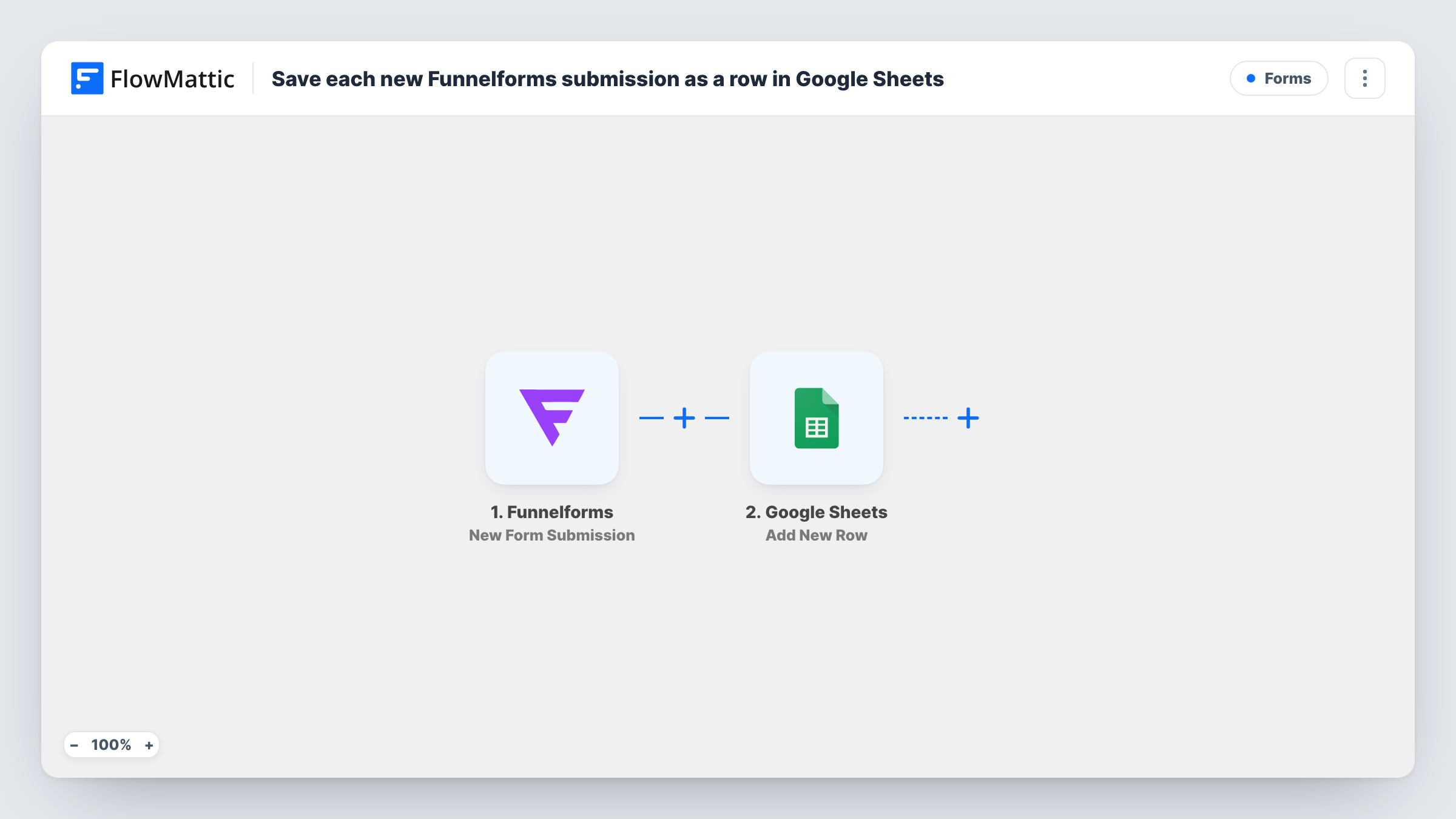
The Funnelforms trigger runs when data is captured from one of your forms. FlowMattic takes each answer from that submission and hands the ones you map to Google Sheets. The Add New Row action writes them into the spreadsheet and worksheet you select, one row per submission.
You choose the columns, so the sheet can hold every answer or just the few that matter, such as name, email and the package picked. Nothing filters the entries first, so test submissions get rows too. Task History records each submission the workflow sent to the sheet.
Quote funnels for service businesses
A cleaning company's Funnelforms quote form asks about home size and frequency. Each request lands as a row the team works through when calling back.
Sharing leads with a sales partner
A partner without a Funnelforms login reads the shared sheet and sees every Funnelforms lead with the options they chose.
Comparing answers across many leads
Sort or pivot the sheet by the options people picked, so you can see which packages or choices come up most in your funnel.
How this workflow runs
What happens at each step once the workflow is on, and what you need before you import it.
 Funnelforms New Form Submission
Runs when Funnelforms captures data from a form submission. After import, complete your form once so FlowMattic captures every answer, ready to map to columns.
- Google Sheets Add New Row
Adds one row to the spreadsheet and worksheet you select. Create column headers first, connect your Google account and map each one to a Funnelforms answer.
What you need
- FlowMatticCore
- Funnelforms AccountAccount
- Google Sheets AccountAccount
After importing, map your own data. To keep the template universal, not every step is pre-filled. Open each step in the builder and connect your accounts and fields (channels, lists, sheets, recipients) before you switch the workflow on.
Make it yours
Changes worth making after you import it.
- Add a column for the submission date or time if Funnelforms sends one, so you can sort leads by when they came in.
- Use a Filter after the trigger to skip your own test entries, for example when the email contains your company's domain.
- Add an email step after Google Sheets if someone should also get a notice for each new lead, with a link to the sheet.
Questions about this workflow
Does every Funnelforms submission get a row?
Yes. There is no Filter in the template, so each submission adds a new row, including tests you make while setting up.
Can I choose which Funnelforms answers go into the sheet?
Yes. You map each column yourself, so leave out any answers you don't need.
Are earlier Funnelforms entries copied into the sheet?
No. Only submissions made after the workflow is on are added.
Does Funnelforms still handle submissions as before?
Yes. The workflow only reads each submission and doesn't change your form settings or notifications.
More Forms workflows
Other ready-to-import templates from the same category.





Import this workflow into your WordPress site
Download the JSON, import it from the Workflows screen and connect your accounts. Every run stays on your server, with no per-task fees.
30-day money-back guarantee Unlimited workflows and runs Self-hosted