

Save a completed Assembly form response to Airtable
Each time a client submits a form in your Assembly portal, this workflow creates a new Airtable record holding their answers, so every response sits in a table you can sort, filter and share.
 Assembly
 Airtable
2 steps Setup ~5 min Used on 1.3k sites Free to import
What this workflow does
Assembly forms are a handy way to collect onboarding details, intake questions or feedback from clients inside your portal. Working with those answers across many clients is easier in a table. This workflow copies each completed response into Airtable.
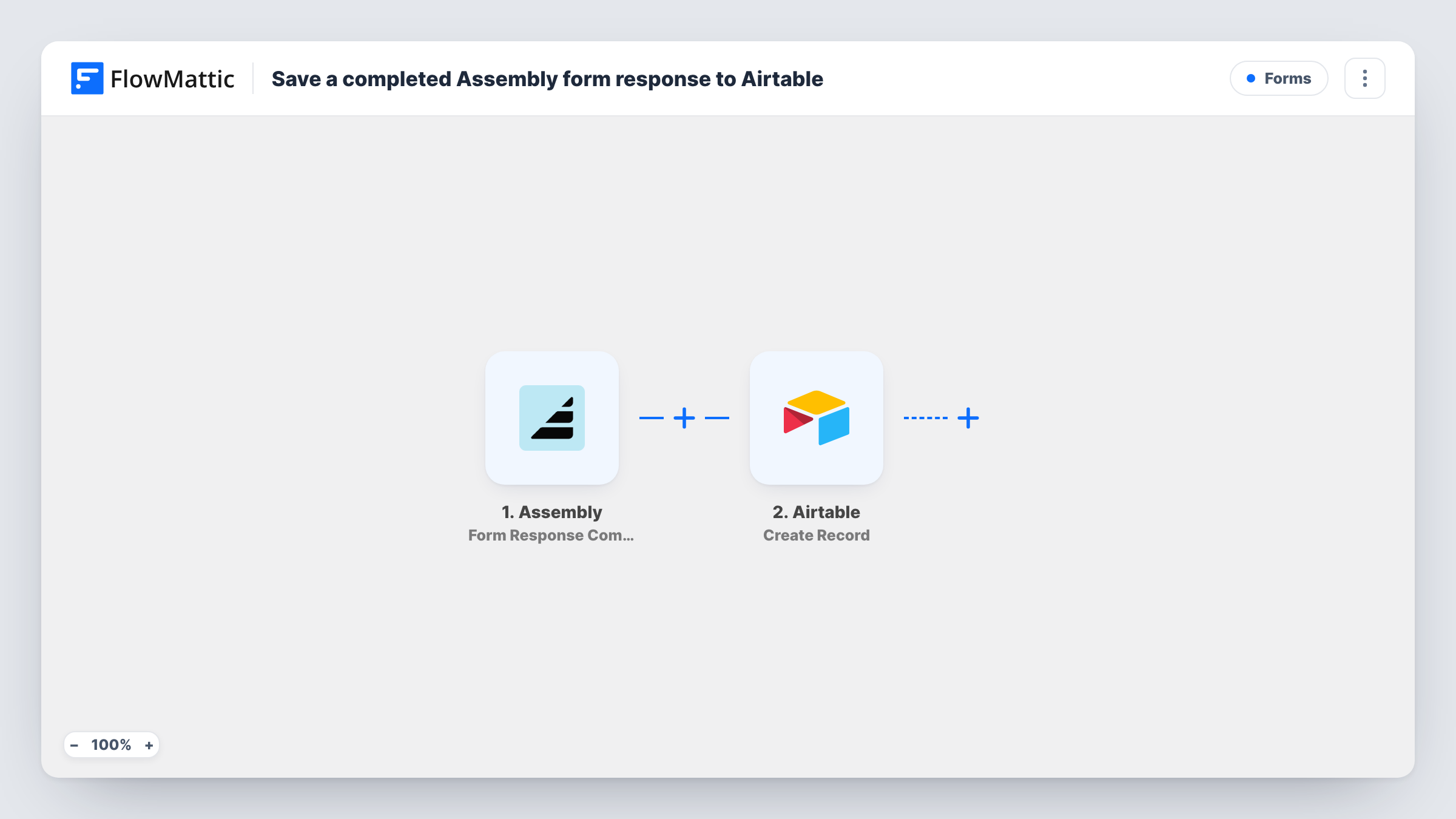
The Assembly Form Response Completed trigger fires when a client submits a form response. FlowMattic passes the response data to Airtable, and the Create Record action adds a new record to the table you choose. You map each answer to the matching Airtable field.
Every submission makes its own record. If a client fills in the same form twice, you get two records, which keeps a full history of what they sent. Responses already in Assembly before the workflow starts are not copied.
Client intake for a design studio
New clients complete an intake form in Assembly. Their brand details, budget and deadlines land in an Airtable table the studio uses to plan projects.
Quarterly feedback surveys
Clients answer a feedback form in the portal each quarter. Airtable collects every response, so you can group by client and compare answers over time.
Document checklists for accountants
A tax-season questionnaire in Assembly feeds Airtable, giving staff one table of which clients have answered and what they reported.
How this workflow runs
What happens at each step once the workflow is on, and what you need before you import it.
 Assembly Form Response Completed
Fires when a client submits a form response in Assembly. FlowMattic receives the client's answers for the Airtable step. Submit a test response to see how Assembly sends the answers.
- Airtable Create Record
Creates a new record in Airtable from the form response. Connect Airtable, pick where the record should go, and map each Assembly answer to a field.
What you need
- FlowMatticCore
- Assembly AccountAccount
- Airtable AccountAccount
After importing, map your own data. To keep the template universal, not every step is pre-filled. Open each step in the builder and connect your accounts and fields (channels, lists, sheets, recipients) before you switch the workflow on.
Make it yours
Changes worth making after you import it.
- Map the client's email or name from the Assembly response into its own Airtable field, so you can group records by client.
- If you use several forms in Assembly, check whether the response data names the form. If it does, a Filter after the trigger can keep only one form's answers in this table.
- Add a Date field in Airtable and map the submission time if the response includes it, so you can sort records by when they arrived.
Questions about this workflow
Does a resubmitted Assembly form update the Airtable record?
No. The step is Create Record, so each submission adds a new record. Earlier records stay as they were.
Do all Assembly forms go to the same Airtable table?
As imported, yes. Every completed form response runs the workflow. Add a Filter on the form if you want only one form's answers.
Do my Airtable field names have to match the Assembly form questions?
No. You map each answer to whichever Airtable field you want in the Create Record step, so the names can differ.
Are form responses from before I import this copied to Airtable?
No. Only responses submitted after you turn the workflow on create records.
More Forms workflows
Other ready-to-import templates from the same category.






Import this workflow into your WordPress site
Download the JSON, import it from the Workflows screen and connect your accounts. Every run stays on your server, with no per-task fees.
30-day money-back guarantee Unlimited workflows and runs Self-hosted