

Save each new RecruitApp.ai rescheduled interest card to a Notion database
When a RecruitApp.ai interest card is rescheduled for a new hiring event, this workflow adds an item to your Notion database, so your recruiting team can see moved candidates in the workspace they already use.
 RecruitApp.ai
 Notion
2 steps Setup ~5 min Used on 2.4k sites Free to import
What this workflow does
Candidates who can't make one hiring event often get moved to the next. In RecruitApp.ai that shows up as a rescheduled interest card. If your team plans events and follow-ups in Notion, those moves need to reach the Notion database too, or someone ends up chasing a candidate for the wrong date.
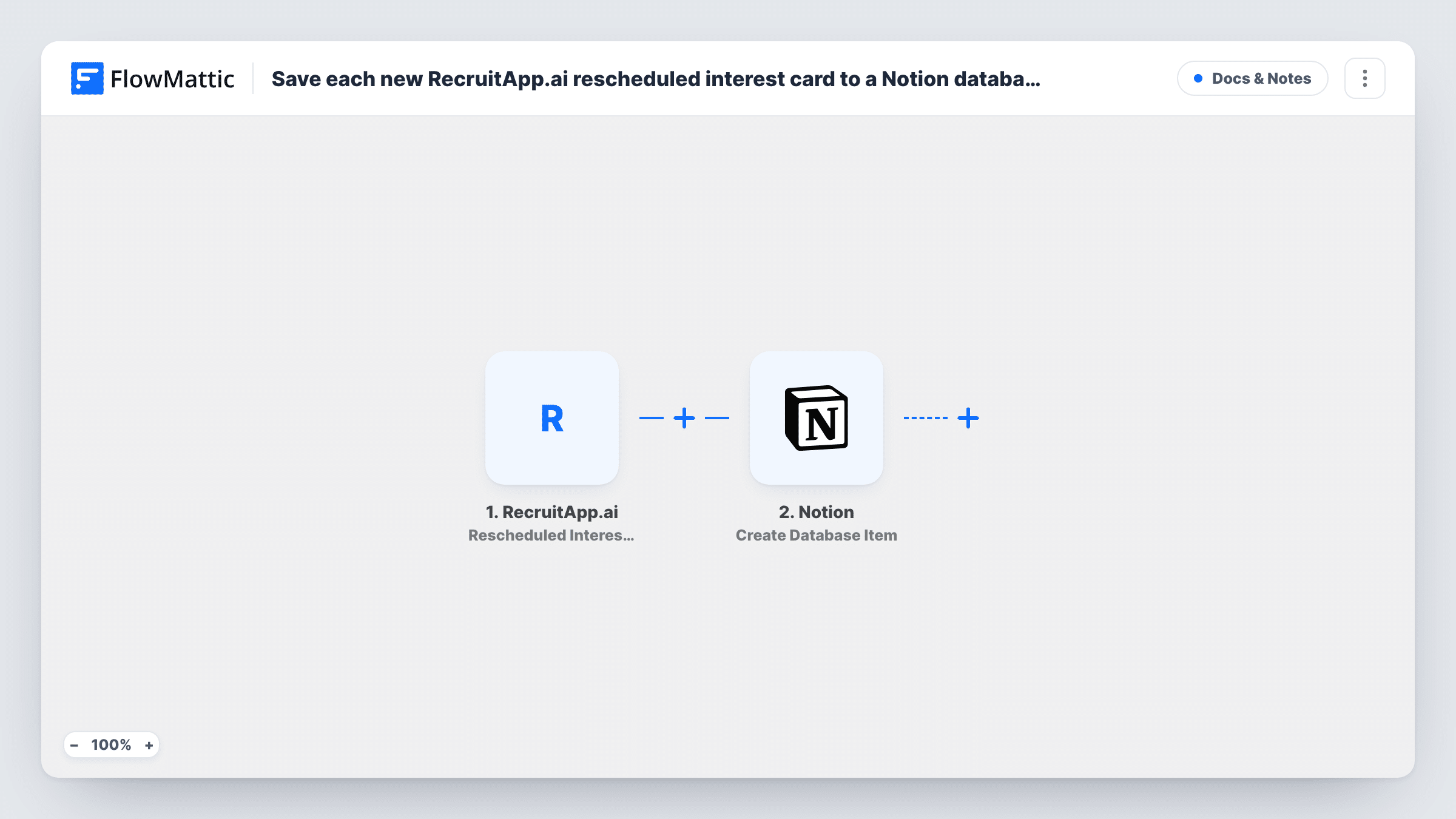
The RecruitApp.ai trigger fires when an interest card is rescheduled for a new hiring event. FlowMattic passes the card's data to the Create Database Item action in Notion, which adds an item to the database you select. You map the card's details to the database's properties.
Notion gets a fresh item on every run. It doesn't find and update an existing page for that candidate, so a person rescheduled twice gets two items, one per move. That gives you a history of reschedules you can sort or filter in Notion. Task History records every run and what Notion returned.
Campus hiring events
Students who move from one campus event to a later one appear in the recruiting team's Notion database, so the event lead sees who to expect.
Weekly reschedule review
A recruiting manager filters the Notion database by week to see how many candidates moved events and follows up with the ones who moved more than once.
Shared notes for hiring managers
Hiring managers who work in Notion but not in RecruitApp.ai can see rescheduled candidates and add their own notes to each item.
How this workflow runs
What happens at each step once the workflow is on, and what you need before you import it.
 RecruitApp.ai Rescheduled Interest Card
Fires when an interest card in RecruitApp.ai is rescheduled for a new hiring event. The card's data is passed on for mapping in Notion.
- Notion Create Database Item
Writes the reschedule into your selected Notion database as a new entry. Share the database with your FlowMattic connection first, then map the interest card details to its properties.
What you need
- FlowMatticCore
- RecruitApp.ai AccountAccount
- Notion AccountAccount
After importing, map your own data. To keep the template universal, not every step is pre-filled. Open each step in the builder and connect your accounts and fields (channels, lists, sheets, recipients) before you switch the workflow on.
Make it yours
Changes worth making after you import it.
- Reschedule a test interest card in RecruitApp.ai after import so FlowMattic captures the data, then map it in the Notion step while the values are in front of you.
- Add a date property to the Notion database and map a date from the card into it, if the card carries one, so you can sort reschedules by when they happened.
- Want the team told as well? Add a Slack or Gmail step after Notion with the candidate's details in the message.
Questions about this workflow
Does this update the candidate's existing Notion page?
No. Create Database Item adds a new item each time a card is rescheduled. To change an existing page instead, you'd need a step that finds it and an update action.
Are first-time RecruitApp.ai interest cards saved to Notion too?
No. This trigger only fires on rescheduled cards. RecruitApp.ai has a separate interest card trigger you can use in another workflow for new cards.
My Notion database doesn't appear in the RecruitApp.ai workflow's step. Why?
Notion only shows an integration the pages and databases shared with it. Share the database with your connection in Notion, then reload the step.
More Docs & Notes workflows
Other ready-to-import templates from the same category.






Import this workflow into your WordPress site
Download the JSON, import it from the Workflows screen and connect your accounts. Every run stays on your server, with no per-task fees.
30-day money-back guarantee Unlimited workflows and runs Self-hosted