

Save every Divi Engine form submission to a Google Sheets spreadsheet
Every time a visitor successfully submits a Divi Engine form on your site, this workflow writes the answers to a new row in Google Sheets, so all your Divi form entries collect in one spreadsheet you can sort and share.
 Divi Engine
 Google Sheets
2 steps Setup ~5 min Used on 2.0k sites Free to import
What this workflow does
Forms built with Divi Engine sit inside your Divi pages, and the entries are not always where the rest of your team works. Sales, support or a client may want the responses in a spreadsheet they can filter, comment on and share. This workflow copies each entry into Google Sheets as it comes in.
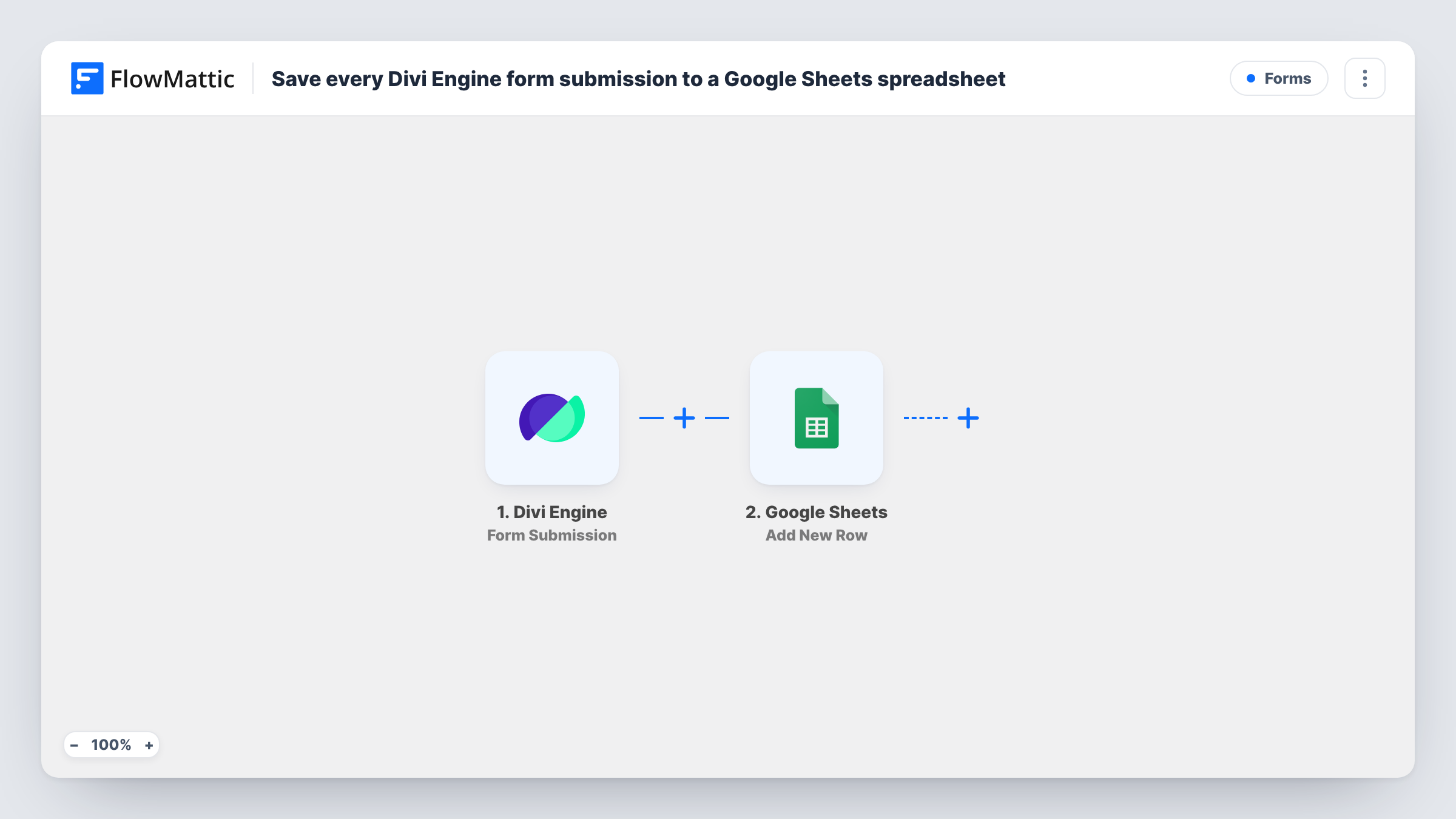
The Divi Engine trigger fires when a user successfully submits the Divi form you connect. FlowMattic takes the submitted fields and passes them to Google Sheets. The Add New Row action places them in the spreadsheet and tab you choose, with each form field mapped to a column.
Every successful submission adds its own row, and nothing is filtered or merged, so the sheet is a complete log of entries in the order they arrived. The form keeps working on your site as before. Task History records each run in case you need to match a row to a submission.
Agency client lead sheet
An agency builds a Divi site for a client and sends every enquiry from the Divi Engine form into a sheet the client checks each morning.
Event sign-ups on a Divi page
Registrations made through a Divi Engine form collect in Google Sheets, which becomes the guest list on the day.
Product feedback form
Customer feedback submitted on a Divi page lands in a shared sheet the product team tags and discusses.
How this workflow runs
What happens at each step once the workflow is on, and what you need before you import it.
 Divi Engine Form Submission
Fires when a visitor successfully submits your Divi Engine form. Each submitted field becomes data you can map into the spreadsheet.
- Google Sheets Add New Row
Places the submission in a new row of the Google Sheets file and tab you choose. Connect your Google account and match each Divi form field to a column.
What you need
- FlowMatticCore
- Divi Engine AccountAccount
- Google Sheets AccountAccount
After importing, map your own data. To keep the template universal, not every step is pre-filled. Open each step in the builder and connect your accounts and fields (channels, lists, sheets, recipients) before you switch the workflow on.
Make it yours
Changes worth making after you import it.
- Add a Filter after the trigger if the sheet should only hold some entries, for example when a subject dropdown equals Quote.
- Add an email step after Google Sheets if the person who owns the sheet should also hear about each new entry.
- Submit the Divi form once yourself after import so FlowMattic captures the field names, then finish the column mapping before activating the workflow.
Questions about this workflow
Do I need Divi Engine's form plugin on the same site as FlowMattic?
Yes. The trigger listens for submissions on the WordPress site where FlowMattic is installed, so the Divi Engine form must be on that site.
Are old Divi form entries copied to Google Sheets?
No. Only submissions made after the workflow is turned on create rows.
What if a Divi form submission fails validation?
The trigger fires on successful submissions, so an entry that the form rejects does not reach the sheet.
Can several Divi Engine forms write to one Google Sheet?
Yes. Import a copy of the workflow for each form and point each copy at the same spreadsheet, or a separate tab per form.
More Forms workflows
Other ready-to-import templates from the same category.







Import this workflow into your WordPress site
Download the JSON, import it from the Workflows screen and connect your accounts. Every run stays on your server, with no per-task fees.
30-day money-back guarantee Unlimited workflows and runs Self-hosted