

When booking inquiry arrives via Gravity Forms, get trip packages from WP Travel Engine and send pricing via Email SMTP
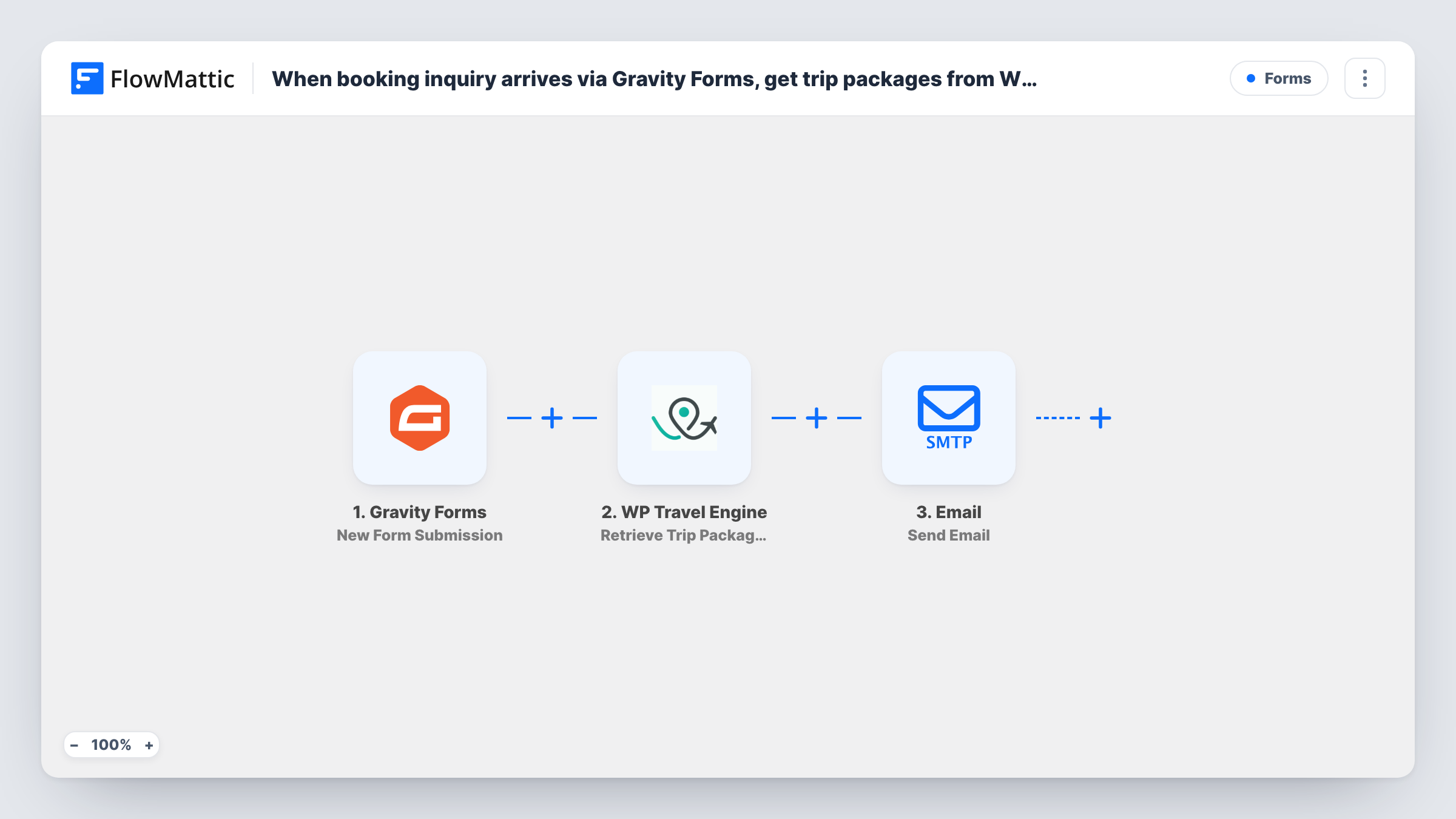
When a booking inquiry comes in through Gravity Forms, this workflow retrieves a trip’s packages and pricing from WP Travel Engine and emails them to the person who asked.
 Gravity Forms
 WP Travel Engine
 Email
3 steps Setup ~5 min Used on 3.1k sites Free to import
What this workflow does
Travel inquiries usually ask the same question: what does this trip cost? If your trips and prices are already in WP Travel Engine, typing them into a reply for every inquiry is repeated work. This workflow looks the packages up and sends them by email.
The Gravity Forms trigger runs when someone submits your inquiry form. Next, WP Travel Engine uses Retrieve Trip Packages to fetch all packages for a specific trip, including pricing. The Email step then sends a message through WordPress mail or your SMTP server to the address from the form, with the package details mapped in.
The lookup needs to know which trip. Either set one fixed trip in that step, or have the form send the trip ID, for example from a dropdown whose values are your trip IDs. The WP Travel Engine step only reads data; it doesn't create a booking. Run a test inquiry to see how the package list looks in the email before you go live.
Trek operator with one flagship trip
A Himalayan trek company with one main itinerary sends every inquirer the current package prices for that trek straight after they submit the form.
Tour site with a trip dropdown
Your inquiry form lists trips by ID. The visitor picks one, and the email they receive shows the packages and pricing for that trip.
Group travel requests
A school or club asks about a trip through Gravity Forms and gets the package options in their inbox, while your team follows up on group details.
How this workflow runs
What happens at each step once the workflow is on, and what you need before you import it.
 Gravity Forms New Form Submission
Runs when a visitor submits your Gravity Forms inquiry form. Their email address, the trip they chose and any other answers are passed on to the next steps.
- WP Travel Engine Retrieve Trip Packages
Retrieves all packages for one trip from WP Travel Engine, including pricing. Map the trip ID from the form, or set a fixed trip. This step reads data only.
 Email Send Email
Sends an email through WordPress mail or your SMTP server to the address from the form. Write the reply and map in the package names and prices returned by WP Travel Engine.
What you need
- FlowMatticCore
- Gravity Forms PluginPlugin
- WP Travel Engine PluginPlugin
After importing, map your own data. To keep the template universal, not every step is pre-filled. Open each step in the builder and connect your accounts and fields (channels, lists, sheets, recipients) before you switch the workflow on.
Make it yours
Changes worth making after you import it.
- Make the email field required in your Gravity Forms inquiry form, so the reply step always has an address to send to.
- Send yourself a test inquiry first. Check in Task History how WP Travel Engine returns the packages, then lay out the email so prices read clearly.
- Add a Google Sheets step after the email to log each inquiry and the trip it was about, giving your sales team a follow-up list.
Questions about this workflow
How does WP Travel Engine know which trip the Gravity Forms inquiry is about?
Retrieve Trip Packages works on a specific trip. Map a trip ID from the form, such as a dropdown with trip IDs as values, or set one fixed trip if you only sell one.
Does this create a booking in WP Travel Engine?
No. The WP Travel Engine step only reads packages and pricing. The visitor still books in the usual way.
Will the email show current prices?
It shows what WP Travel Engine returns at the moment the inquiry runs, so price changes you make in WP Travel Engine appear in later emails.
Do I need both plugins on the same WordPress site?
Yes. Gravity Forms and WP Travel Engine both need to be active on the site where FlowMattic runs.
More Forms workflows
Other ready-to-import templates from the same category.






Import this workflow into your WordPress site
Download the JSON, import it from the Workflows screen and connect your accounts. Every run stays on your server, with no per-task fees.
30-day money-back guarantee Unlimited workflows and runs Self-hosted