

Save every EasySend data submission as a row in a Google Sheets spreadsheet
When an end user clicks a submit button in an EasySend process, this workflow adds the submitted data as a new row in Google Sheets, giving your team a spreadsheet of every submission.
 EasySend
 Google Sheets
2 steps Setup ~5 min Used on 1.5k sites Free to import
What this workflow does
EasySend collects data through guided digital processes, but people who report on that data or follow up on it often work in spreadsheets. This workflow copies each submission into Google Sheets so they can sort, filter and share it without opening EasySend.
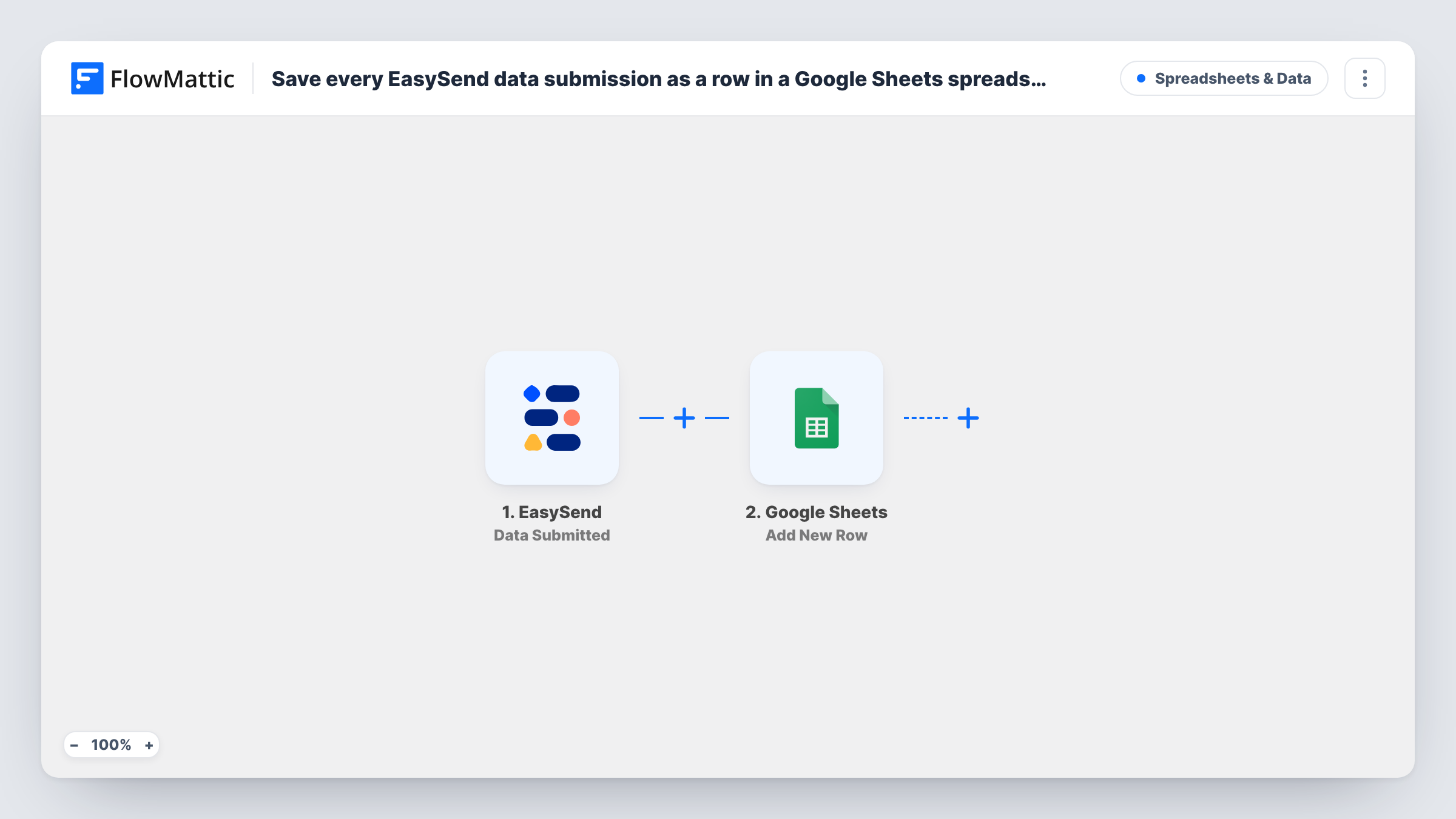
The EasySend trigger, Data Submitted, fires when an end user clicks a button to submit data. FlowMattic passes that data to Google Sheets, and Add New Row writes it to the spreadsheet and sheet you select, with each value in the column you map.
The template always adds a row; it never updates one. If a process has more than one submit button, each click can produce its own row, so check a full run-through before relying on row counts. Task History records every run and what was sent to the sheet.
Insurance claim intake log
Each claim submitted through an EasySend process becomes a row, and the claims team sorts the sheet by date to plan the day's reviews.
Account opening applications
A bank's operations team reads new applications in a shared sheet and adds a column for who is handling each one.
Reporting for managers
A manager builds charts in Google Sheets from the submission rows without needing access to EasySend.
How this workflow runs
What happens at each step once the workflow is on, and what you need before you import it.
 EasySend Data Submitted
Fires when an end user clicks a button to submit data in an EasySend process. The submitted values become available to map into the sheet.
- Google Sheets Add New Row
Writes a new row to the Google Sheets spreadsheet you choose for each submission. Connect your Google account, select the sheet, and map EasySend values to its columns.
What you need
- FlowMatticCore
- EasySend AccountAccount
- Google Sheets AccountAccount
After importing, map your own data. To keep the template universal, not every step is pre-filled. Open each step in the builder and connect your accounts and fields (channels, lists, sheets, recipients) before you switch the workflow on.
Make it yours
Changes worth making after you import it.
- Add a column for the time of the run so you can sort rows by when they arrived, especially if a process submits more than once.
- Use EasySend's Transaction Completed trigger in a second workflow if you want a separate sheet that lists only processes finished from start to end.
- Complete one test submission after import so FlowMattic captures the field names, then map them to your columns in the Google Sheets step.
Questions about this workflow
Does EasySend Data Submitted fire once per process or per button click?
It fires when an end user clicks a button to submit data. In a process with several submit points, test a full run-through to see how many rows it adds.
Are EasySend submissions made before import copied to the sheet?
No. Only submissions made after the workflow is on reach Google Sheets.
What if the same person submits twice?
You get two rows. Add New Row does not check for an existing entry, so each submission is written separately.
Who can see the EasySend data once it is in Google Sheets?
Whoever has access to that Google spreadsheet. Personal data from your processes lands in the sheet, so set sharing to match who is allowed to view it.
More Spreadsheets & Data workflows
Other ready-to-import templates from the same category.





Import this workflow into your WordPress site
Download the JSON, import it from the Workflows screen and connect your accounts. Every run stays on your server, with no per-task fees.
30-day money-back guarantee Unlimited workflows and runs Self-hosted