

Save every new SurveyCTO form submission to a Google Sheets spreadsheet
Each new SurveyCTO form submission is added as a row in a Google Sheets spreadsheet, so field survey data reaches a sheet your team can read without exporting from SurveyCTO.
 SurveyCTO
 Google Sheets
2 steps Setup ~5 min Used on 398 sites Free to import
What this workflow does
Field teams collect data in SurveyCTO, but managers and partners often want to see results in a spreadsheet. Exporting by hand means the sheet is only as current as the last export. This workflow adds each submission to Google Sheets as it comes in.
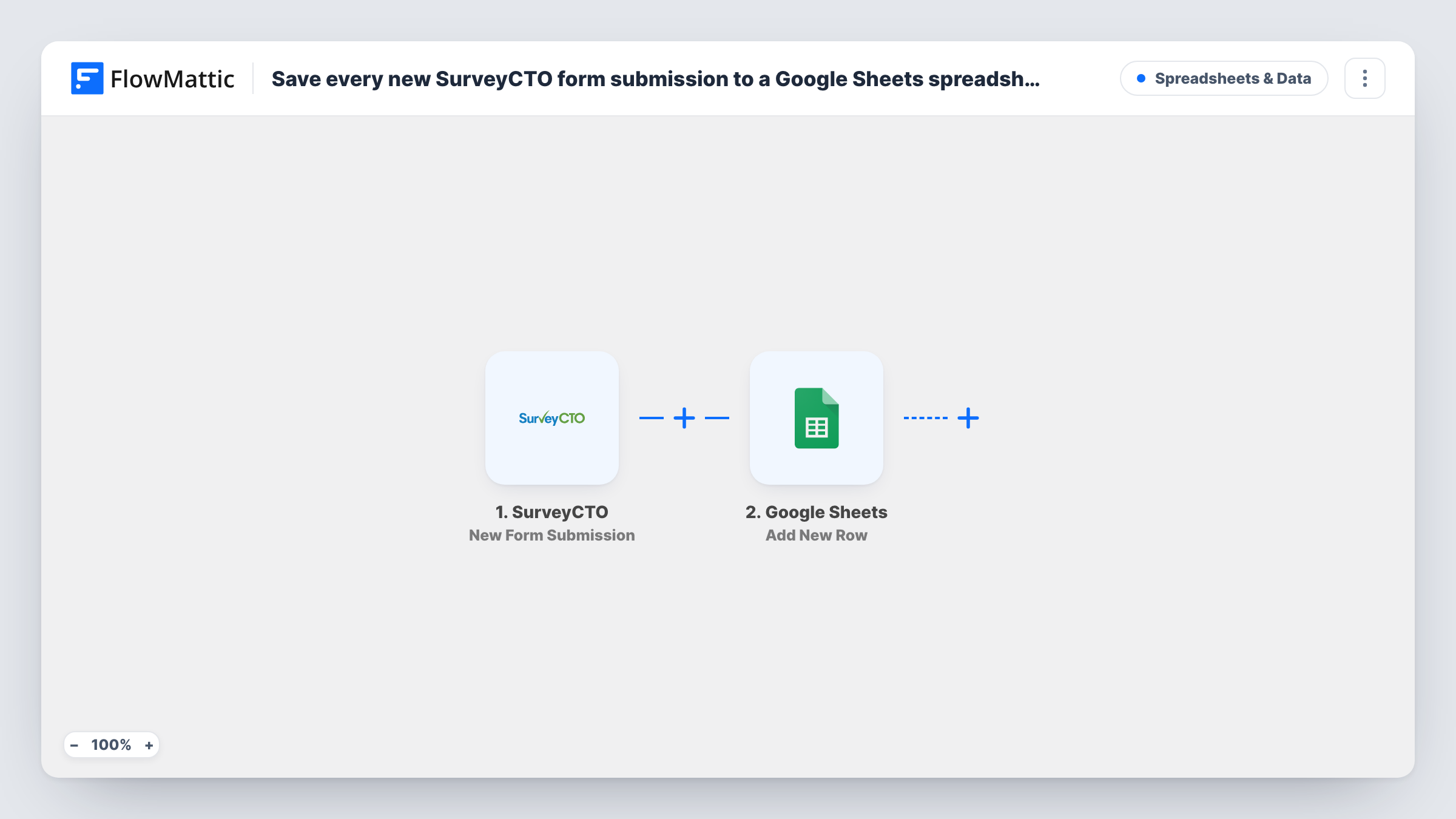
The SurveyCTO trigger fires for a new form submission, and the answers come into FlowMattic as fields you can map. The Google Sheets step then writes a row to the spreadsheet you choose, with each answer in the column you assign.
One submission gives one row. The workflow copies answers as they arrive and does not check them, so cleaning or review still happens in the sheet or in SurveyCTO. Keep in mind that survey data may be sensitive; only map the answers the sheet's readers should see. Each run, with the answers it carried, is listed in Task History.
Daily progress for a field programme
A programme manager checks the sheet to see how many household surveys each team has submitted.
Sharing results with a partner
A partner organisation without SurveyCTO access follows incoming responses in a shared Google Sheet.
Quick charts during data collection
Analysts build charts in Google Sheets from the rows as they come in, before the full dataset is exported.
How this workflow runs
What happens at each step once the workflow is on, and what you need before you import it.
 SurveyCTO New Form Submission
Fires for each new submission to your SurveyCTO form. The answers are passed on for mapping into the spreadsheet.
- Google Sheets Add New Row
Places each SurveyCTO submission in its own row of the Google Sheets spreadsheet you pick. Link your Google account and match columns to the survey answers.
What you need
- FlowMatticCore
- SurveyCTO AccountAccount
- Google Sheets AccountAccount
After importing, map your own data. To keep the template universal, not every step is pre-filled. Open each step in the builder and connect your accounts and fields (channels, lists, sheets, recipients) before you switch the workflow on.
Make it yours
Changes worth making after you import it.
- Send a test submission from SurveyCTO after import so the trigger captures the form's fields before you map columns.
- Map only the answers your sheet's readers need, and leave out personal details you don't want in Google Sheets.
- If you run several forms, add a Filter or a Router so each form's submissions go to their own sheet.
Questions about this workflow
Are SurveyCTO submissions made before import added to the sheet?
No. Only submissions received after you turn the workflow on create rows.
What if I change the SurveyCTO form?
New or renamed fields need a matching column and a fresh mapping. Send a test submission after the change and update the Google Sheets step.
Does every SurveyCTO submission create a Google Sheets row?
Yes, as imported. Add a Filter after the trigger if some submissions should stay out of the sheet.
Which accounts does the SurveyCTO to Google Sheets workflow need?
A SurveyCTO account with the form, and a Google account with access to the spreadsheet you want to fill.
More Spreadsheets & Data workflows
Other ready-to-import templates from the same category.




Import this workflow into your WordPress site
Download the JSON, import it from the Workflows screen and connect your accounts. Every run stays on your server, with no per-task fees.
30-day money-back guarantee Unlimited workflows and runs Self-hosted