

Save new attachment documents in Parsio as a file in Box
When Parsio receives a new email document, FlowMattic copies the file into Box, so the documents arriving in your Parsio mailbox are also stored in your company’s cloud storage.
 Parsio
 Box
2 steps Setup ~5 min Used on 3.2k sites Free to import
What this workflow does
Parsio pulls data out of the emails and attachments sent to its mailboxes, but the original documents stay in Parsio. Teams that keep their records in Box often want a copy of each one there too, next to their other files. This workflow sends each newly received document across.
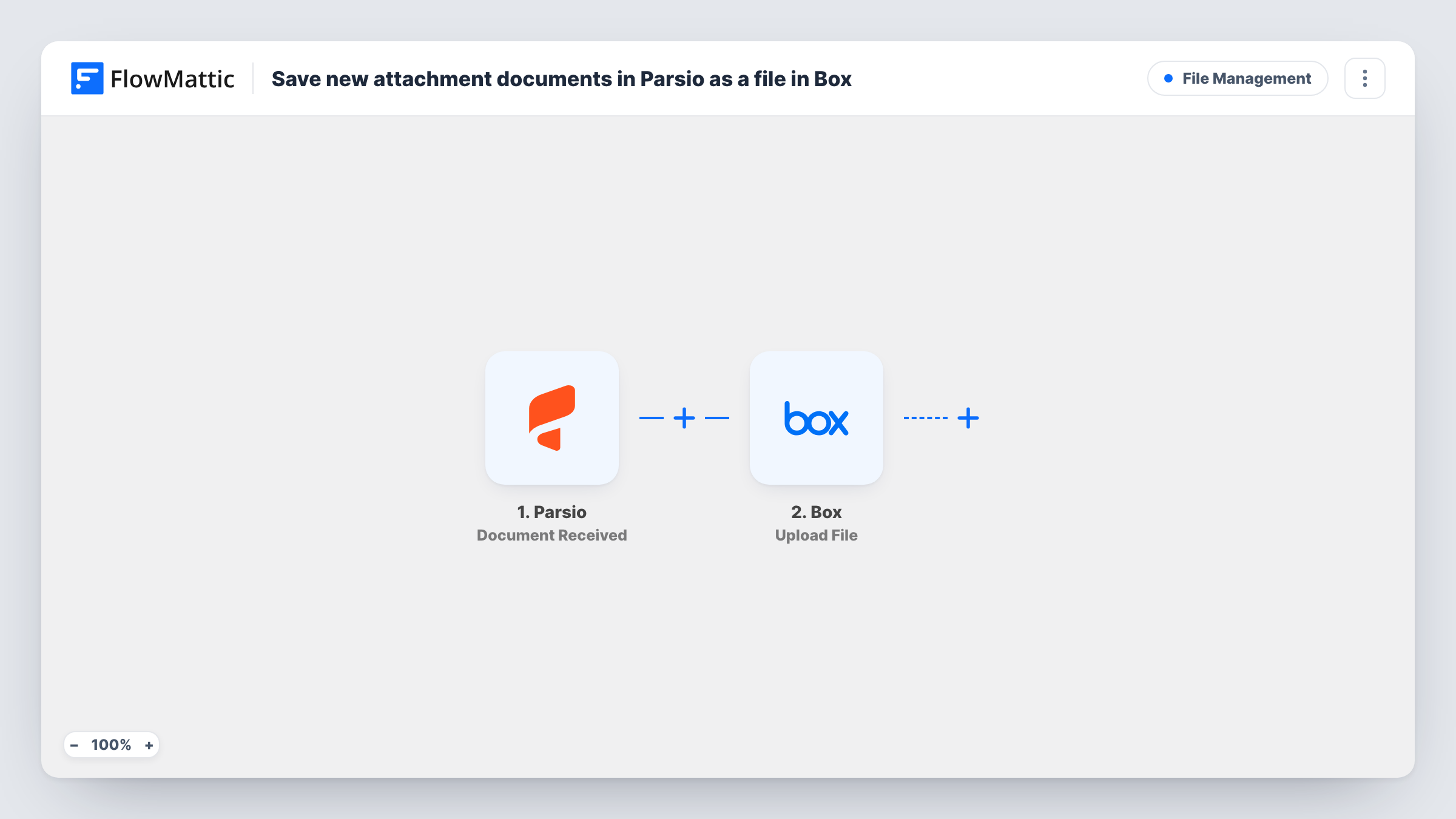
The Parsio trigger, Document Received, fires when a new email document arrives in your mailbox. FlowMattic then runs Upload File in Box, which copies an existing file from another service into Box. You map the file link from the Parsio data into that step.
Each received document starts its own run. Run a test with a real email after import to confirm the Parsio data includes a link to the file you want, since that link is what Box copies.
Supplier invoices archive
Suppliers email invoices to a Parsio mailbox for data extraction, and a copy of each document lands in the accounts team's Box folder.
Order confirmations for operations
Order emails forwarded to Parsio are stored in Box as well, so the operations team can open the originals without a Parsio login.
Recruitment documents
CVs sent to a Parsio mailbox are copied to a Box folder that the hiring team already uses to review candidates.
How this workflow runs
What happens at each step once the workflow is on, and what you need before you import it.
 Parsio Document Received
Fires when a new email document is received in your Parsio mailbox. The document data is passed on, including the values you need to map into Box.
- Box Upload File
Copies the file from the link you map into Box. Map the file link from the Parsio data, connect your Box account on import, and check the step's other options with a test run on a real document.
What you need
- FlowMatticCore
- Parsio AccountAccount
- Box AccountAccount
After importing, map your own data. To keep the template universal, not every step is pre-filled. Open each step in the builder and connect your accounts and fields (channels, lists, sheets, recipients) before you switch the workflow on.
Make it yours
Changes worth making after you import it.
- Keep Parsio documents in a Box folder of their own so they are easy to find and share with the right people.
- Add a Filter after the trigger that continues only when the file link is not empty, so emails without a usable document skip the Box step.
- Use Box's Add Comment to File action after the upload to note which Parsio mailbox the document came from.
Questions about this workflow
Does this save the data Parsio extracts, or the original document?
The Box step copies a file from the link you map. Parsio's extracted fields are not written to Box as imported. Use one of Parsio's Document Parsed triggers in another workflow if you want the parsed data.
What if the Parsio email has no file?
The Box step has no file to copy, so nothing useful lands in Box and Task History shows the reply. A Filter on the file link value avoids those runs.
Are documents already in my Parsio mailbox copied to Box?
No. The trigger reacts to documents received after you turn the workflow on.
More File Management workflows
Other ready-to-import templates from the same category.




Import this workflow into your WordPress site
Download the JSON, import it from the Workflows screen and connect your accounts. Every run stays on your server, with no per-task fees.
30-day money-back guarantee Unlimited workflows and runs Self-hosted