

Log updated Eventbrite attendees in Google Sheets
Each time an Eventbrite attendee record is updated, FlowMattic adds a new row to your Google Sheets spreadsheet, building a running log of attendee changes you can sort and share.
 Eventbrite
 Google Sheets
2 steps Setup ~5 min Used on 3.4k sites Free to import
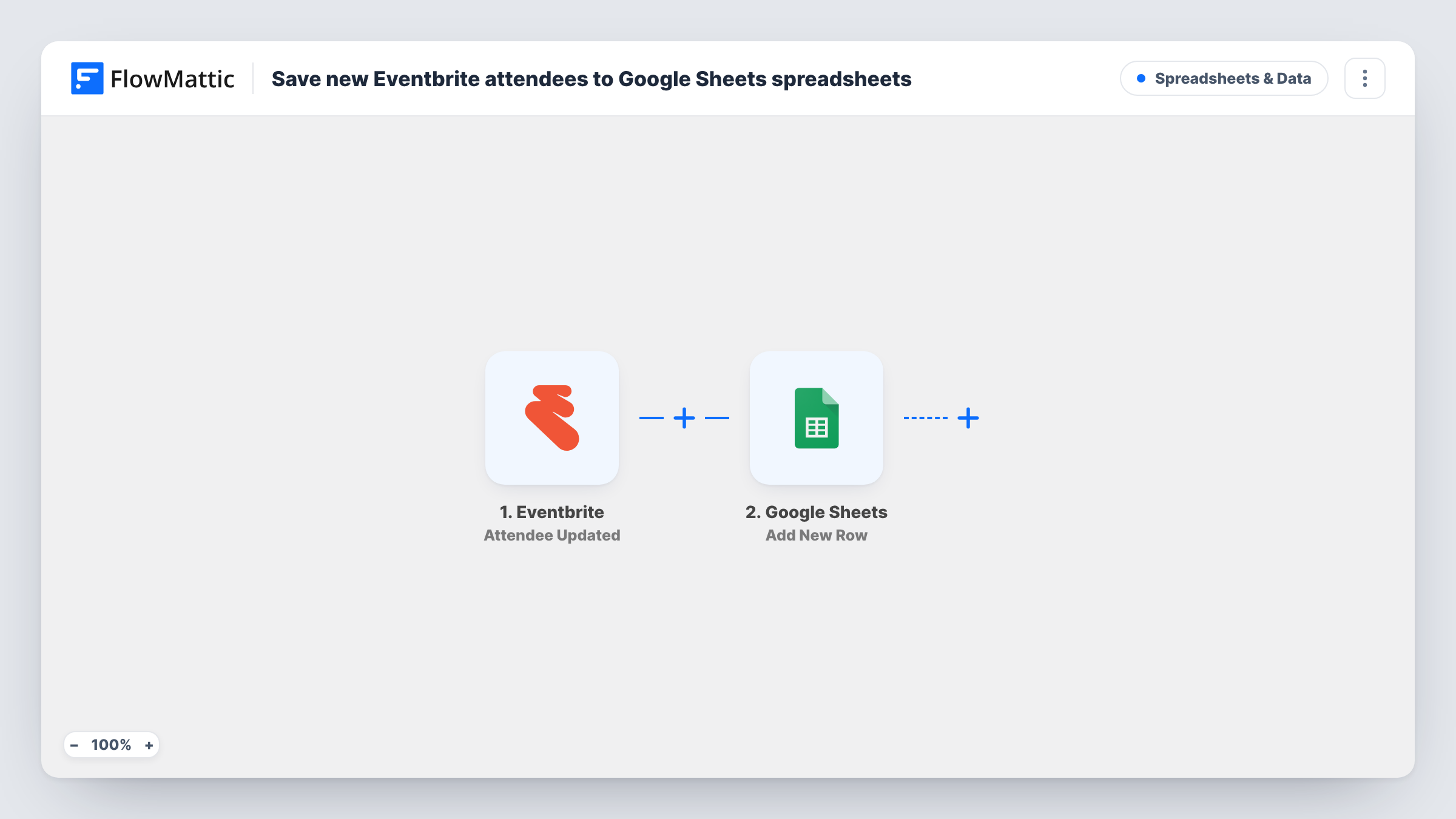
What this workflow does
Attendee details change after people register: names get corrected, ticket holders are swapped, and answers are edited. Eventbrite keeps the latest version, but if you want to see what changed and when, you need your own record. This workflow writes a row to a spreadsheet for every attendee update.
The Eventbrite trigger fires when an attendee is updated and passes that attendee's current details, such as name, email, ticket type and event. The Google Sheets step then adds a new row with the values you map.
Each update creates its own row. The workflow doesn't look for an earlier row for the same attendee or change it, so one person edited three times appears in three rows. That's useful as a change history: the rows appear in the order the edits arrived. If you want one row per attendee instead, this template isn't the right fit as shipped.
The Google Sheets step arrives unmapped. After import, choose the spreadsheet and sheet and map the attendee fields to your columns. Update an attendee on a test event and check Task History to see the fields Eventbrite sends.
Audit trail for ticket transfers
A conference organiser checks the sheet to see when a ticket's attendee name was changed and what it was before, row by row.
Tracking edits to registration answers
A workshop host who asks dietary questions sees each change an attendee makes, so catering numbers reflect the latest answers.
Sharing changes with venue staff
An event company shares the log with front-desk staff who have no Eventbrite login, so they know about name changes before check-in.
How this workflow runs
What happens at each step once the workflow is on, and what you need before you import it.
 Eventbrite Attendee Updated
Fires when an attendee is updated in Eventbrite. The attendee's current details, including name, email, ticket and event, become available to map.
- Google Sheets Add New Row
Adds a new row to the spreadsheet you choose for each attendee update. Map the attendee fields to your column headers after import.
What you need
- FlowMatticCore
- Eventbrite AccountAccount
- Google Sheets AccountAccount
After importing, map your own data. To keep the template universal, not every step is pre-filled. Open each step in the builder and connect your accounts and fields (channels, lists, sheets, recipients) before you switch the workflow on.
Make it yours
Changes worth making after you import it.
- Add a column for the Eventbrite attendee ID, so you can sort the sheet and group every change for the same person together.
- Map the event name or ID into its own column if you run several Eventbrite events, so you can filter the log by event.
- Set up the header row in your sheet before you map the fields, using names that match what Eventbrite sends, so each value lands in the right column.
Questions about this workflow
Does this workflow update the attendee's existing row in Google Sheets?
No. Every Eventbrite attendee update adds a new row, so the sheet becomes a log of changes rather than a single up-to-date list.
Which attendee details can I log from Eventbrite?
Whatever the Attendee Updated event carries. Make a test change, open Task History to see the fields, and map the ones you need.
Will new Eventbrite registrations also be logged?
This template uses the Attendee Updated trigger, which fires when an attendee is updated. Test a new registration to see whether it starts a run on your account.
More Spreadsheets & Data workflows
Other ready-to-import templates from the same category.




Import this workflow into your WordPress site
Download the JSON, import it from the Workflows screen and connect your accounts. Every run stays on your server, with no per-task fees.
30-day money-back guarantee Unlimited workflows and runs Self-hosted