

Save new Wisepops sign-ups as rows in a Google Sheets spreadsheet
Each email address collected by a Wisepops popup becomes a new row in your Google Sheets spreadsheet, giving you a running list of sign-ups to sort, share or import elsewhere.
 Wisepops
 Google Sheets
2 steps Setup ~5 min Used on 527 sites Free to import
What this workflow does
Popups on your site gather email addresses, and you often want those leads in a place everyone can open. Exporting them from Wisepops by hand gets old quickly. This workflow writes each new sign-up into a spreadsheet as it arrives.
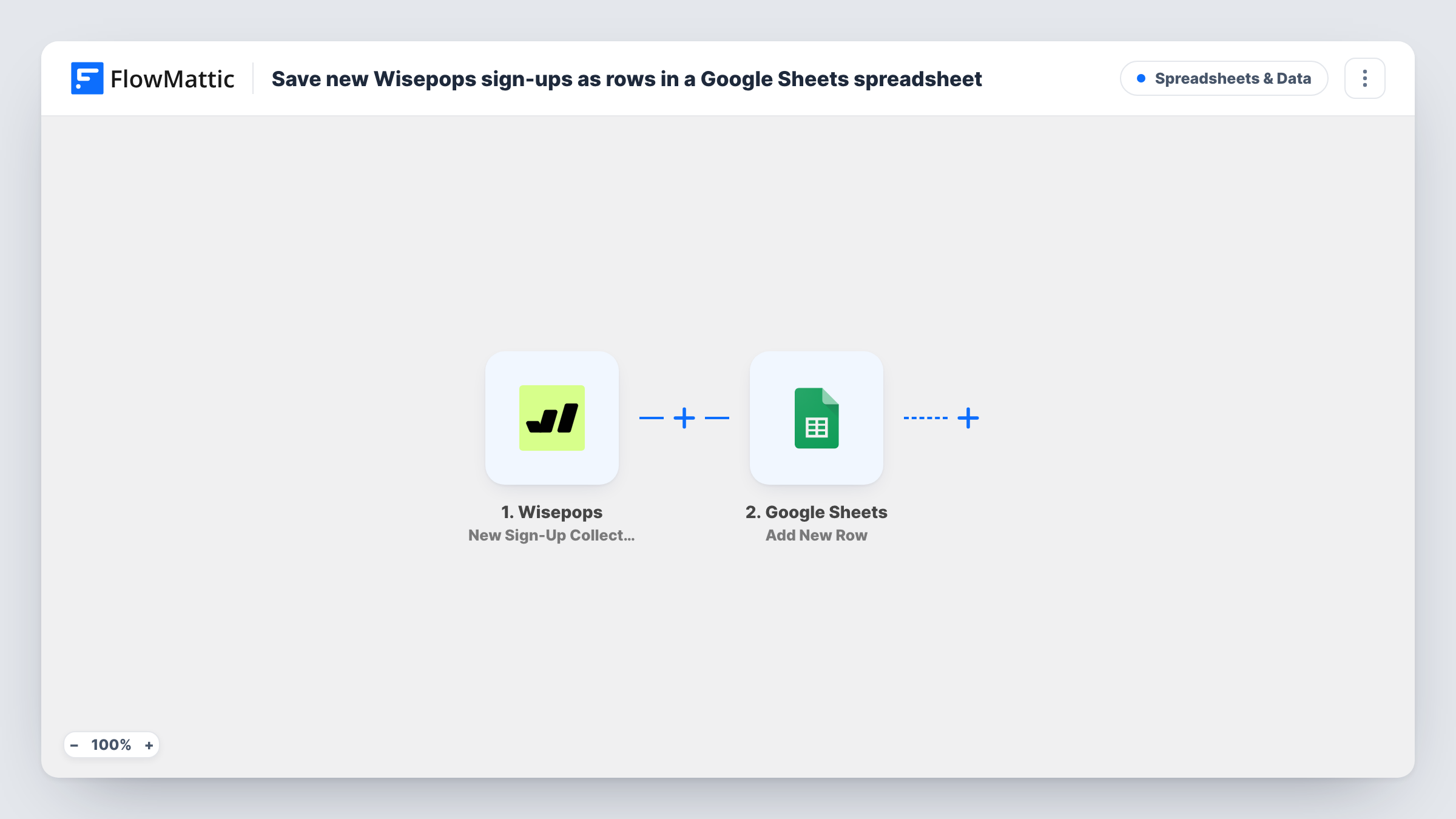
The Wisepops New Sign-Up Collected trigger fires when a popup collects a new sign-up email. FlowMattic passes the sign-up data to Google Sheets, where the Add New Row action writes it into the spreadsheet you choose. You decide which column holds the email and any other fields Wisepops sends.
Every sign-up becomes one row, so a person who signs up twice appears twice. Survey answers and phone numbers are separate Wisepops triggers and aren't covered by this template.
Launch waiting list
A Wisepops popup on your landing page asks for an email to hear about a launch. The sheet becomes the waiting list your team can count and share.
Discount popup leads for a store
Shoppers enter their email to get a discount code from a popup. The sheet gives the marketing team a list to check against orders later.
Agency reporting for a client
An agency runs popups on a client's site and shares the spreadsheet, so the client can see each sign-up without a Wisepops login.
How this workflow runs
What happens at each step once the workflow is on, and what you need before you import it.
 Wisepops New Sign-Up Collected
Starts a run whenever one of your Wisepops popups captures a sign-up email. The sign-up data is passed on. Submit a test sign-up to see which fields Wisepops includes.
- Google Sheets Add New Row
Writes the sign-up into a new row of the spreadsheet you pick. Connect your Google account, choose the sheet, and map the email and other Wisepops fields to columns.
What you need
- FlowMatticCore
- Wisepops AccountAccount
- Google Sheets AccountAccount
After importing, map your own data. To keep the template universal, not every step is pre-filled. Open each step in the builder and connect your accounts and fields (channels, lists, sheets, recipients) before you switch the workflow on.
Make it yours
Changes worth making after you import it.
- Add a column for the time of sign-up and map it from the Wisepops data if it's included, so you can sort the sheet by date.
- If you run several popups, map the popup name or ID into its own column when Wisepops sends it, so you can see which popup each lead came from.
- Use Wisepops' New Phone Collected trigger in a second workflow with its own sheet if your popups also ask for phone numbers.
Questions about this workflow
Does the Google Sheet need columns set up first?
Yes. Add a header row with the columns you want, such as Email, before you map fields in the Add New Row step.
Will a repeat Wisepops sign-up create a second row?
Yes. The step always adds a row, so the same email can appear more than once. Clean up repeated addresses in Google Sheets afterwards if you need a unique list.
Are Wisepops survey answers saved to the sheet too?
No. Surveys use Wisepops' New Survey Collected trigger, which this template doesn't include. Build a second workflow for them.
Are sign-ups collected before I import this added?
No. Only sign-ups Wisepops collects after the workflow is active are written to the sheet.
More Spreadsheets & Data workflows
Other ready-to-import templates from the same category.




Import this workflow into your WordPress site
Download the JSON, import it from the Workflows screen and connect your accounts. Every run stays on your server, with no per-task fees.
30-day money-back guarantee Unlimited workflows and runs Self-hosted