

Send a Gmail thank-you email to donors after a new Funraise transaction
When a new transaction is created in Funraise, FlowMattic sends a thank-you email from your Gmail account to the donor, with the wording and gift details you set up once.
 Funraise
 Gmail
Gmail2 steps Setup ~5 min Used on 686 sites Free to import
What this workflow does
A thank-you from a real person's inbox reads differently from a system receipt. Writing one by hand for every gift is hard to keep up during a busy campaign, though. This workflow sends your thank-you from Gmail as soon as Funraise records the transaction.
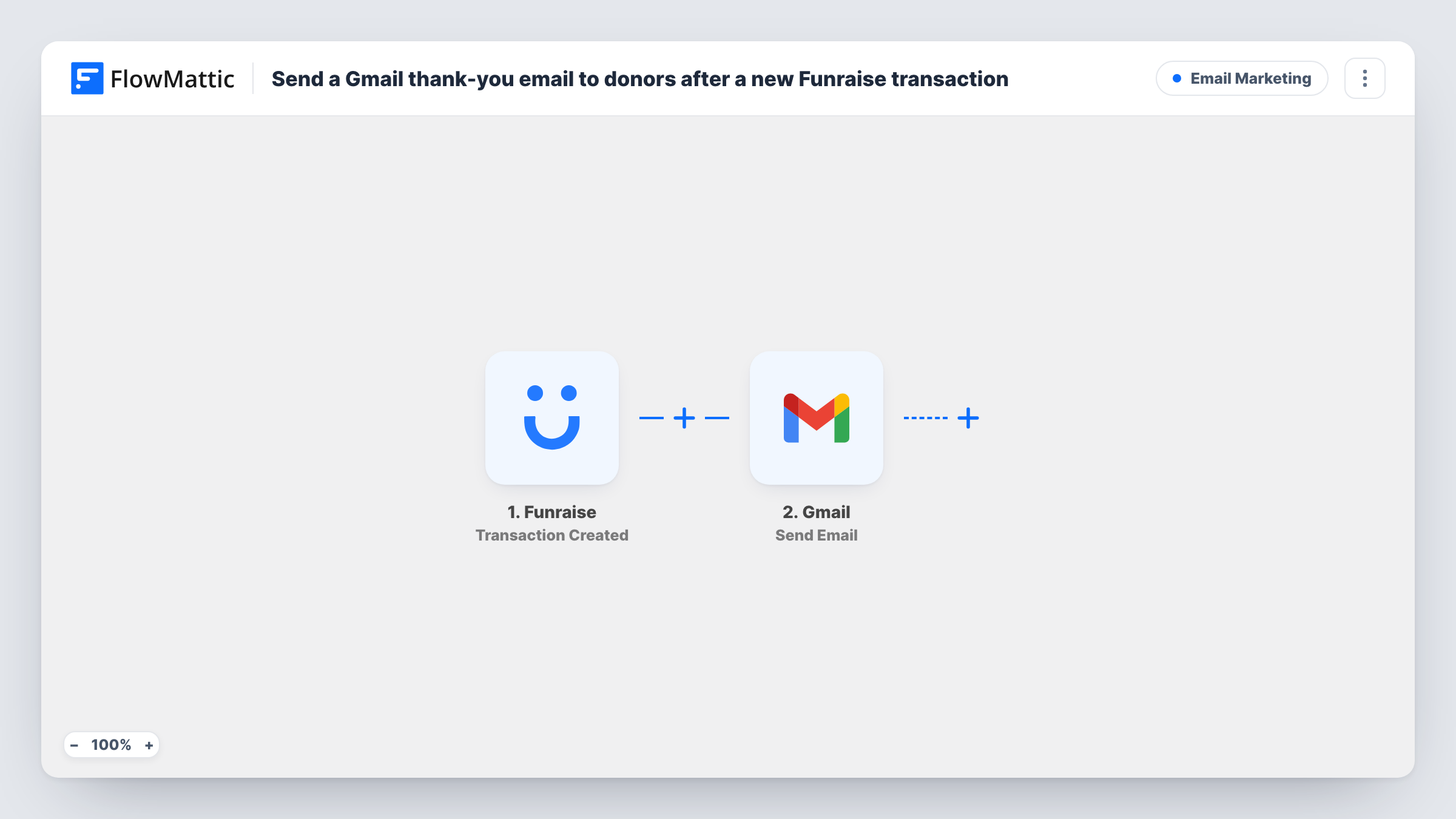
The Funraise trigger fires when a new transaction is created. FlowMattic captures the transaction data for mapping. The Gmail step then sends an email to the recipient you map, which here is the donor's email address from Funraise. You write the subject and message once, and pull in Funraise values, such as the donor's name or the amount if the transaction data includes them.
Every new transaction runs the workflow, since there is no Filter, so a donor who gives again gets another email. The message goes out from the Gmail account you connect, so replies come back to that inbox. Task History lists each email the workflow sent and the data it used.
Personal thank-yous from the executive director
A small charity connects the director's Gmail, so every donor gets a note signed by them and any reply reaches the director directly.
Giving day follow-up
During a 24-hour campaign, each gift is thanked when its transaction is created, without volunteers working through a list of names afterwards.
Year-end appeal
A food bank writes a thank-you that mentions its December appeal and connects the development team's Gmail, so every gift made during the appeal is answered from that inbox.
How this workflow runs
What happens at each step once the workflow is on, and what you need before you import it.
 Funraise Transaction Created
Starts a run for each transaction Funraise records. The transaction's details, including the donor information Funraise sends, are passed to the Gmail step.
- Gmail Send Email
Emails the donor through the Gmail account you link. Map the donor's email address as the recipient, write the thank-you text, and send a test gift to read the result.
What you need
- FlowMatticCore
- Funraise AccountAccount
- Gmail AccountAccount
After importing, map your own data. To keep the template universal, not every step is pre-filled. Open each step in the builder and connect your accounts and fields (channels, lists, sheets, recipients) before you switch the workflow on.
Make it yours
Changes worth making after you import it.
- Add a Filter after the trigger if some transactions should not get this email, using a value from a test transaction such as its type or status.
- Add a Delay before the Gmail step if you would rather the thank-you arrive an hour after the gift than straight away.
- Put the donor's name in the opening line and the gift amount in the body if a test transaction shows both, then send yourself a test to check how they read.
Questions about this workflow
Does every Funraise transaction send a Gmail thank-you?
Yes, as imported. Each new transaction runs the workflow once. If a donor gives twice, they get two emails.
Does this replace Funraise's own donation receipt?
No. The workflow sends a separate Gmail message and does not change anything in Funraise, so your receipt settings there stay as they are.
Which address does the Funraise thank-you come from?
The Gmail account you connect in FlowMattic. Donors see that address as the sender, and their replies land in its inbox.
Are past Funraise donors emailed when I import this?
No. Only transactions created after the workflow is switched on start a run.
More Email Marketing workflows
Other ready-to-import templates from the same category.





Import this workflow into your WordPress site
Download the JSON, import it from the Workflows screen and connect your accounts. Every run stays on your server, with no per-task fees.
30-day money-back guarantee Unlimited workflows and runs Self-hosted