

Send a Slack alert to sales for every new Subpage lead
Every time a lead is created in Subpage, this workflow posts a message to your sales team’s Slack channel with the lead’s details, so reps hear about new sign-ups where they already work.
 Subpage
 Slack
2 steps Setup ~5 min Used on 3.0k sites Free to import
What this workflow does
Leads captured on a Subpage landing page sit in Subpage until someone goes looking. Sales reps usually live in Slack, not in a page builder's lead list. This workflow puts each new lead in front of them as a channel message.
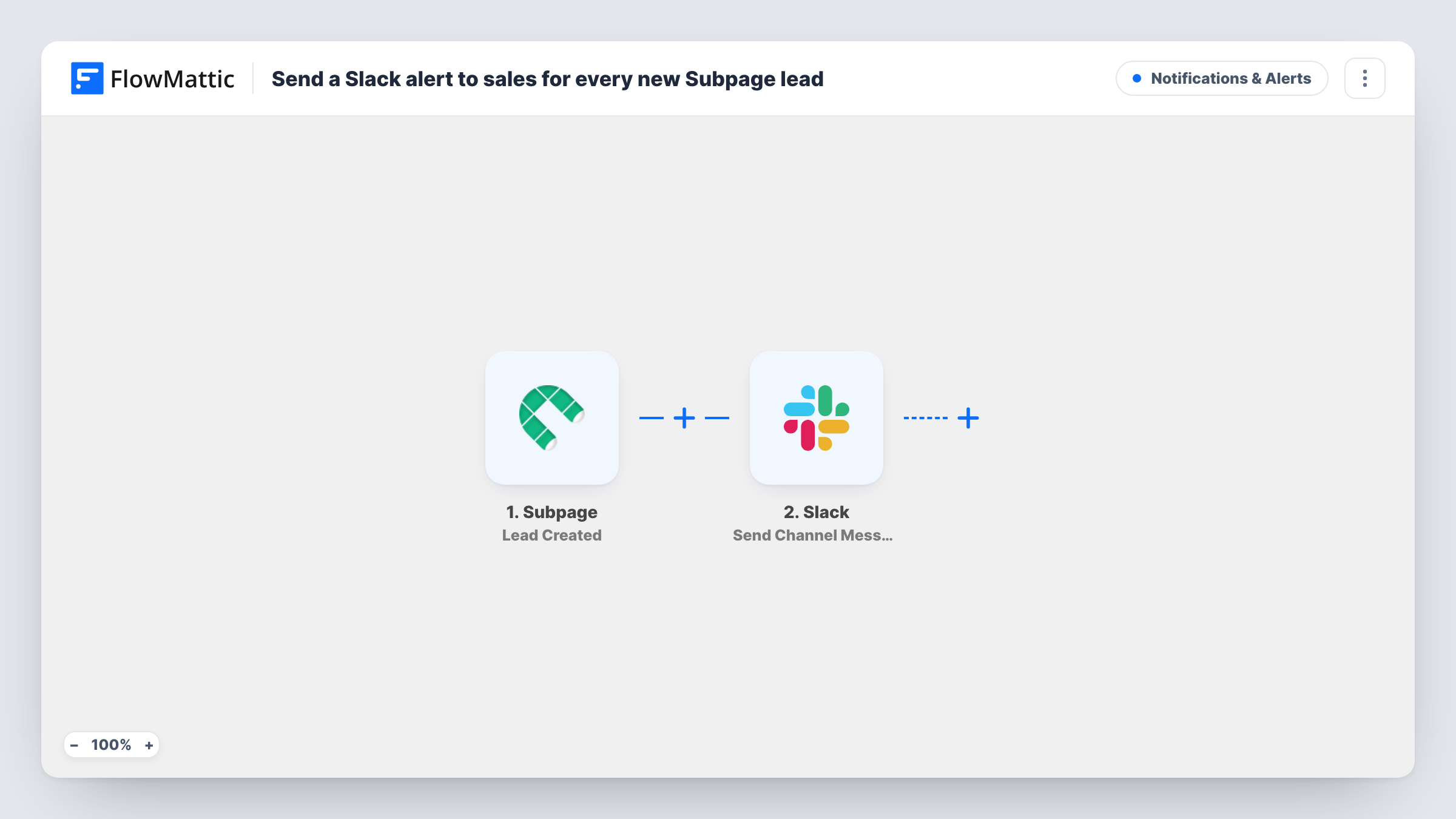
The Subpage trigger fires when a new lead is created in your account. FlowMattic takes the lead data Subpage provides and passes it to Slack. There, the Send Channel Message action posts the text you write to the channel you choose, with the lead's details inserted.
Each new Subpage lead produces one message, whichever page it came from. The workflow does not score or sort leads, so add a Filter if only some pages or answers should alert sales. Task History logs every run along with the data that went to Slack.
Demo request page for a software product
Visitors ask for a demo on a Subpage landing page. The sales channel gets a message with their name and email, and a rep picks it up from there.
Paid ad campaign landing pages
During a campaign, each lead from the Subpage pages behind your ads shows up in Slack, so the team can see the campaign producing sign-ups as it runs.
Consultation bookings for a small agency
A consultant's Subpage page collects enquiry details, and the whole agency sees each new enquiry in a shared Slack channel.
How this workflow runs
What happens at each step once the workflow is on, and what you need before you import it.
 Subpage Lead Created
Fires when a new lead is created in your Subpage account. The lead's data is passed on so you can place it in the Slack message.
- Slack Send Channel Message
Posts your message in the Slack channel you select, such as #sales. Write the text and insert the Subpage lead fields reps need to follow up.
What you need
- FlowMatticCore
- Subpage AccountAccount
- Slack AccountAccount
After importing, map your own data. To keep the template universal, not every step is pre-filled. Open each step in the builder and connect your accounts and fields (channels, lists, sheets, recipients) before you switch the workflow on.
Make it yours
Changes worth making after you import it.
- Add a Filter after the Subpage trigger that checks which page the lead came from, if that is in the data, so only high-intent pages ping the sales channel.
- Mention a channel group or a specific rep in the message text if your team uses Slack mentions to assign who follows up.
- Add a second action after Slack to save the same lead in your CRM or a sheet, so the alert and the record come from one run.
Questions about this workflow
Does every Subpage lead go to Slack?
Yes, as imported. Nothing sits between the Subpage trigger and the Slack step. Insert a Filter after the trigger to limit which leads post.
Which Subpage lead details can I show in the Slack alert?
Whatever Subpage sends for the lead. Create a test lead after import and check the trigger's data in FlowMattic to see the available fields.
Can the sales alert go to a direct message instead of a channel?
As shipped, the Slack step posts to a channel. Swap it for a Slack direct message action if you want one rep to get the alert privately.
Does the workflow add the lead anywhere else?
No. It only posts to Slack. Add another step if you also want the lead stored in a CRM or list.
More Notifications & Alerts workflows
Other ready-to-import templates from the same category.



Import this workflow into your WordPress site
Download the JSON, import it from the Workflows screen and connect your accounts. Every run stays on your server, with no per-task fees.
30-day money-back guarantee Unlimited workflows and runs Self-hosted