

Send a Slack alert to the engineering channel for every new Sentry.io issue
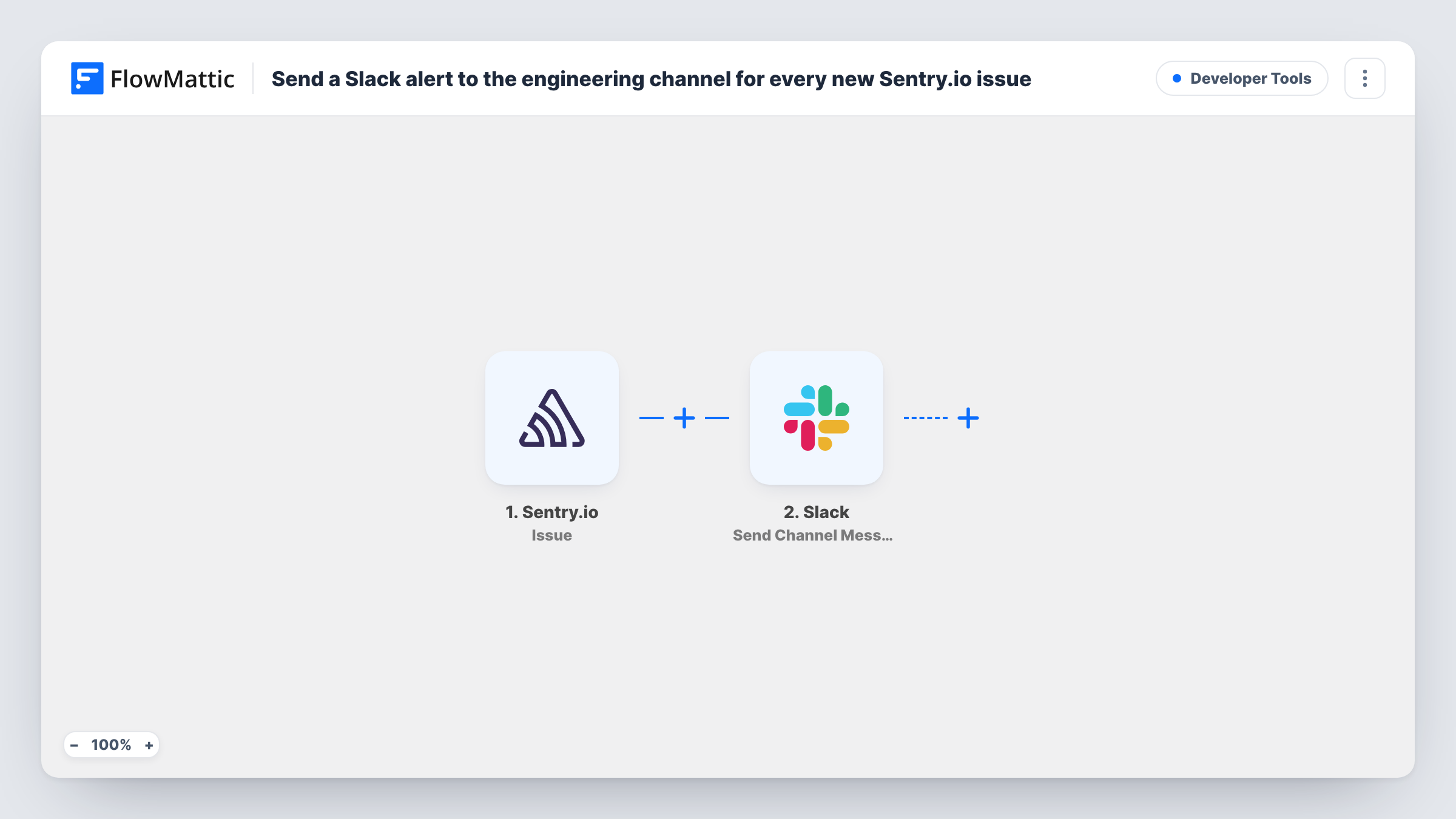
Each time Sentry.io creates a new issue, FlowMattic checks that the event is a creation and posts an alert to the Slack channel your engineers watch. Resolved, assigned and ignored issues are left out.
 Sentry.io
 Filter
 Slack
3 steps Setup ~5 min Used on 2.0k sites Free to import
What this workflow does
Sentry.io catches the errors, but someone still has to notice them. If your developers live in Slack, a message in their channel is often faster than an email digest. This workflow posts there for each new issue and stays quiet about the follow-up activity on old ones.
The Sentry.io Issue trigger fires when an issue is created, resolved, assigned or ignored, and passes the issue data on with an action value saying which of those happened. The Filters step comes next. It is already set to continue only when that action exactly matches "created", so status changes on existing issues stop there.
The Slack step, Send Channel Message, then posts to a channel. It ships without a channel or text. After import you connect Slack, pick your engineering channel and write the alert, mapping in the issue details you care about, such as the title, project and a link back to Sentry. Look at a test issue's output first to see which values Sentry sends.
Posting into a private channel takes Slack's Send Private Channel Message action instead. Runs that the Filter ended still appear in Task History, so you can see each skipped event.
Production errors in the team channel
A web team sees each new production error from Sentry.io in its #engineering Slack channel and decides there who picks it up.
On-call awareness without a paging tool
A small startup's on-call developer keeps Slack notifications on for one channel that only receives new Sentry.io issues.
Release checks after a deploy
After shipping, a developer watches the channel for new issues from the release instead of refreshing the Sentry.io dashboard.
How this workflow runs
What happens at each step once the workflow is on, and what you need before you import it.
 Sentry.io Issue
Starts a run for every Sentry.io issue event: creation, resolution, assignment or being ignored. The issue data and an action value naming which of those happened are passed to the Filter.
- Filter Continue If Condition Meet
Continues only when the Sentry.io action value exactly matches "created". Letter case makes no difference to the match. Resolved, assigned and ignored events stop here and post nothing.
- Slack Send Channel Message
Sends the new-issue alert into Slack. The template leaves the channel and message empty, so choose your engineering channel and map the issue title, project and link into the text.
What you need
- FlowMatticCore
- Sentry.io AccountAccount
- Slack AccountAccount
After importing, map your own data. To keep the template universal, not every step is pre-filled. Open each step in the builder and connect your accounts and fields (channels, lists, sheets, recipients) before you switch the workflow on.
Make it yours
Changes worth making after you import it.
- To post only issues from one Sentry.io project, add a second condition on the project to the existing Filter between the trigger and the Slack step. Set the project value from a test run.
- Put the link to the issue near the start of the message, so engineers can open it from Slack's notification preview.
- To also hear when issues are resolved, use a Router between the trigger and Slack in place of the Filter, with routes for "created" and "resolved" and a Slack step on each.
Questions about this workflow
Will resolving or assigning a Sentry.io issue post to Slack?
No. The Issue trigger fires for those events, but the Filter only lets runs continue when the action is "created". The others stop at the Filter.
Can the Slack alert go to a private engineering channel?
Use Send Channel Message for public channels only. For a private one, replace it with Slack's Send Private Channel Message action, or use Send Direct Message to alert one person.
Does every new error event in Sentry.io post a message?
No. This workflow uses the Issue trigger, so you get one alert when an issue is created, not one per error event. FlowMattic's Sentry.io integration has a separate Error trigger if you want those.
Which Sentry.io details can I include in the Slack message?
Any value the Issue event sends. The message is empty in the template, so trigger a test issue and map the title, project or link from its output.
More Developer Tools workflows
Other ready-to-import templates from the same category.






Import this workflow into your WordPress site
Download the JSON, import it from the Workflows screen and connect your accounts. Every run stays on your server, with no per-task fees.
30-day money-back guarantee Unlimited workflows and runs Self-hosted