

Send a Slack alert to the team when a new Bookingmood payment is created
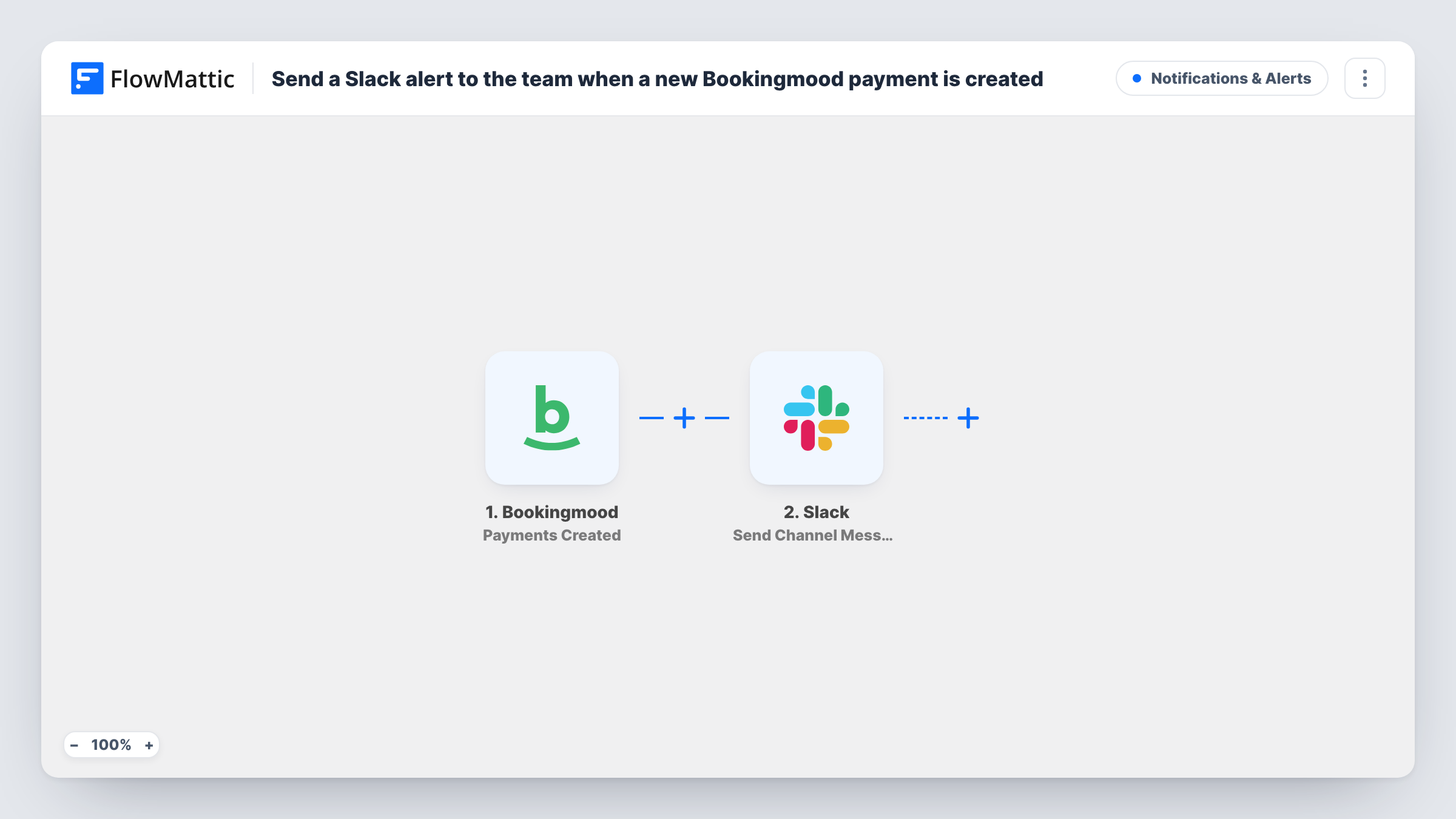
When a payment is created in Bookingmood, FlowMattic posts a message to a Slack channel you choose, so your team sees new payment records for your rentals or bookings without opening the Bookingmood dashboard.
 Bookingmood
 Slack
2 steps Setup ~5 min Used on 1.3k sites Free to import
What this workflow does
Bookingmood keeps your reservations and the payments tied to them, but the people who care about money coming in often spend their day in Slack. Checking the dashboard for new payments is one more tab to watch. This workflow posts a short note to Slack each time Bookingmood records a payment.
The Bookingmood trigger, Payments Created, fires when a payment is created in your account. Its details, such as the amount and the booking it belongs to, become values you can map. The Slack step then runs Send Channel Message and posts the text you write, filled with those values, to the channel you pick.
Created is not the same as paid. Bookingmood treats Payments Created and Payments Paid as separate events, so a new payment record may not mean the money has arrived yet. If you only want to hear about money received, switch to the Payments Paid trigger. Every run, and the response from Slack, shows up in Task History.
Holiday rental owner tracking deposits
You let out two cottages through Bookingmood. A Slack note for each new payment record lets you and your partner see deposits arrive without both checking the dashboard.
Front desk and accounts in one channel
A small guesthouse posts every new Bookingmood payment to a #payments channel, where the person doing the books matches them against bank entries.
Activity provider watching bookings fill
A kayak tour business sells slots through Bookingmood. Seeing each payment in Slack shows the guides which tours are filling up for the week.
How this workflow runs
What happens at each step once the workflow is on, and what you need before you import it.
 Bookingmood Payments Created
Fires when a payment is created in your Bookingmood account. Run a test after connecting Bookingmood to capture the payment fields you can map into the Slack message.
- Slack Send Channel Message
Sends your message to the Slack channel set in this step. Write the text, map in Bookingmood values such as the amount and booking, then connect your Slack workspace.
What you need
- FlowMatticCore
- Bookingmood AccountAccount
- Slack AccountAccount
After importing, map your own data. To keep the template universal, not every step is pre-filled. Open each step in the builder and connect your accounts and fields (channels, lists, sheets, recipients) before you switch the workflow on.
Make it yours
Changes worth making after you import it.
- Want alerts only for money received? Switch the trigger to Bookingmood's Payments Paid event and send a test payment to see which fields it brings in.
- Send Channel Message suits public channels. For a private one, change the Slack action to Send Private Channel Message, which FlowMattic lists separately.
- Add a Google Sheets Add New Row step after the Slack step to keep a running log of Bookingmood payments that you can total each month.
Questions about this workflow
Does a Bookingmood payment have to be paid before Slack hears about it?
No. The trigger fires when the payment record is created, which may be before the guest has paid. Use the Payments Paid trigger instead if that difference matters to you.
Can the Slack alert go to one person instead of a channel?
Yes. Replace Send Channel Message with Slack's Send Direct Message action, set it up for the team member who handles payments, and run a test.
Will older Bookingmood payments be posted to Slack?
No. Only payments created after you switch the workflow on start a run. Earlier ones stay in Bookingmood and aren't sent to Slack.
What Bookingmood details can I show in the Slack message?
Any value the Payments Created trigger returns. Create a test payment, then map the captured fields into the message text in the Slack step.
More Notifications & Alerts workflows
Other ready-to-import templates from the same category.





Import this workflow into your WordPress site
Download the JSON, import it from the Workflows screen and connect your accounts. Every run stays on your server, with no per-task fees.
30-day money-back guarantee Unlimited workflows and runs Self-hosted