

Send a Slack alert to the team when a new Funraise transaction is created
Each new Funraise transaction posts a message to a Slack channel you pick, so your fundraising team sees gifts as they come in without logging in to Funraise.
 Funraise
 Slack
2 steps Setup ~5 min Used on 2.8k sites Free to import
What this workflow does
Development teams like to know when gifts arrive, whether to thank a donor quickly or just to watch a campaign build. Checking the Funraise dashboard throughout the day is easy to skip. This workflow brings each transaction into Slack.
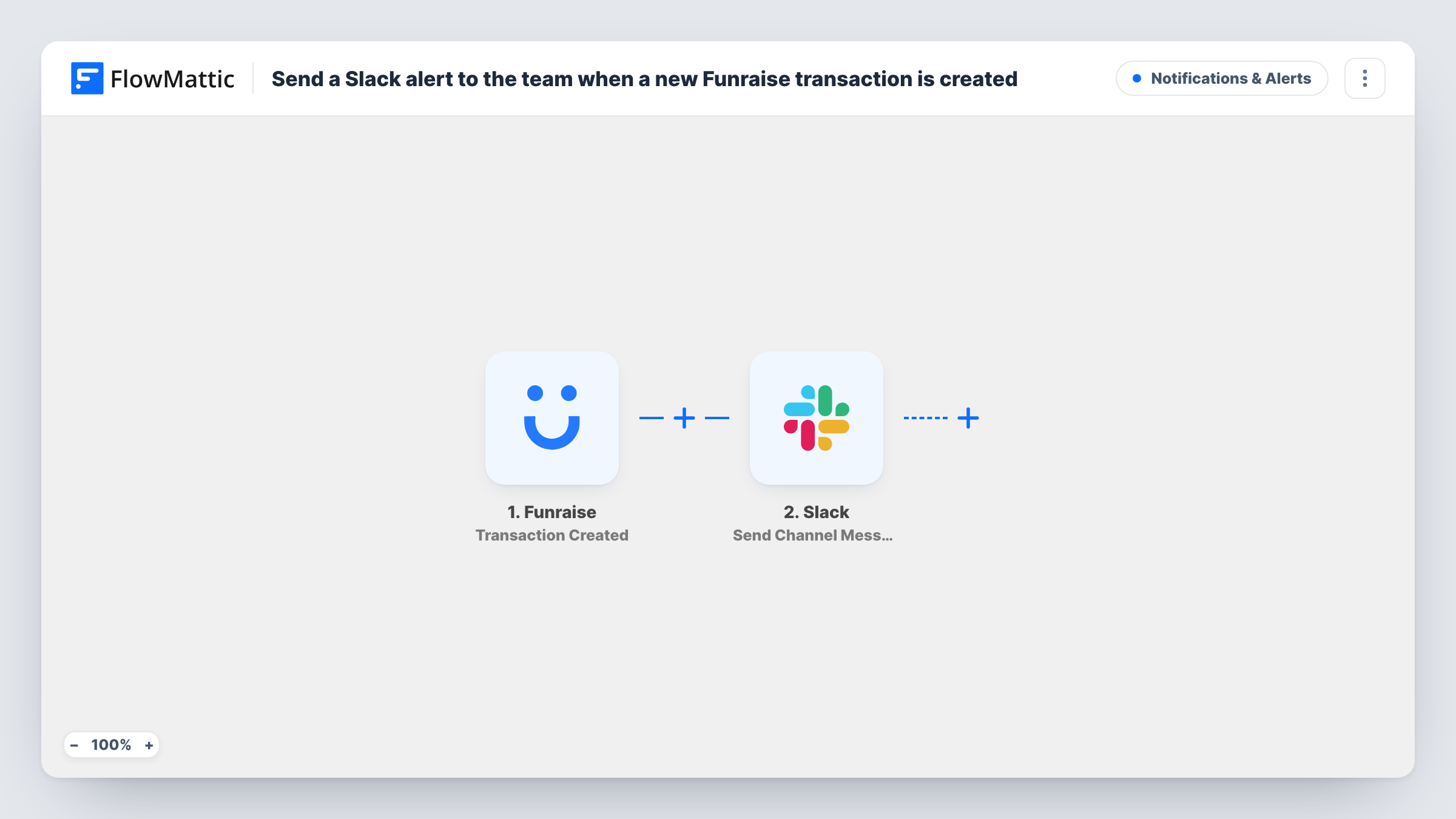
The Funraise trigger, Transaction Created, fires when a new transaction is created and passes its details to FlowMattic. The second step uses Slack Send Channel Message to post in the #channel you choose. You write the message and add the Funraise values your team needs to see.
Every transaction posts, so think about who can read the channel before you include donor names or amounts. A private channel for the fundraising team is a common choice. After import, use a test transaction to see what Funraise sends, then build the message. Task History keeps a record of each alert that was posted.
Giving day tracking
During a 24-hour giving day, every gift appears in the campaign channel, so staff and volunteers can follow progress together.
Quick thank-you calls
A development officer watches the Slack channel and calls donors on the same day their gift appears, using the details in the post.
Keeping the board informed
A private channel shared with board members gets each transaction, so they see giving activity without a Funraise login.
How this workflow runs
What happens at each step once the workflow is on, and what you need before you import it.
 Funraise Transaction Created
Runs for each transaction Funraise records once the workflow is on. Connect your Funraise account, and the transaction details become available to place in the Slack message.
- Slack Send Channel Message
Posts a message about the transaction to the Slack channel you choose. Connect your Slack workspace, pick the channel, and write the message with the Funraise values you want shown.
What you need
- FlowMatticCore
- Funraise AccountAccount
- Slack AccountAccount
After importing, map your own data. To keep the template universal, not every step is pre-filled. Open each step in the builder and connect your accounts and fields (channels, lists, sheets, recipients) before you switch the workflow on.
Make it yours
Changes worth making after you import it.
- Add a Filter after the trigger with a greater-than condition on the amount if you only want larger gifts in the channel. Decimals are cut off in the comparison, so 99.99 counts as 99.
- Use a Router to send transactions from different campaigns to different channels, giving each route a distinct campaign value so a gift only matches one.
- Keep donor details out of public channels. Post only the amount and campaign there, and send full details to a private channel instead.
Questions about this workflow
Does every Funraise transaction post to Slack?
Yes, as imported. Each Transaction Created event runs the workflow. Add a Filter after the trigger to post only some of them.
Can the Slack alert show the donor's name and amount?
Yes, if Funraise sends those values with the transaction. Run a test after import to see the available data, then place it in the message.
Are older Funraise transactions sent to Slack?
No. Only transactions created after you turn the workflow on produce an alert.
Which Slack account posts the Funraise alerts?
The Slack workspace connection you set up in the Send Channel Message step. It needs access to the channel you pick.
More Notifications & Alerts workflows
Other ready-to-import templates from the same category.




Import this workflow into your WordPress site
Download the JSON, import it from the Workflows screen and connect your accounts. Every run stays on your server, with no per-task fees.
30-day money-back guarantee Unlimited workflows and runs Self-hosted