

Send a Slack alert when a Crowdin project is fully translated
When Crowdin reports that all files in a project are translated into one of your target languages, this workflow posts a Slack message, so the team knows that language is ready for review or release.
 Crowdin
 Slack
2 steps Setup ~5 min Used on 3.0k sites Free to import
What this workflow does
Localization work finishes language by language, and the people waiting on it, such as reviewers, developers and release managers, rarely watch Crowdin all day. A Slack message at the right moment saves someone checking the progress bars. This workflow sends one when a language is complete.
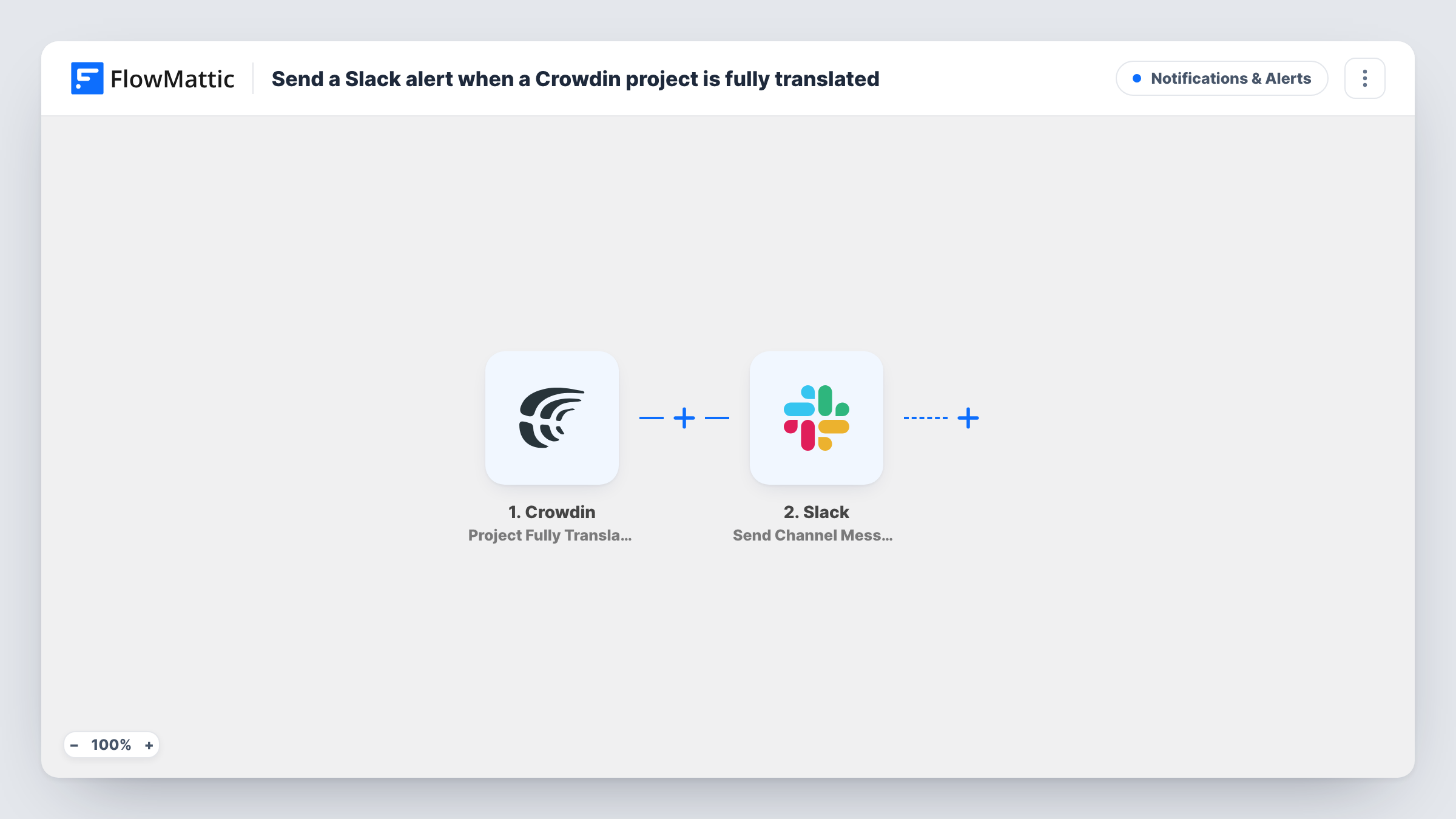
The Crowdin trigger Project Fully Translated fires when all files in the project are translated into one of the target languages. It passes the event data to FlowMattic. The Slack step then posts a message to the channel you choose, and you can put the project and language from the event into the text.
Because the trigger works per language, a project with five target languages can post five messages, one as each language is done. Fully translated is not the same as approved, so reviewers may still have work to do. Run a test after import to see which fields Crowdin sends, and use Task History to confirm each message went out.
App release waiting on translations
The mobile team holds a release until German and French are done. Each language's Slack message tells them which strings are ready to pull into the build.
Calling in reviewers
A message in the reviewers' channel says a language is translated, so the proofreader for that language can start approving.
Website localization project
The marketing team hears in Slack when a site's Spanish translation is complete and can plan the launch of that version.
How this workflow runs
What happens at each step once the workflow is on, and what you need before you import it.
 Crowdin Project Fully Translated
Fires when every file in your Crowdin project has been translated into one of the target languages. It runs once for each language that reaches that point.
- Slack Send Channel Message
Sends a message to the Slack channel you pick. Include the project name and the finished language from the Crowdin event so readers know what is ready.
What you need
- FlowMatticCore
- Crowdin AccountAccount
- Slack AccountAccount
After importing, map your own data. To keep the template universal, not every step is pre-filled. Open each step in the builder and connect your accounts and fields (channels, lists, sheets, recipients) before you switch the workflow on.
Make it yours
Changes worth making after you import it.
- Want a message only when translations are approved too? Swap the trigger for Crowdin's Project Fully Reviewed, which fires when translations in all files are approved for a language.
- Add a Filter after the trigger that continues only for the languages your next release needs, so the channel isn't told about every language.
- Add a second Slack step that posts to the developers' channel, with wording about pulling the new translations into the build.
Questions about this workflow
Does Crowdin send one Slack alert per language or one for the project?
One per language. The trigger fires each time all files are translated into one of your target languages.
Are the Crowdin translations approved when this message is sent?
Not necessarily. This trigger is about translation being complete. Use the Project Fully Reviewed trigger if you want to wait for approval.
Can I use this for one file instead of the whole Crowdin project?
For file-based projects, Crowdin also has a File Fully Translated trigger in FlowMattic. Swap it in to get a message per finished file.
Does the Slack message say which Crowdin language finished?
It can. Map the language from the Crowdin event into the message text. Run a test after import to see exactly which fields the event carries.
More Notifications & Alerts workflows
Other ready-to-import templates from the same category.





Import this workflow into your WordPress site
Download the JSON, import it from the Workflows screen and connect your accounts. Every run stays on your server, with no per-task fees.
30-day money-back guarantee Unlimited workflows and runs Self-hosted