

Send a Slack alert when a custom AnyChat chat flow event fires
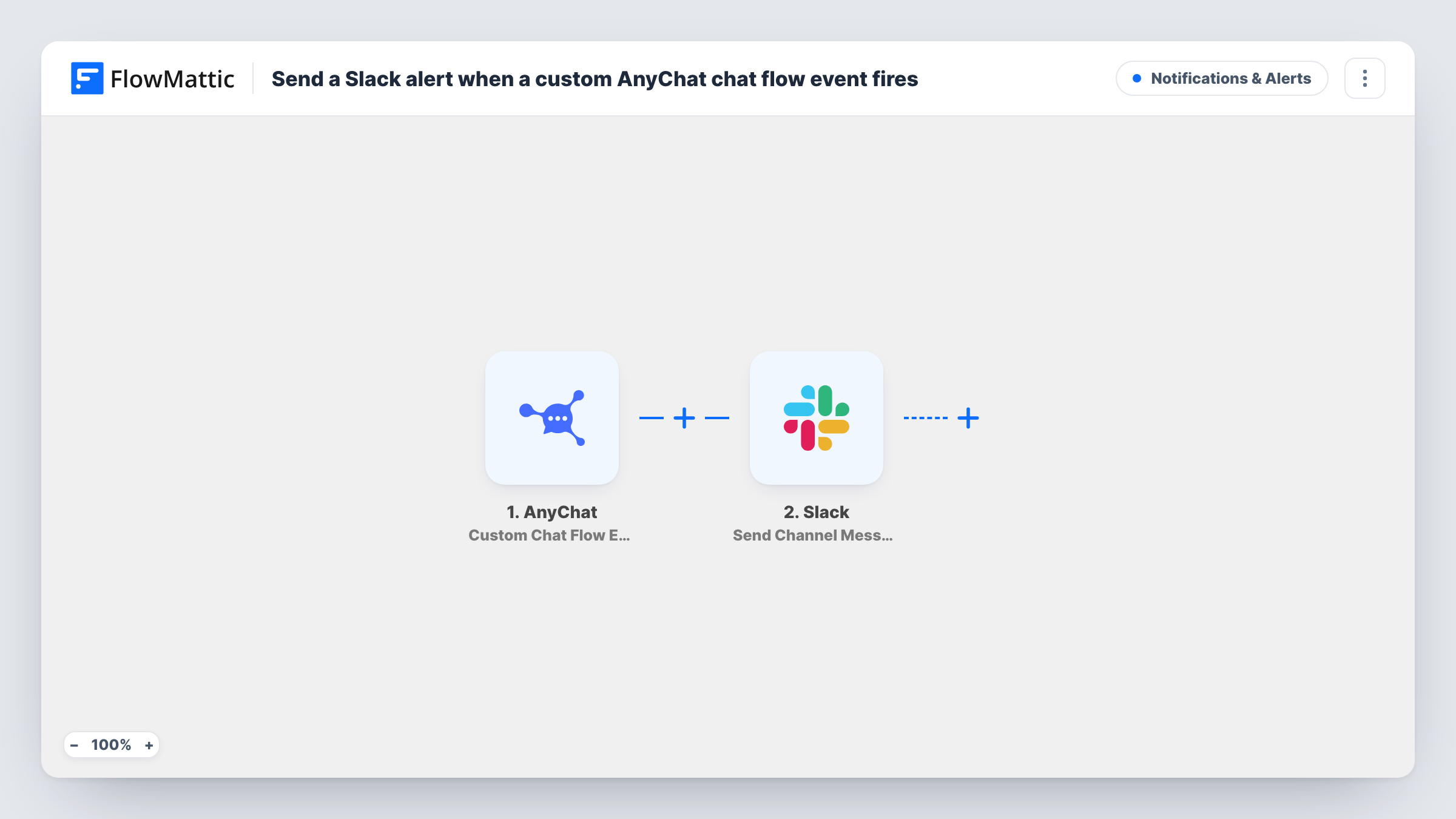
Whenever an AnyChat chat flow runs on your site, this workflow posts a message in the Slack channel you pick, with the chat values you map, so your team knows a visitor went through it.
 AnyChat
 Slack
2 steps Setup ~5 min Used on 2.4k sites Free to import
What this workflow does
Chat flows in AnyChat can ask visitors questions, collect their details and point them to the right place. When a visitor goes through one, your team may want to know straight away, but nobody wants to sit watching the AnyChat dashboard. This workflow posts each chat flow event to Slack, where your team already reads messages.
The AnyChat trigger fires each time a chat flow is executed. FlowMattic receives the event data and passes it to Slack, where the Send Channel Message action posts to the channel you choose. You write the message and place the chat values you want your team to see inside it.
As imported, every chat flow run sends a message, whichever flow it was. If you run several flows and only care about one, add a Filter, as described in the tips. Task History shows every run with the data AnyChat sent.
Lead capture chat on a service site
A visitor answers your chat flow's questions about their project, and the sales channel in Slack gets a message with their answers.
Booking or callback requests
When a visitor finishes the chat flow that asks for a callback, the front desk channel sees the request and who made it.
Monitoring a new chat flow
While you test a new flow, a Slack message for each run shows you how often visitors go through it and what they enter.
How this workflow runs
What happens at each step once the workflow is on, and what you need before you import it.
 AnyChat Custom Chat Flow Event
Fires each time a chat flow runs in AnyChat. The event's data is passed on for use in the Slack message.
- Slack Send Channel Message
Posts a message to a Slack channel for each chat flow event. Connect Slack, pick the channel, and write the text with the AnyChat values mapped in.
What you need
- FlowMatticCore
- AnyChat AccountAccount
- Slack AccountAccount
After importing, map your own data. To keep the template universal, not every step is pre-filled. Open each step in the builder and connect your accounts and fields (channels, lists, sheets, recipients) before you switch the workflow on.
Make it yours
Changes worth making after you import it.
- Run your chat flow once yourself after import. FlowMattic captures the event, so you can see which AnyChat values are available to put in the message.
- If you have several chat flows, add a Filter after the trigger with a condition on a value that identifies the flow, so only the one you care about reaches Slack.
- Use a Router to post different chat flows to different Slack channels, giving each route a condition on one flow that no other route matches.
Questions about this workflow
Does every AnyChat chat flow trigger a Slack message?
Yes, as imported. The trigger fires whenever any chat flow runs. Add a Filter after it if you only want some flows posted.
Can the Slack message include what the visitor typed in the chat?
You can map any value AnyChat sends with the event. Run a test chat after import and check the trigger data to see which answers come through.
Can I post the AnyChat alert to a private Slack channel?
Slack only lets an app post where it has access, so connect an account that can post in that channel and test it once before relying on it.
More Notifications & Alerts workflows
Other ready-to-import templates from the same category.




Import this workflow into your WordPress site
Download the JSON, import it from the Workflows screen and connect your accounts. Every run stays on your server, with no per-task fees.
30-day money-back guarantee Unlimited workflows and runs Self-hosted