

Send a Slack alert when a new Aloware voicemail is saved
When Aloware saves a new voicemail, this workflow posts a message to a Slack channel with the caller and voicemail details you map, so your team sees it without opening the Aloware dashboard.
 Aloware
 Slack
2 steps Setup ~5 min Used on 670 sites Free to import
What this workflow does
A voicemail left on a business line usually means a caller who couldn't reach anyone. If it sits unheard in the phone system until someone thinks to check, the caller waits. This template puts each new voicemail in front of the team in Slack, where they already talk.
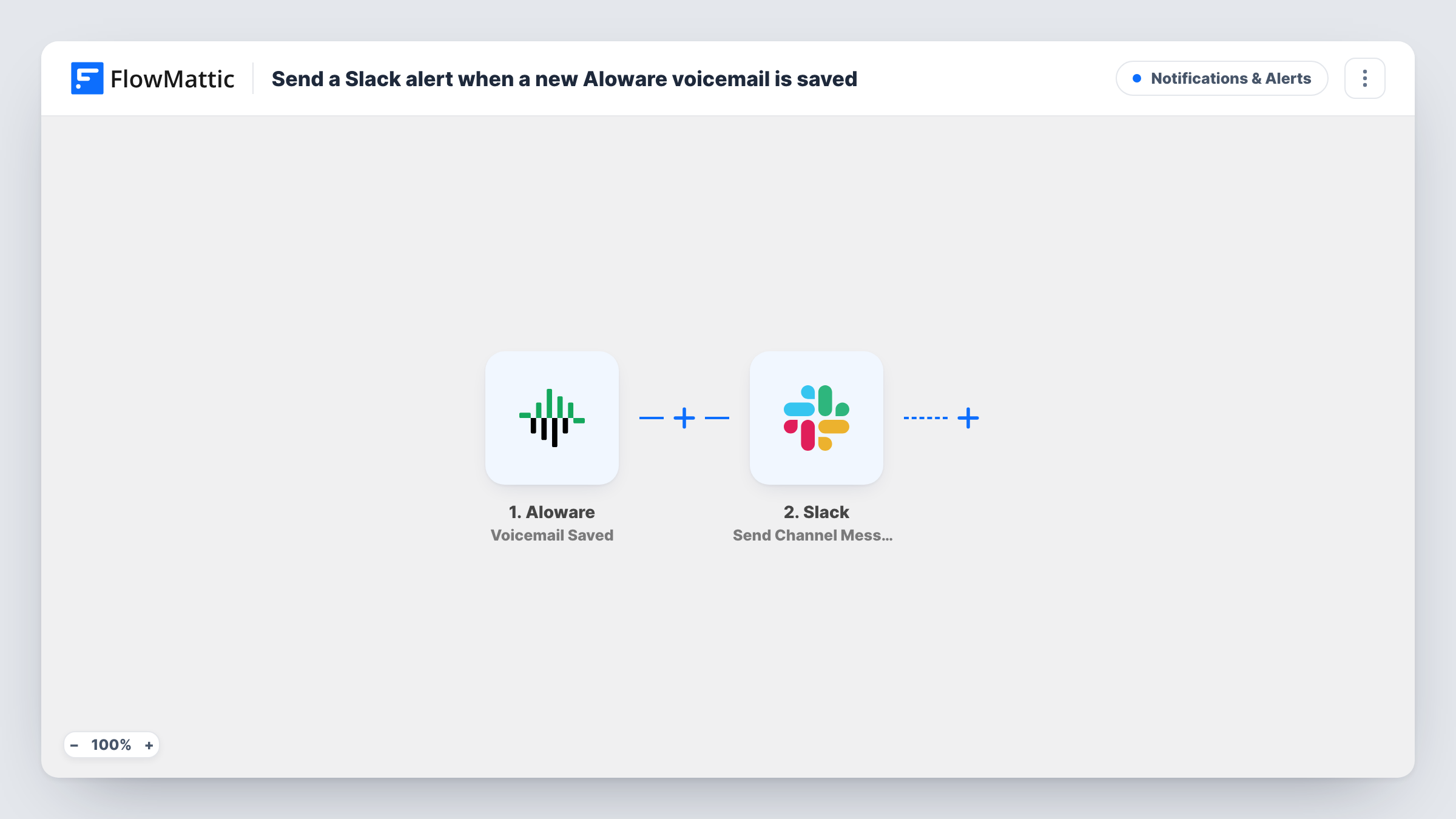
The Aloware trigger is Voicemail Saved, which fires when a voicemail is saved. The data Aloware sends with it, such as the caller's number, the line called or a recording link where present, becomes available to map. The Slack step uses Send Channel Message to post into the public channel you pick, with text you write around those values.
Each saved voicemail gives one Slack message, as nothing filters them. If your alerts need to go to a private channel, swap in Slack's Send Private Channel Message action, and if only one teammate handles voicemails, Send Direct Message reaches them alone. Task History lists every run with the Aloware data received, which helps you check what to include in the message.
Sales team callbacks
Voicemails left on the sales line post to a #sales-calls channel, where a rep replies in the thread to claim the callback.
After-hours support line
Overnight voicemails collect in a support channel, so the morning shift sees the full list as soon as they open Slack.
Small office with a shared number
A clinic or agency with one Aloware number posts every voicemail to a general channel so whoever is free can call back.
How this workflow runs
What happens at each step once the workflow is on, and what you need before you import it.
 Aloware Voicemail Saved
Fires when Aloware saves a voicemail. Details about the voicemail and the caller that Aloware sends are passed on for use in the Slack message.
- Slack Send Channel Message
Announces the voicemail in a Slack channel. Write the text and insert Aloware values such as the caller's number and the voicemail link, then connect your Slack workspace.
What you need
- FlowMatticCore
- Aloware AccountAccount
- Slack AccountAccount
After importing, map your own data. To keep the template universal, not every step is pre-filled. Open each step in the builder and connect your accounts and fields (channels, lists, sheets, recipients) before you switch the workflow on.
Make it yours
Changes worth making after you import it.
- Leave a test voicemail on your Aloware line after import so FlowMattic captures real data. You can then see whether a recording link or transcript is included before building the message.
- If you run several Aloware lines, add a Router with one route per line value and its own Slack step, so each team's voicemails go to its own channel.
- Start the Slack text with the caller's number in bold so people scanning the channel can tell at a glance who needs a callback.
Questions about this workflow
Can the Aloware voicemail alert go to a private Slack channel?
The imported Slack step targets standard channels. For a private channel, replace it with Slack's Send Private Channel Message action, or use Send Direct Message to alert one person.
Does the Slack message include the voicemail recording?
It includes whatever Aloware sends and you map. If the Voicemail Saved data carries a recording link, add it to the message text; check a test voicemail to see what arrives.
Will older Aloware voicemails be posted?
No. Only voicemails saved after the workflow is active trigger a Slack message.
Do I need admin rights in Slack?
You need to be able to connect FlowMattic to your Slack workspace and post in the target channel. Your workspace settings decide whether that needs an admin's approval.
More Notifications & Alerts workflows
Other ready-to-import templates from the same category.




Import this workflow into your WordPress site
Download the JSON, import it from the Workflows screen and connect your accounts. Every run stays on your server, with no per-task fees.
30-day money-back guarantee Unlimited workflows and runs Self-hosted