

Send a Slack alert when a new Clarityflow conversation is created
When a new conversation is created in Clarityflow, this workflow posts a message to the Slack channel you choose, so your coaching or client team hears about it without keeping Clarityflow open all day.
 Clarityflow
 Slack
2 steps Setup ~5 min Used on 1.7k sites Free to import
What this workflow does
Clarityflow is where your clients start conversations with you, but your team spends its day in Slack. A conversation that nobody notices can sit unanswered for hours. This workflow puts each new Clarityflow conversation in front of the people who should reply to it.
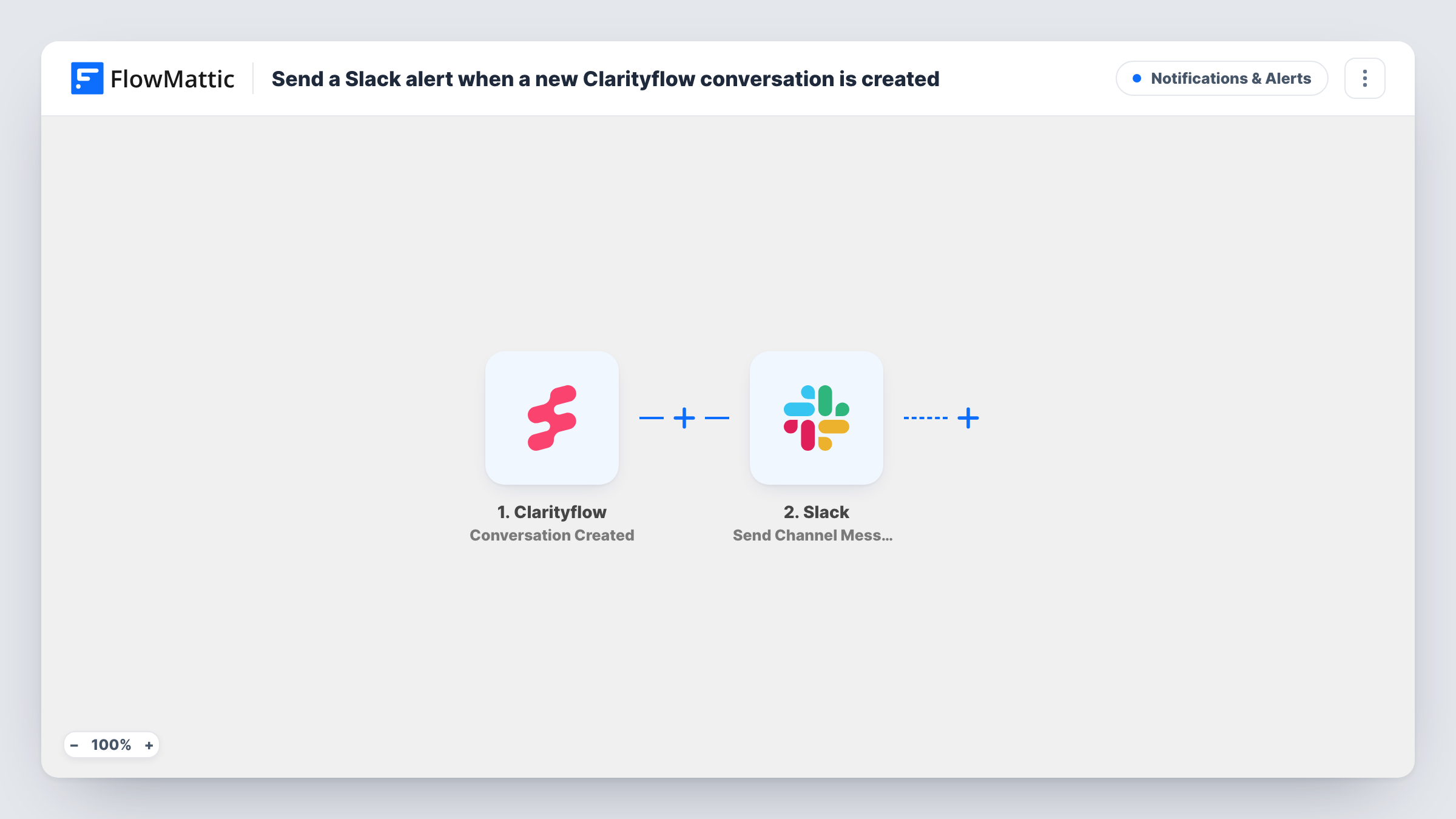
The Clarityflow trigger fires when a conversation is created. FlowMattic receives the conversation data from Clarityflow and makes it available for mapping. The Slack step then runs Send Channel Message, posting to the channel you pick with whatever text and conversation details you put in the message.
You write the Slack message yourself after import, so it can say as much or as little as you like, from a one-line heads-up to a summary built from the conversation fields. Every alert run is listed in Task History, along with the message that went to Slack.
A coaching practice with several coaches
New client conversations appear in a shared #clients channel, so the coach on duty sees them and can claim one in a thread.
Support for an online course
Students who open a Clarityflow conversation about the course trigger a post in your course team's channel, where an assistant picks it up.
Sales calls that begin as conversations
Prospects who start a conversation from your booking page show up in a #sales channel the moment Clarityflow creates it.
How this workflow runs
What happens at each step once the workflow is on, and what you need before you import it.
 Clarityflow Conversation Created
Runs whenever a conversation is created in your Clarityflow account. The conversation data Clarityflow sends becomes available to use in the Slack message.
- Slack Send Channel Message
Sends the alert to whichever Slack channel you set here. Connect your Slack workspace, write the message text, and insert conversation fields from the Clarityflow step wherever you want them.
What you need
- FlowMatticCore
- Clarityflow AccountAccount
- Slack AccountAccount
After importing, map your own data. To keep the template universal, not every step is pre-filled. Open each step in the builder and connect your accounts and fields (channels, lists, sheets, recipients) before you switch the workflow on.
Make it yours
Changes worth making after you import it.
- Create a test conversation in Clarityflow after import so FlowMattic captures real data, then build the Slack message from those fields and check how the post looks.
- Only want alerts for some conversations? Add a Filter between the trigger and Slack, and base its condition on a field you see in the captured Clarityflow data.
- Add a Google Sheets step after Slack that logs each new conversation in a row, giving you a running list you can review at the end of the week.
Questions about this workflow
Does the Slack alert fire for replies inside an existing Clarityflow conversation?
No. The trigger is Conversation Created, so it runs when a new conversation starts. Replies within that conversation do not start the workflow.
Which Slack channel receives the Clarityflow alert?
The one you choose in the Send Channel Message step after connecting Slack. To alert two channels, add a second Slack step after the first with its own channel and message.
Can the Slack post include details from the Clarityflow conversation?
Yes. You compose the message in the Slack step, and any field the Clarityflow trigger captured can be inserted into it. The template does not fix the wording for you.
Are Clarityflow conversations from before the import posted to Slack?
No. The trigger reacts to conversations created after you turn the workflow on. Existing conversations are not sent.
More Notifications & Alerts workflows
Other ready-to-import templates from the same category.




Import this workflow into your WordPress site
Download the JSON, import it from the Workflows screen and connect your accounts. Every run stays on your server, with no per-task fees.
30-day money-back guarantee Unlimited workflows and runs Self-hosted