

Send a Slack alert when a new Lead Prosper lead arrives
Every lead captured through a Lead Prosper campaign is announced in the Slack channel you pick, with the lead’s details in the message, so your team sees new leads in the place they already talk.
 Lead Prosper
 Slack
2 steps Setup ~5 min Used on 989 sites Free to import
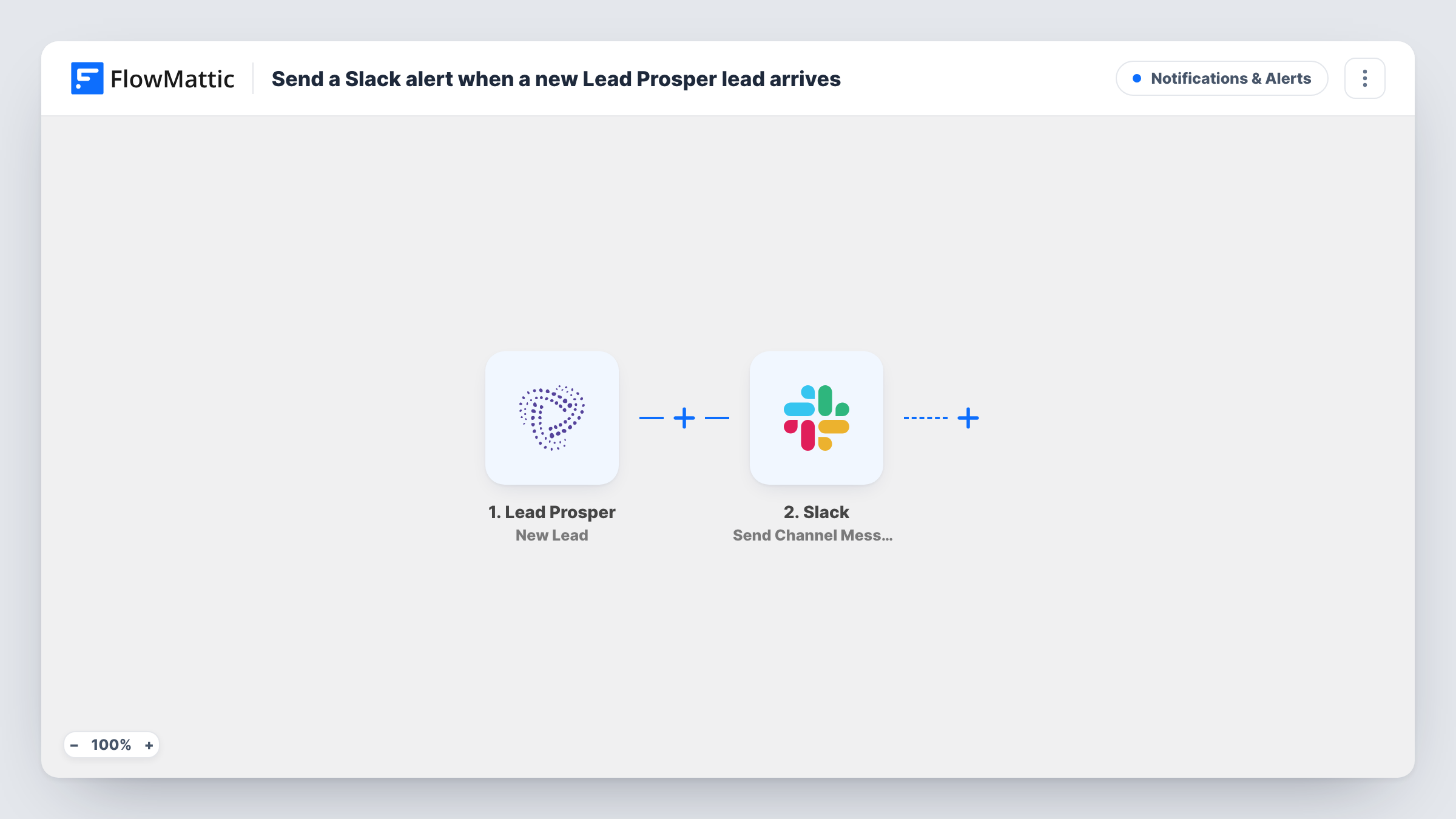
What this workflow does
Lead Prosper collects and routes leads from your campaigns, but the people who call or email those leads are usually working in Slack. Checking the Lead Prosper dashboard all day just to spot new arrivals takes attention away from the follow-up itself. This workflow brings each new lead into a Slack channel instead.
A run starts with the Lead Prosper New Lead trigger, each time one of your campaigns takes in a lead. The lead data is then available for mapping. The Slack step posts to the public channel you choose with Send Channel Message, using a message you write and fill with lead fields such as the name, phone, email or campaign, depending on what a test lead shows.
As shipped, the template posts once for every lead from every campaign. A Filter can narrow that to particular campaigns or sources. The lead stays as it is in Lead Prosper, since nothing here writes back to it. Each post and Slack's reply appear in Task History.
Lead buyers watching campaign traffic
A team buying leads in several verticals sees each new lead in one channel and spots quickly when a campaign starts sending more.
Call center floor with a shared channel
Agents keep the channel open on a second screen, and the next free agent picks up each lead posted from Lead Prosper.
Agency reporting to a client channel
An agency running lead generation for a client posts each new lead into a public channel the client has been invited to read.
How this workflow runs
What happens at each step once the workflow is on, and what you need before you import it.
 Lead Prosper New Lead
Starts whenever any of your Lead Prosper campaigns captures a lead. The lead's fields are passed on for the Slack message.
- Slack Send Channel Message
Sends a message to one public Slack channel. Write the alert, add the Lead Prosper fields you want shown, and connect your Slack workspace after import.
What you need
- FlowMatticCore
- Lead Prosper AccountAccount
- Slack AccountAccount
After importing, map your own data. To keep the template universal, not every step is pre-filled. Open each step in the builder and connect your accounts and fields (channels, lists, sheets, recipients) before you switch the workflow on.
Make it yours
Changes worth making after you import it.
- Use a Router after the trigger with one route per campaign, each posting to a different Slack channel, so each team sees only its own leads.
- If the alerts belong in a private channel, replace the step with Slack's Send Private Channel Message action; Send Direct Message suits a single buyer or agent.
- Send a test lead through a Lead Prosper campaign after import so FlowMattic captures the field names you'll put in the message.
Questions about this workflow
Does every Lead Prosper campaign post to the same Slack channel?
Yes, as imported. All new leads go to the one channel you pick. Add a Filter or a Router on the campaign field to split them.
Can the Slack alert include the lead's phone number?
Yes, if Lead Prosper sends it with the lead. Run a test lead to see the fields, then map the phone number into the message.
Will this post leads Lead Prosper captured before I turned it on?
No. The trigger reacts to new captures, so leads from before you switched the workflow on stay only in Lead Prosper.
More Notifications & Alerts workflows
Other ready-to-import templates from the same category.




Import this workflow into your WordPress site
Download the JSON, import it from the Workflows screen and connect your accounts. Every run stays on your server, with no per-task fees.
30-day money-back guarantee Unlimited workflows and runs Self-hosted