

Send a Slack alert when a new Marketo campaign activity is recorded
When Marketo sends campaign activity to FlowMattic’s webhook, this workflow posts a message about it in the Slack channel you choose, so your marketing team can see engagement without opening Marketo.
 Marketo
 Slack
2 steps Setup ~5 min Used on 988 sites Free to import
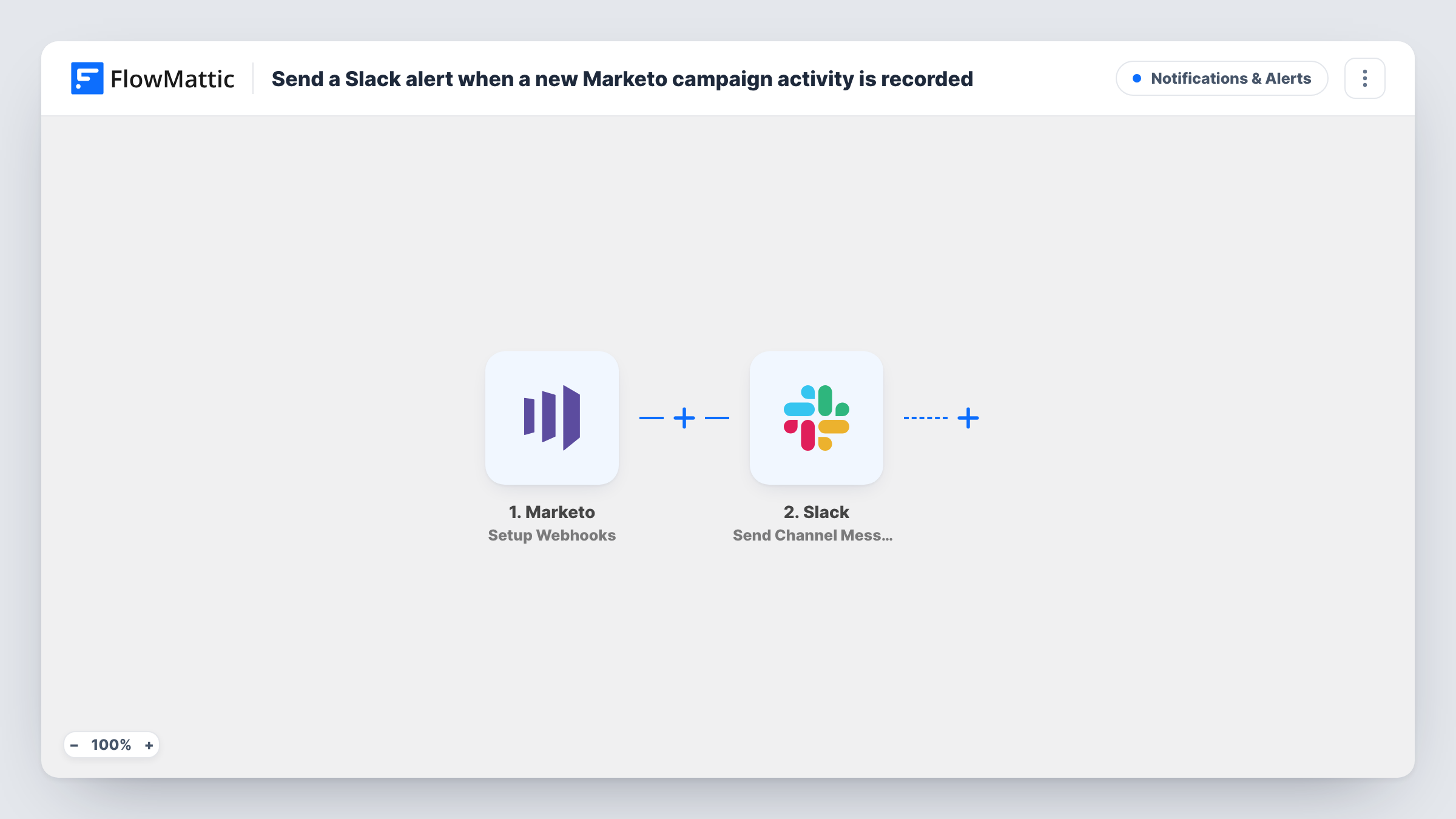
What this workflow does
Campaign activity in Marketo usually stays inside Marketo until someone runs a report. If your team talks in Slack, a short message in a shared channel puts that activity where people already look. This workflow passes each event Marketo sends to FlowMattic straight on to Slack.
The Marketo trigger is Setup Webhooks, which fires for the events you specify for Marketo to send to FlowMattic. You decide in Marketo which campaign activity goes out, so send only the activity you want alerts for. Whatever data Marketo includes in that call becomes available to map in the next step.
The Slack step uses Send Channel Message to post in the channel you pick. You write the message text and drop in values from the Marketo data, such as a lead name or campaign name if Marketo sends them. Each run shows up in Task History, so you can check what Marketo sent and what reached Slack.
Alert sales when a lead fills a campaign form
Have Marketo call the webhook when a lead completes a campaign form, and the sales channel in Slack gets a message naming the lead and the campaign.
Watch a product launch campaign
During a launch, point the launch campaign's activity at the webhook so the marketing channel shows each response as Marketo records it.
Keep a webinar team informed
Send webinar registration activity from Marketo to the webhook, and the event team sees each sign-up in their Slack channel.
How this workflow runs
What happens at each step once the workflow is on, and what you need before you import it.
 Marketo Setup Webhooks
Receives the webhook calls Marketo makes for the events you specify. It fires once per call, and the data in that call is passed on for mapping. Send a test call from Marketo first so the fields appear.
- Slack Send Channel Message
Sends the Marketo alert to whichever Slack channel you select. Compose the text and map in values from the Marketo data. A private channel needs Slack's Send Private Channel Message action in its place.
What you need
- FlowMatticCore
- Marketo AccountAccount
- Slack AccountAccount
After importing, map your own data. To keep the template universal, not every step is pre-filled. Open each step in the builder and connect your accounts and fields (channels, lists, sheets, recipients) before you switch the workflow on.
Make it yours
Changes worth making after you import it.
- Set Marketo to call the webhook only for the campaign activity you care about. Every call it sends starts a run and a Slack message, so a broad setup means a busy channel.
- Add a Filter after the trigger if Marketo sends more than one kind of activity, and continue only when a field in the payload matches the campaign or activity type you want.
- Want one person told instead of a channel? Swap the step for Slack's Send Direct Message action and pick the team member who should hear about it.
Questions about this workflow
Which Marketo activity starts this workflow?
Whatever you set Marketo to send to FlowMattic. The trigger fires for the events Marketo calls it with, so choose campaign activity there and leave other events out.
What details can the Slack message include?
Only what Marketo puts in the webhook call. Run a test from Marketo, then look at the captured fields in FlowMattic to see which values you can map into the message.
Can the Marketo alert post to a private Slack channel?
Send Channel Message is meant for a regular channel. For a private one, replace the step with Slack's Send Private Channel Message action and pick that channel.
Does Marketo stop recording the activity once it goes to Slack?
No. The workflow only receives what Marketo sends and posts a message. Nothing is changed in Marketo, so the activity stays in its records as usual.
More Notifications & Alerts workflows
Other ready-to-import templates from the same category.




Import this workflow into your WordPress site
Download the JSON, import it from the Workflows screen and connect your accounts. Every run stays on your server, with no per-task fees.
30-day money-back guarantee Unlimited workflows and runs Self-hosted