

Send a Slack alert when Callyzer reports a new call event
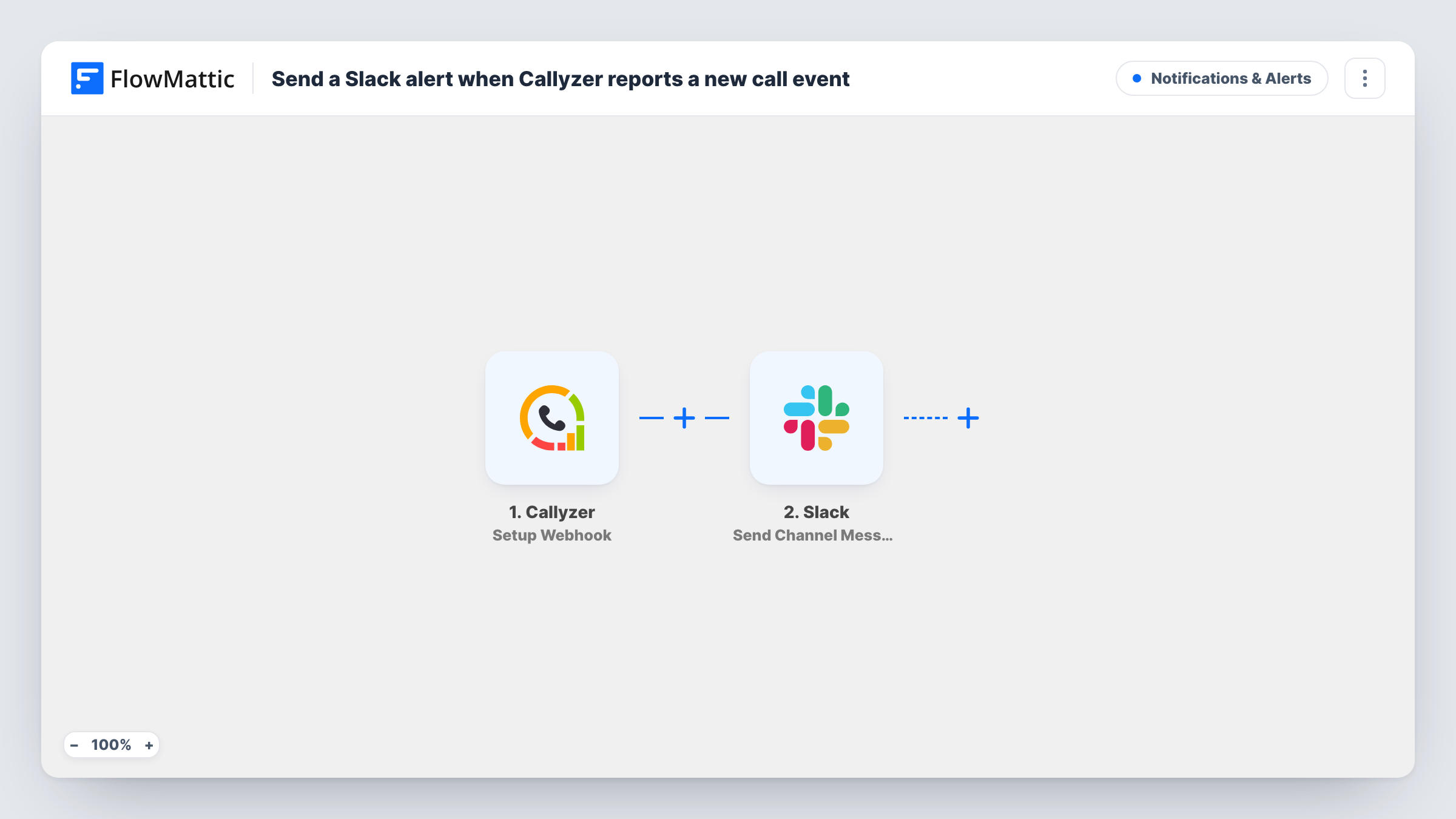
Each time Callyzer sends a call event to FlowMattic, this workflow posts a message about it to the Slack channel you pick, so your team sees call activity where they already talk.
 Callyzer
 Slack
2 steps Setup ~5 min Used on 3.3k sites Free to import
What this workflow does
Callyzer logs the calls your team makes and takes on their phones. Managers who want to know about those calls as they happen usually have to open the Callyzer dashboard and look. This workflow brings each call event into Slack instead, where a sales lead or support manager can read it next to the rest of the team's conversation.
The Callyzer trigger uses Setup Webhook: FlowMattic gives you a webhook URL, you add it in Callyzer, and every event Callyzer posts there starts a run. The call data in that event becomes available to map. The Slack step then uses Send Channel Message to post a message to the channel you choose, built from whichever call details you place in the text.
Which events reach FlowMattic depends on what you set up on the Callyzer side, so send a test call after import and check Task History to see the data that arrives. Nothing in the template sorts or drops events, so each one Callyzer sends becomes its own Slack message.
Call feed for a field sales team
Reps call prospects from their phones, and the sales manager follows each logged call in a #calls channel without opening Callyzer.
Support line visibility
Calls handled by the support team show up in a shared Slack channel, so a lead can see who picked up which caller during a busy shift.
Spotting missed calls quickly
If Callyzer sends missed-call events to the webhook, they land in Slack next to answered ones, and someone can call the person back.
How this workflow runs
What happens at each step once the workflow is on, and what you need before you import it.
 Callyzer Setup Webhook
Starts a run each time Callyzer posts an event to the webhook URL FlowMattic gives you. Add that URL in Callyzer, then make a test call so FlowMattic captures the call data for mapping.
- Slack Send Channel Message
Sends one Slack post per Callyzer event to a #channel of your choice. Connect your Slack workspace, choose the channel, and write the message text using call details from the Callyzer event.
What you need
- FlowMatticCore
- Callyzer AccountAccount
- Slack AccountAccount
After importing, map your own data. To keep the template universal, not every step is pre-filled. Open each step in the builder and connect your accounts and fields (channels, lists, sheets, recipients) before you switch the workflow on.
Make it yours
Changes worth making after you import it.
- Only want certain calls in Slack, such as missed ones? Add a Filter after the trigger on a field Callyzer sends, such as a call type, if your test run shows one, and match the exact value it carries.
- If the call channel is private, replace this step with Slack's Send Private Channel Message. To alert one manager instead, use Send Direct Message.
- Keep the message to the few call details your team acts on. One short line per call reads better in a busy channel than every field Callyzer sends.
Questions about this workflow
Which Callyzer events will post to Slack?
Every event Callyzer sends to the FlowMattic webhook URL. The template has no Filter, so each event becomes a message. Check a test run in Task History to see what Callyzer includes.
Can the Slack message show the employee who made the call?
If Callyzer includes that detail in the event, you can map it into the message text. Run a test call after import to see which fields arrive.
Will past Callyzer calls be posted?
No. Runs start only when Callyzer sends an event after the webhook is in place, so earlier call logs are not sent to Slack.
More Notifications & Alerts workflows
Other ready-to-import templates from the same category.



Import this workflow into your WordPress site
Download the JSON, import it from the Workflows screen and connect your accounts. Every run stays on your server, with no per-task fees.
30-day money-back guarantee Unlimited workflows and runs Self-hosted