

Send a Slack alert when a new Vadootv video is created
Each new video created in Vadootv triggers a Slack post in the channel you choose, carrying the video details you add to the message, so your marketing team knows there is something new to review or share.
 Vadootv
 Slack
2 steps Setup ~5 min Used on 540 sites Free to import
What this workflow does
When several people make videos, the rest of the team often hears about a new one days later, if at all. Whoever writes the social posts or the newsletter needs to know it exists. This workflow tells them in Slack as soon as a video is created in Vadootv.
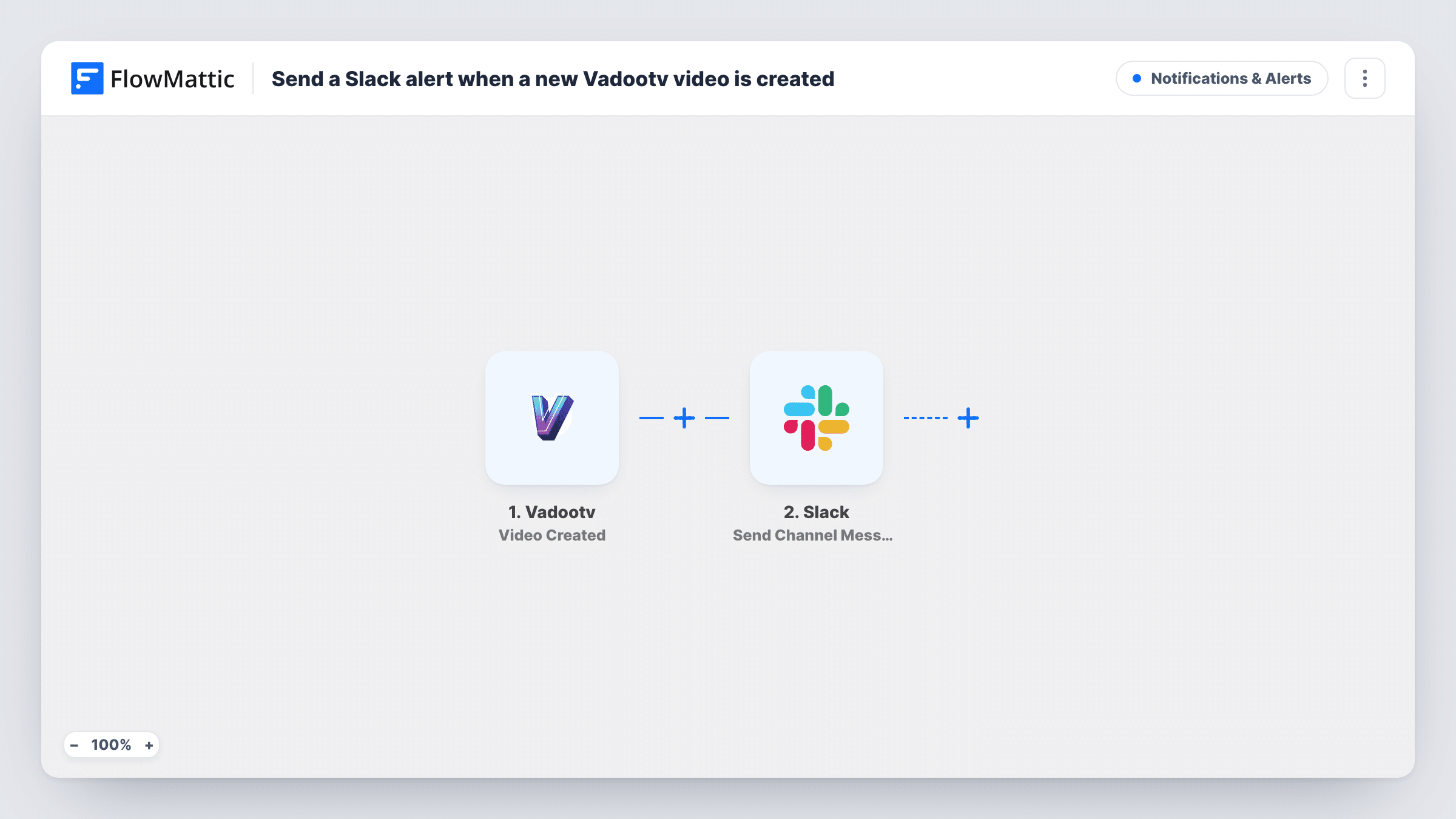
The Vadootv trigger runs on Video Created and gives FlowMattic the new video's details. The second step uses Send Channel Message in Slack to post in your team's channel.
There is no message text in the template yet. Create a test video after import, look at the fields Vadootv sent in Task History, and build the Slack post from them, for example the title and a link if one is provided. The trigger reacts when the video is created, so check whether that is before or after it is ready to watch in your account. Every new video gives one post.
Marketing team sharing new videos
The social media manager sees each new Vadootv video in the marketing channel and plans posts for it without asking the video team.
Review before publishing
A manager who signs off on videos gets a Slack post for each new one and can review it before it goes out to customers.
Sales enablement library
Sales reps follow a channel where every new product or demo video is announced, so they know what they can send to prospects.
How this workflow runs
What happens at each step once the workflow is on, and what you need before you import it.
 Vadootv Video Created
Runs when a video is created in your Vadootv account. The video's details become available to use in the Slack post.
- Slack Send Channel Message
Shares the news in a Slack channel of your choice. The text starts blank, so after a test video write the post using the Vadootv fields your team needs.
What you need
- FlowMatticCore
- Vadootv AccountAccount
- Slack AccountAccount
After importing, map your own data. To keep the template universal, not every step is pre-filled. Open each step in the builder and connect your accounts and fields (channels, lists, sheets, recipients) before you switch the workflow on.
Make it yours
Changes worth making after you import it.
- Add the video title near the start of the Slack text, so the notification preview tells people which video is new.
- Add a Filter after the trigger if only some videos should be announced, building the condition on a field you see in a test run.
- Add a Delay before the Slack step if your videos take time to finish processing after they are created, so the link works when people click it.
Questions about this workflow
Which Vadootv video details show in the Slack post?
The ones you place in the message after import. The template ships without text, so you choose them after a test video.
Will a Slack post go out for every new Vadootv video?
Yes, as imported. Each video created runs the workflow once. A Filter after the trigger can limit it.
Are videos created before I turn the workflow on announced in Slack?
No. Only videos created after the workflow is active reach the trigger.
Is the Vadootv video embedded in the Slack message?
The workflow posts the text you write. If Vadootv sends a link to the video, add it to the message so people can open the video from Slack.
More Notifications & Alerts workflows
Other ready-to-import templates from the same category.




Import this workflow into your WordPress site
Download the JSON, import it from the Workflows screen and connect your accounts. Every run stays on your server, with no per-task fees.
30-day money-back guarantee Unlimited workflows and runs Self-hosted