

Send a Slack message when a new Linear issue is created
Each time an issue is created in Linear, this workflow posts a message to a Slack channel you pick, with the issue details you map in, so the team hears about new work where they already talk.
 Linear
 Slack
2 steps Setup ~5 min Used on 1.6k sites Free to import
What this workflow does
New issues in Linear are easy to miss if you aren't looking at the right team view. Bug reports from support, requests from other teams and issues filed late in the day can sit unseen. This workflow announces each one in a Slack channel.
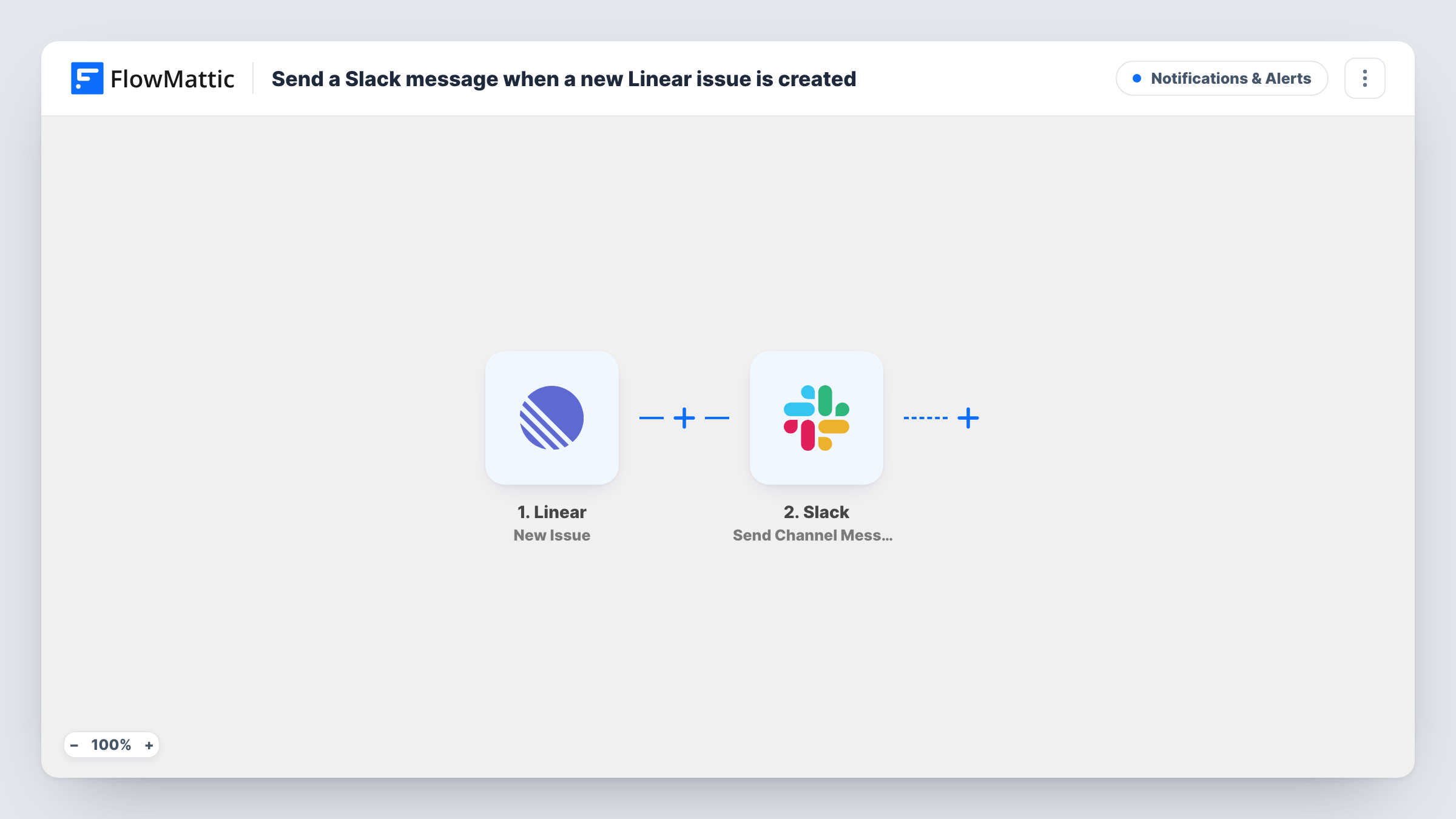
When an issue is created in Linear, the New Issue trigger starts a run and hands FlowMattic the issue's data. The workflow then calls Slack's Send Channel Message action to post in the channel you choose. You write the message yourself and drop in issue values such as the title, team, priority or link, depending on what the event carries.
Every new issue produces one Slack post, since nothing in the template narrows the trigger. Teams that file a lot of issues may want a Filter on team or priority; the tips explain how. Task History records each message the workflow sent.
Bug triage channel
Every issue created in Linear lands in a triage channel, where an engineer on rotation picks it up and assigns it.
Keeping support in the loop
Support agents file issues in Linear on behalf of customers. The Slack post shows the rest of the support team that the report is in.
A product manager's intake feed
A PM follows one Slack channel to see what the team is adding to Linear across the week, without opening each project.
How this workflow runs
What happens at each step once the workflow is on, and what you need before you import it.
 Linear New Issue
Starts a run whenever an issue is created in your Linear workspace. The new issue's details are passed on to build the Slack message.
- Slack Send Channel Message
Puts the new-issue announcement in whichever Slack channel this step names. Write the text and map Linear issue fields into it, then connect your Slack workspace when importing.
What you need
- FlowMatticCore
- Linear AccountAccount
- Slack AccountAccount
After importing, map your own data. To keep the template universal, not every step is pre-filled. Open each step in the builder and connect your accounts and fields (channels, lists, sheets, recipients) before you switch the workflow on.
Make it yours
Changes worth making after you import it.
- Create a throwaway issue in Linear after import so FlowMattic records the trigger fields, and check which ones you can use, such as a link back to the issue.
- To post only urgent work, add a Filter after the trigger on the issue's priority, using the value a test run shows for urgent issues.
- Use a Router with one route per Linear team, each posting to that team's Slack channel. Team names don't overlap, so each issue takes a single route.
Questions about this workflow
Does it post when a Linear issue is edited or moved?
No. The New Issue trigger fires when an issue is created. Changes to status, assignee or title afterwards don't start the workflow.
Will the Linear alert reach a private Slack channel?
Not with the step as shipped, which targets regular channels. For a private one, replace the step with Slack's Send Private Channel Message action.
Will issues from every Linear team be posted?
As imported, yes. Any new issue the trigger receives creates a message. Add a Filter on the team if you only want some of them.
Are Linear comments sent to Slack too?
No. Comments use Linear's separate Issue Comments trigger, which you can put in its own workflow.
More Notifications & Alerts workflows
Other ready-to-import templates from the same category.



Import this workflow into your WordPress site
Download the JSON, import it from the Workflows screen and connect your accounts. Every run stays on your server, with no per-task fees.
30-day money-back guarantee Unlimited workflows and runs Self-hosted